
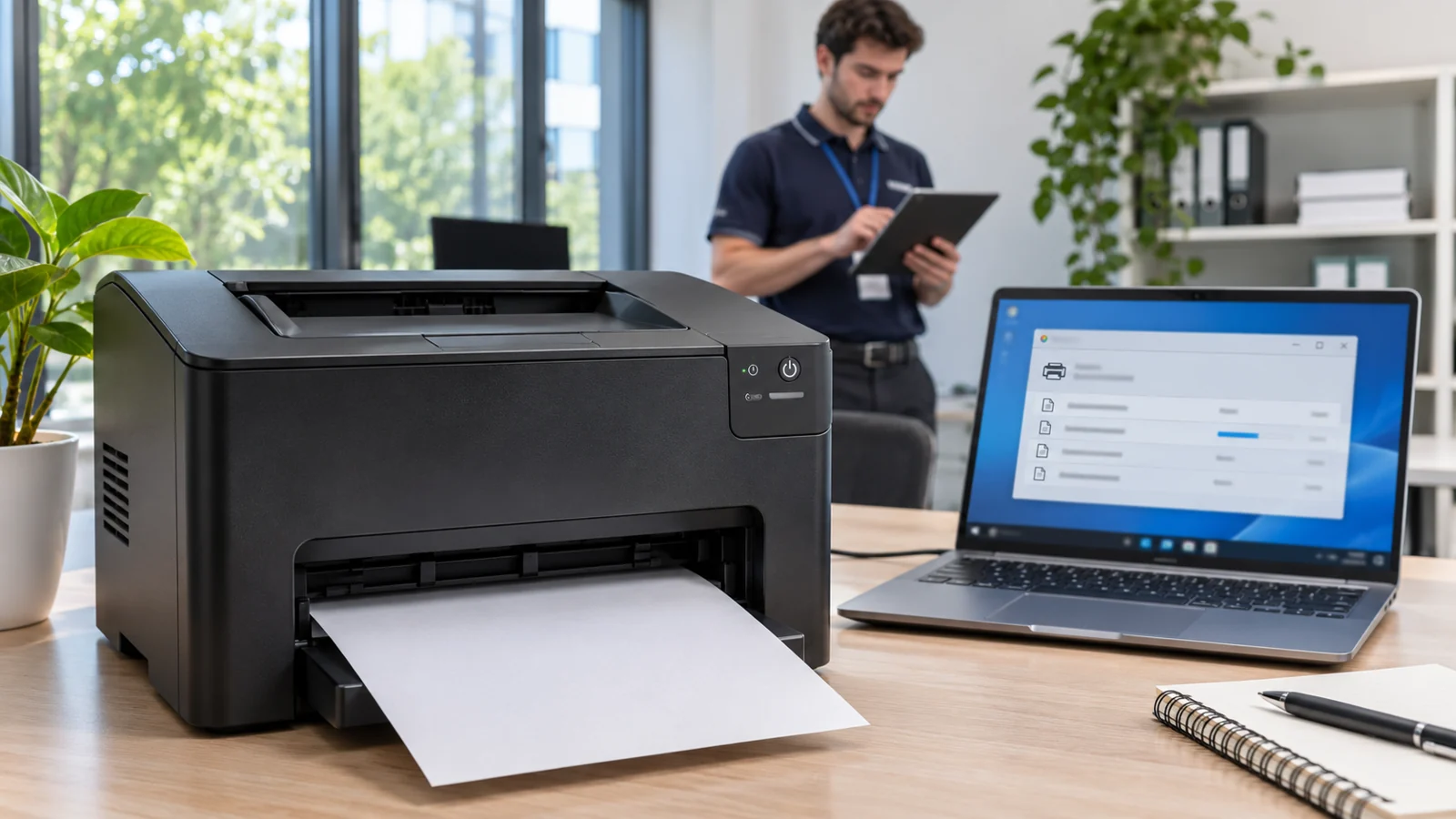
A job that remains in “Printing” is a reason to inspect the path before submitting more copies. Check the device, locate the queue that holds the job, and cancel only a verified task. Schedule a spooler restart only after understanding its effect on other queues.
Scope and preparation
These operational examples target Windows 11 with Windows PowerShell 5.1 and the PrintManagement module. Windows Server 2022/2025 shared queues belong to the print administrator. Users can generally manage their own jobs; other users’ tasks, services and some logs require authorized administrative access. The examples are based on Microsoft documentation and are not a report of a customer deployment.
Collect the printer model, connection method, queue name, failure time, submitting user and original document. Establish whether other users and other printers work. Redact personal document names and user details before sharing evidence.
1. Establish the failure boundary
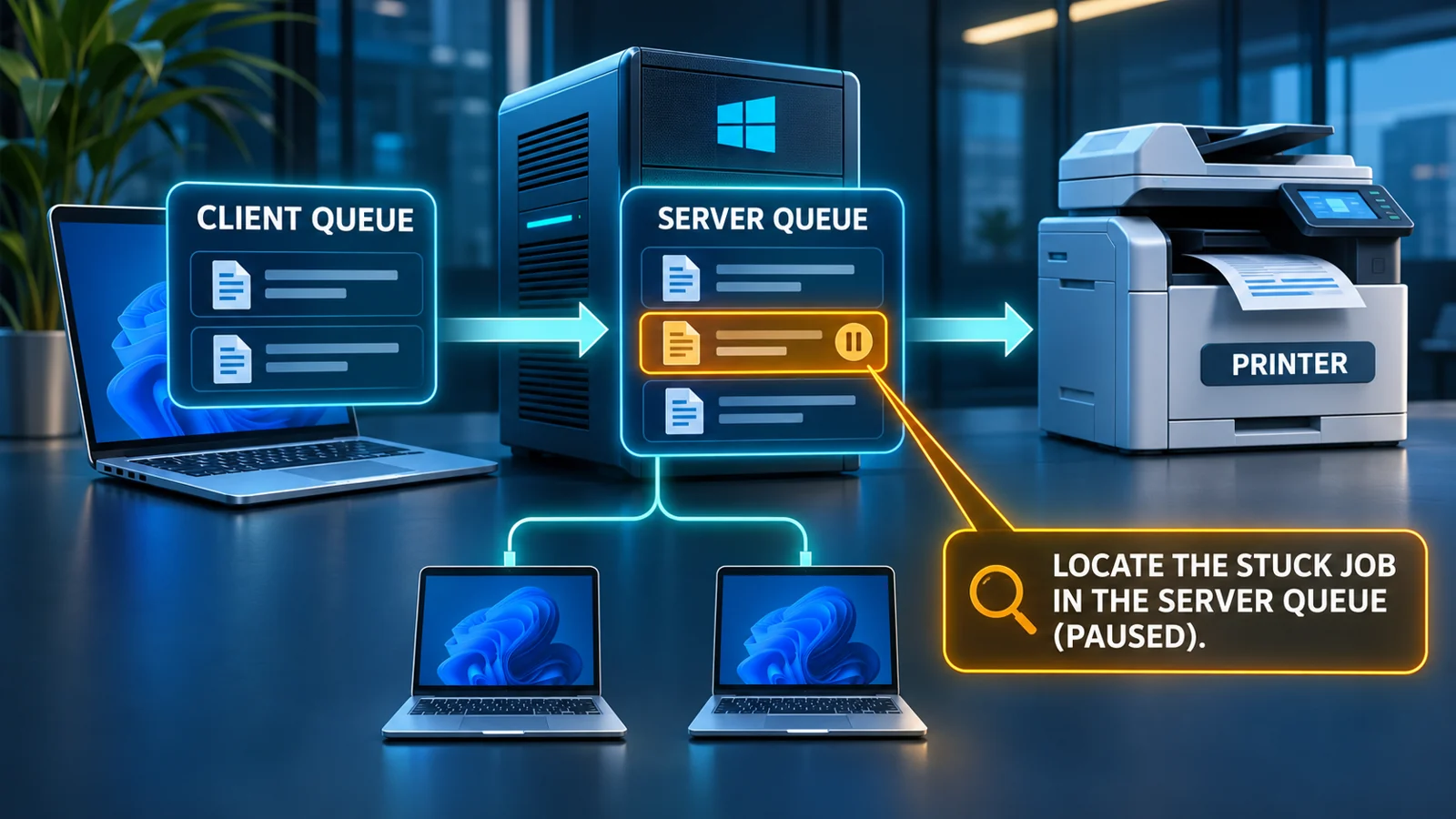
In Windows 11, open Settings → Bluetooth & devices → Printers & scanners → the target printer → Open print queue. Labels can vary by release. Check the application’s print dialog to verify the selected queue. Resolve paper, jam or manual-feed prompts at the printer first. If available, print a device self-test from its panel. A failing device self-test calls for device work before changing Windows.
| Observation | Next check |
|---|---|
| One application or document fails | Try one simple page from another application |
| All queues fail on one PC, other PCs work | Inspect that PC’s service and events |
| Multiple users fail on one shared queue | Ask the administrator to inspect its server and device |
| Job disappears but no page emerges | Check the physical output device, port and device logs |
Stop submitting repeated copies. Existing copies can all emerge when printing recovers.
2. Inspect without changing configuration
Check available commands and local service state. If the module is unavailable, use the queue interface and involve the administrator; do not download a replacement from an unknown website.
Get-Command -Module PrintManagement
Get-Service -Name Spooler
Get-Printer | Select-Object Name, Type, DriverName, PortName, PrinterStatus
Record whether the service is Running. That state does not establish that the driver, network or device works. Replace the example with the exact queue name and keep the following commands in the same PowerShell session:
$PrinterName = 'Office-Printer'
Get-Printer -Name $PrinterName | Format-List Name, Type, DriverName, PortName, PrinterStatus
Get-PrintJob -PrinterName $PrinterName | Format-List *
Record ID, DocumentName, UserName, SubmittedTime and JobStatus. An empty result means this queried queue currently has no jobs; the print server or device may still hold work. A client connection’s view is not the authoritative server view. The administrator should inspect the local shared queue on the actual print server, using that server’s queue name.
Command references: Get-Printer and Get-PrintJob.
3. Cancel one verified job
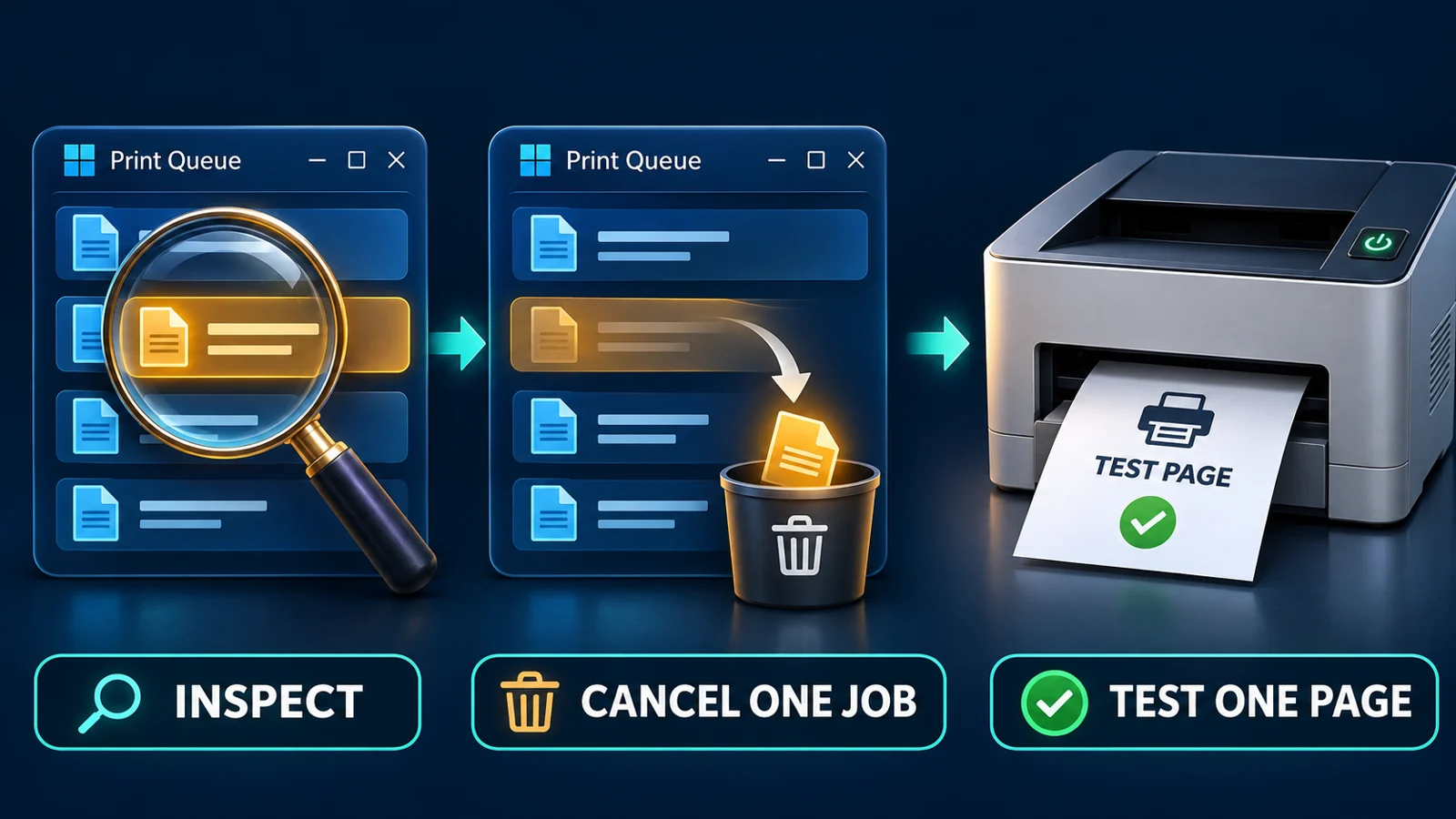
Agree the cancellation with the submitting user and retain the original file. Cancellation cannot retrieve pages already printed or reliably retract work already transferred to the device. Replace example ID 42 with the current job ID. Recheck its document, owner and submission time immediately before deletion because a later job may reuse an ID.
$JobId = 42
Get-PrintJob -PrinterName $PrinterName -ID $JobId | Format-List *
Only after verifying the target and authorization, run:
Remove-PrintJob -PrinterName $PrinterName -ID $JobId -Confirm
This deletes the selected job; it is not a read-only test. Decline the confirmation if the target is wrong. Inspect the queue again:
Get-PrintJob -PrinterName $PrinterName | Format-List *
If deletion remains pending, access is denied or the job reappears, stop repeating the command. Check for automatic application resubmission, a different queue or a server-side task. Do not pipe every job into deletion or clear the system spool directory by default. See Remove-PrintJob.
4. Collect service and event evidence
Record the failure time. First inspect whether the relevant logs exist and are enabled; these commands do not enable logs or change retention:
Get-WinEvent -ListLog 'Microsoft-Windows-PrintService/*' |
    Select-Object LogName, IsEnabled, RecordCount
Get-WinEvent -FilterHashtable @{
    LogName = 'Microsoft-Windows-PrintService/Admin'
    StartTime = (Get-Date).AddHours(-2)
} -MaxEvents 20 | Format-List TimeCreated, Id, LevelDisplayName, Message
Record an empty log, disabled channel or access error accurately. None excludes a driver or spooler fault. Correlate time, printer, driver and message, and redact document/user information before sharing. Repeated crashes need preserved evidence and targeted analysis, following Microsoft’s printing scenarios, rather than an endless restart cycle.
5. Coordinate before restarting the local service
An authorized administrator may consider the following only after confirming the current host, recording its queued work and coordinating with affected users. Restarting the local spooler affects every printing queue on that computer. On a shared print server it affects users of that server. This guide does not direct a remote server restart.
Restart-Service -Name Spooler -ErrorAction Stop
Get-Service -Name Spooler
Stop on dependency, access or startup errors; preserve the error rather than forcing the restart. There is no guaranteed undo that restores every queued task. This procedure changes no driver, port or security policy; changes to those settings need a separate plan and the original configuration. Inspect for duplicate pending work after recovery, then submit one test page.
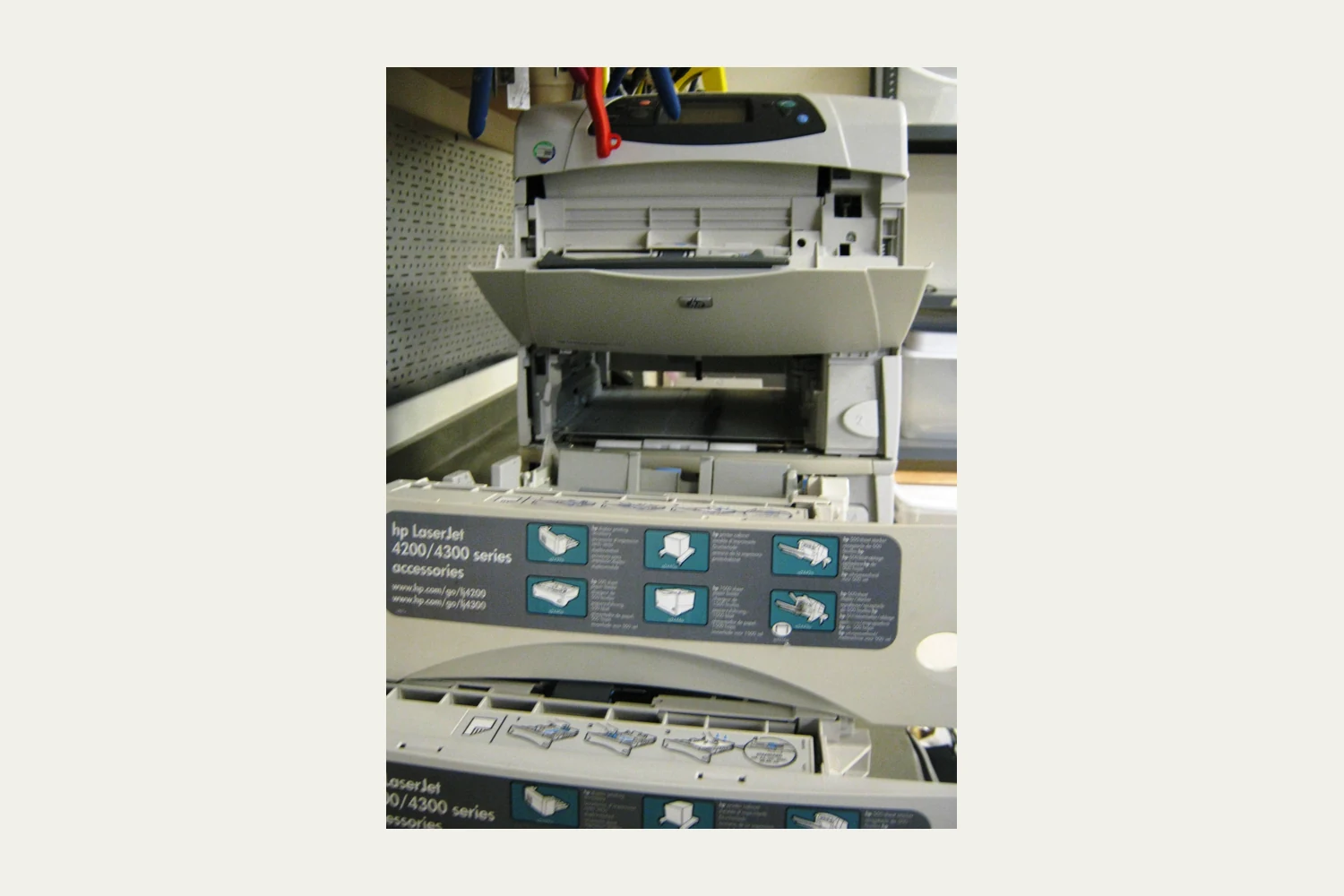
Photograph: Opersing2688 / Wikimedia Commons, CC BY-SA 3.0. HP LaserJet 4200n; converted to WebP with padding, not this article’s field site.
The photograph identifies the physical output endpoint; it does not establish model-specific compatibility.
Verification and handoff
Verify service state, the selected job’s outcome, a physically printed Windows test page, one page from the original application and absence of duplicates. Ask the original user to confirm. An empty queue, a successful command and printed output are distinct observations. A working test page alone does not establish that the original document now prints.
If unresolved, hand over the model, connection, client/server names, queue, driver, port, failure time, selected job ID, event messages and actions taken. Stop local trial-and-error for repeated crashes, multiple affected queues, sensitive bulk documents or uncertain host ownership. Do not disable firewalls, install unknown drivers or empty a server spool directory.
FAQ
Will restarting the PC always help?
No. A client restart does not necessarily remove work held by a shared server or printer. Locate the holding point first.
Can I recover a deleted job?
Recovery is not guaranteed. Resubmit from the original document only after checking whether some pages already printed.
Does a ping reply prove printing works?
No. Network response does not prove that the printing protocol, configured port or driver works. Inspect the actual port type. For network testing, see Windows TCP port connectivity troubleshooting; do not assume all printers use the same port.
Related solutions and reading
For shared printing issues requiring evidence from clients, servers and devices, contact Yuqi technical support with the affected queues and available maintenance window.
Related: Windows 169.254 APIPA troubleshooting and SMB share write-denied troubleshooting.