

The new help desk portal has an A record on the DNS server, but people in the office still get a name resolution error. Query the same fully qualified domain name and record type at three points: the correct authoritative server, the recursive resolver used by the affected endpoint, and the original client or app. The first point that disagrees tells you where to investigate.
NXDOMAIN means the queried name does not exist. When the name exists but the requested record type is missing, the response is generally NOERROR without the requested data, also called NODATA.
Gather the expected answer and the actual DNS path
Ask the application and DNS owners for the full name, expected IP, zone and DNS view, and the list of authoritative servers for that view. Record the change time, client subnet, VPN state, and actual recursive resolver. The examples use dig on macOS or Linux and a Windows 11 endpoint. The DNS Manager instructions apply to Windows Server 2016 through 2025. Substitute approved targets for the documentation addresses.
Full name             portal.example.com.
Record type           A
Authoritative DNS     192.0.2.53 and 192.0.2.54
Office recursive DNS  192.0.2.10
Expected address      192.0.2.80
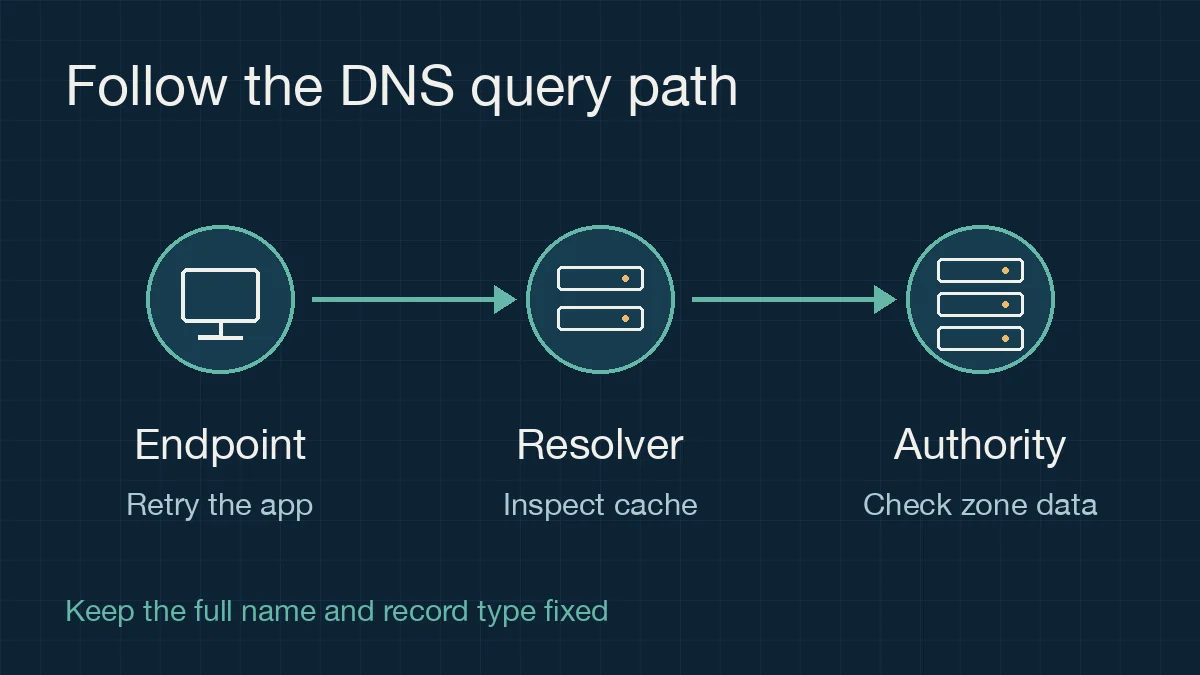
A recursive resolver caches lookup results. An authoritative server answers from zone data. With split DNS, the office and public networks may intentionally see different answers. The historical photograph shows equipment from the K-root instance at AMS-IX. Root servers supply the top-level referrals for public DNS. Use your organization’s DNS topology to identify the authority for a private zone.
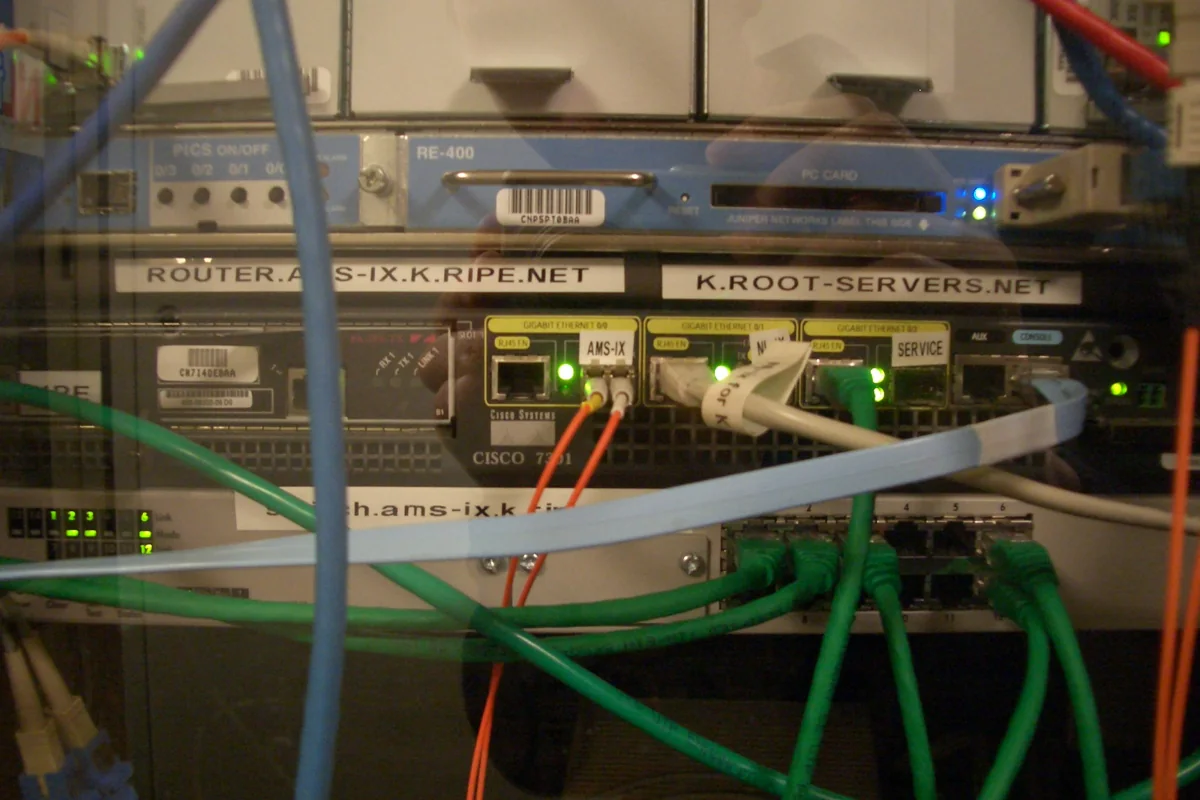
Photo by Bas van Schaik, CC BY-SA 3.0. Cropped and converted to WebP for this article under the same license. Public historical photograph.

1. Query each authoritative server
Run the queries from the correct office or VPN network. The final dot makes the name absolute. Keep the header, answer and authority sections visible.
dig @192.0.2.53 portal.example.com. A +norecurse +time=2 +tries=1
dig @192.0.2.54 portal.example.com. A +norecurse +time=2 +tries=1
Check that SERVER is the intended endpoint. Then inspect the status and the aa flag, which indicates an authoritative answer. Both servers should return NOERROR, aa, and the expected A address in ANSWER.
| What you see | What to check next |
|---|---|
| Both answers are authoritative and contain the expected address | Query the recursive resolver |
| One gives the address; the other gives authoritative NXDOMAIN | Compare zone replication and DNS views. Save both replies and SOA serials |
| Both give authoritative NXDOMAIN | Check the owner name, zone and view where the record was added |
| NOERROR, no A answer, and the zone SOA in the authority section | Check for NODATA, where the requested type is missing. Review aliases and other record types |
| No aa flag, a referral, REFUSED, or a timeout | Confirm the endpoint serves the zone and accepts queries from this network |
Standard DNS queries typically start on UDP port 53. If the first query times out, compare with TCP port 53 on the same approved server. Give the network administrator both results if TCP works and UDP times out. Two timeouts alone cannot locate the failure.
dig @192.0.2.53 portal.example.com. A +norecurse +tcp +time=2 +tries=1
dig @192.0.2.53 example.com. SOA +norecurse +time=2 +tries=1
dig @192.0.2.54 example.com. SOA +norecurse +time=2 +tries=1
In Windows DNS Manager, connect to the server responsible for the view, expand Forward Lookup Zones, and select the exact zone. Check the name, type, and data. If the approved change calls for creating a missing A record, right-click that zone, select New Host (A or AAAA), enter the host label and the approved IPv4 address, and select Add Host. Create an associated PTR only if the change covers the reverse zone. Verify the reply from the other server in the same view. The SOA serial helps track transfers on primary and secondary zones. For AD-integrated zones, also check AD replication and replication scope.
2. Query the resolver used by the affected endpoint
On Windows, record the DNS servers on the active adapter, including VPN adapters, and the connection suffix. Match the adapter by InterfaceAlias and read ConnectionSpecificSuffix. If the VPN has per-domain DNS routing, check which rule actually applies. Query each configured resolver separately.
Get-DnsClientServerAddress
Get-DnsClient
dig @192.0.2.10 portal.example.com. A +time=2 +tries=1
If the authorities return the correct address and the resolver still returns NXDOMAIN, inspect the zone owner and TTL of the SOA in the authority section. RFC 2308 derives the initial negative TTL from the smaller of the SOA record’s TTL and its MINIMUM field. The SOA TTL shown in a cached reply can give you an estimate of the remaining time on that resolver. Repeat the query against the same endpoint after several seconds. A falling TTL supports the cache diagnosis. Multiple backends, different views or a fresh upstream answer can change the value.
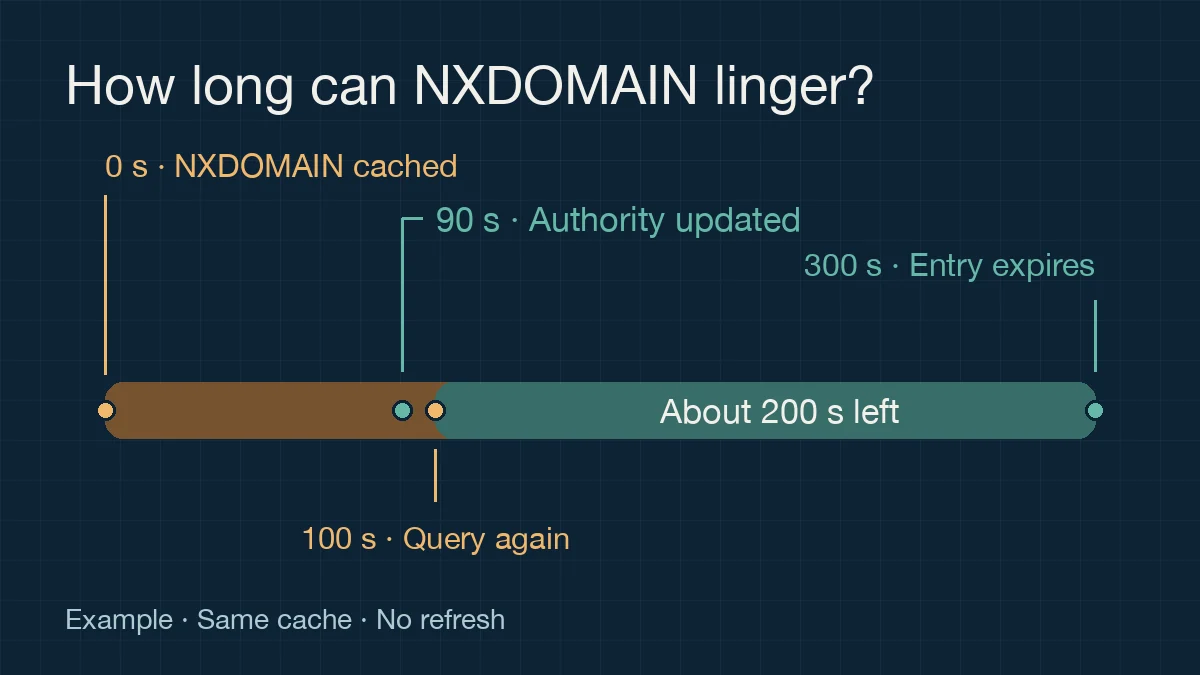
In this example the resolver caches a negative answer for 300 seconds at time zero. The authoritative update takes effect at 90 seconds. A lookup at 100 seconds can still return NXDOMAIN with about 200 seconds remaining, assuming the same cache and no refresh. Query again once the entry expires. Changing the new A record’s TTL leaves the cached negative answer’s lifetime unchanged.
If the symptom outlasts the observed TTL, check conditional forwarding, upstream answers and zone views along the actual resolver path. With source-based views, the resolver may reach a different authoritative view than the management workstation sees. For an urgent change, verify that the upstream on the actual resolver path already returns the new record, then ask the resolver owner to evict the affected name from that view’s cache if supported. Avoid a production-wide cache flush or switching the endpoint to public DNS during diagnosis. For SERVFAIL or timeout, check upstream availability, connectivity and DNSSEC validation where applicable.
3. Verify the endpoint and the original application
If the intended resolver is correct and the Windows endpoint still fails, clear the DNS client cache on the affected test machine after confirming the scope. This clears all Windows DNS client cache entries on that machine. Retry the original hostname and workflow in the app. If the app still fails, check the Hosts file, application caches, Secure DNS and proxy settings. A successful system lookup verifies the system path when the browser uses a separate one.
Clear-DnsClientCache
Resolve-DnsName -Name portal.example.com. -Type A -DnsOnly
Close the incident once the authorities in scope, the office resolver, and the affected endpoint return the expected data and the original workflow succeeds. Save the timestamps, query sources, replies, TTL observations and business result. If the change introduced the wrong address, restore the prior record or remove only the newly created erroneous record as specified in the change ticket. Verify each layer again and account for remaining cached answers after rollback.
Frequently asked questions
Why does it work on another computer already? It may use a different resolver, VPN rule or cache instance. Compare the actual resolver path before comparing replies.
What if the A record resolves but the site still fails? The reply confirms IPv4 name resolution for that query. Check any AAAA lookups, the destination port, proxy and TLS, and capture the layer where the workflow fails.
Should I restart DNS? A normal negative cache entry can expire on its own. For differing authoritative replies, investigate the zone data and replication first. Coordinate any service-level change with the DNS owner.
Sources and related reading
- RFC 2308 on negative answers and TTL · RFC 9520 on caching resolution failures
- ISC dig reference · Microsoft DNS record management · Windows DNS client troubleshooting
- Troubleshoot Windows domain time sync · Troubleshoot an SMB share that opens but denies writes
If your team needs help mapping office DNS, VPN resolution and change verification, contact Yuqi through the company site with sanitized query comparisons.