

An office PC reports a connected network, yet shared folders and business applications are unavailable. Identify the affected adapter before changing DNS or inventing a static address.
Direct answer: establish whether this is APIPA
A DHCP-enabled Windows adapter may use an Automatic Private IP Addressing (APIPA) link-local address when it cannot obtain valid DHCP configuration. A 169.254 address is a clue, not proof of a failed server: check whether it belongs to the active adapter and was assigned automatically. A manually configured address or an unused virtual adapter calls for a different investigation. Link-local connectivity does not replace the intended enterprise lease. Microsoft APIPA explanation.
This guide uses Windows 11, Windows PowerShell 5.1 and a Windows Server 2022 DHCP administration context. Commands are operating examples, not measurements from your network. Confirm vendor-specific switch and third-party DHCP procedures separately.
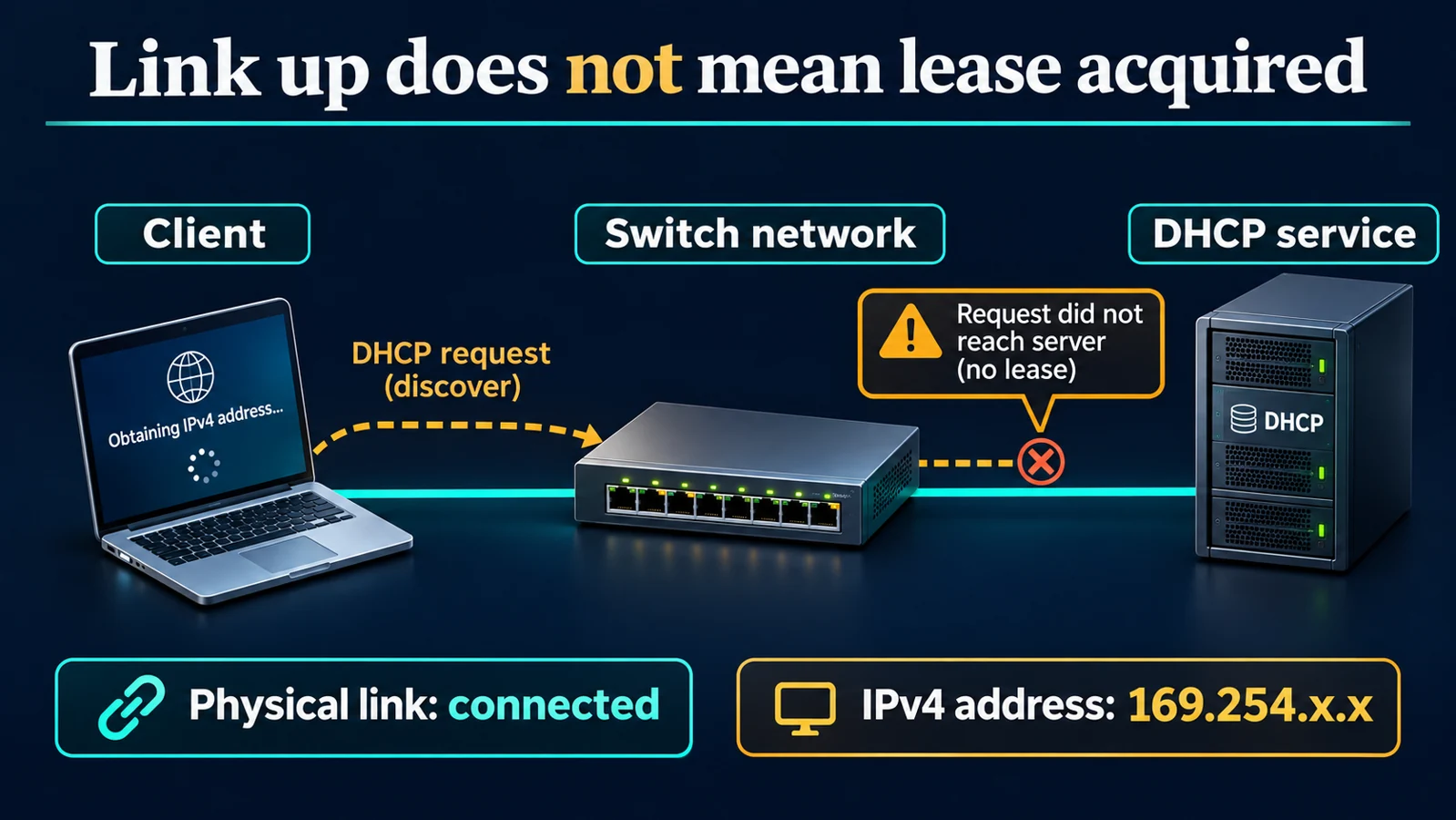
Figure 1 separates the client, access network and address service. Its dashed path illustrates one case where an initial Discover does not reach the server; it is not the only cause of APIPA and is not a packet trace.
Prepare a recovery path
Reading local configuration should not interrupt traffic. Renewing configuration, moving a cable or changing a VLAN may interrupt remote access. Obtain device and network administration permission; record the start time, affected users, adapter and switch port. If your session depends on that adapter, arrange an onsite contact or an out-of-band console before attempting changes.
Do not disable the entire firewall, delete leases, restart a shared DHCP server or modify switch ports in bulk. Configuration screenshots can expose hostnames, MAC addresses and internal addressing; keep them in an approved location.
Step 1: identify the adapter and preserve evidence
Open Windows PowerShell on the affected PC. These first two commands only read state. Separate the physical business connection from VPN and virtual interfaces.
Get-NetAdapter -IncludeHidden |
    Select-Object Name, InterfaceDescription, ifIndex, Status, MacAddress, LinkSpeed
Match the name and MAC address to the cable or wireless connection. Disconnected points first to link or association checks. Up establishes a link, not correct VLAN membership or successful DHCP. Get-NetAdapter reference.
ipconfig /all
In the target adapter section, record DHCP Enabled, IPv4 or Autoconfiguration IPv4 Address, mask, gateway, DHCP Server and lease times. Labels vary with system language. Compare against your approved network design rather than a sample output. ipconfig reference.
| Observation | Next action |
|---|---|
| Only an unused virtual adapter has a link-local address | Investigate the actual business adapter |
| DHCP is disabled on the target adapter | Check the addressing design and original configuration |
| Several newly connected PCs fail in one area | Escalate the shared path and DHCP scope |
| Only one PC fails on a known-good equivalent port | Compare the endpoint, authentication and access policy |
Step 2: read IPv4 assignment and service state
Replace Ethernet with the exact adapter name identified above, retaining quotation marks. This reads the interface configuration.
Get-NetIPInterface -InterfaceAlias "Ethernet" -AddressFamily IPv4 |
    Select-Object InterfaceAlias, InterfaceIndex, Dhcp, ConnectionState
Dhcp should be Enabled for this workflow. On Windows 11, inspect Settings → Network & internet → Ethernet → IP assignment, or the adapter's Internet Protocol Version 4 properties. Do not save changes over an intentional static configuration. Get-NetIPInterface reference.
Get-Service -Name Dhcp |
    Select-Object Name, Status, StartType
The DHCP Client service should be Running. If stopped, preserve the finding and ask the endpoint administrator to check policy and dependencies before changing it. Get-Service reference.
Step 3: isolate one access variable at a time
With permission, compare a known-good cable, an equivalent known-good port, or a test endpoint on the original port. Record the device, MAC, port and time for each comparison, then restore the original connection. Coordinate MAC restrictions, 802.1X and network access control first: a replacement device may legitimately receive different treatment.
Sharing a switch does not guarantee sharing a VLAN. For a remote DHCP server, the network administrator must verify the intended VLAN, uplink membership and relay/IP Helper destination. Copying a neighboring port's configuration may move the client into the wrong network.
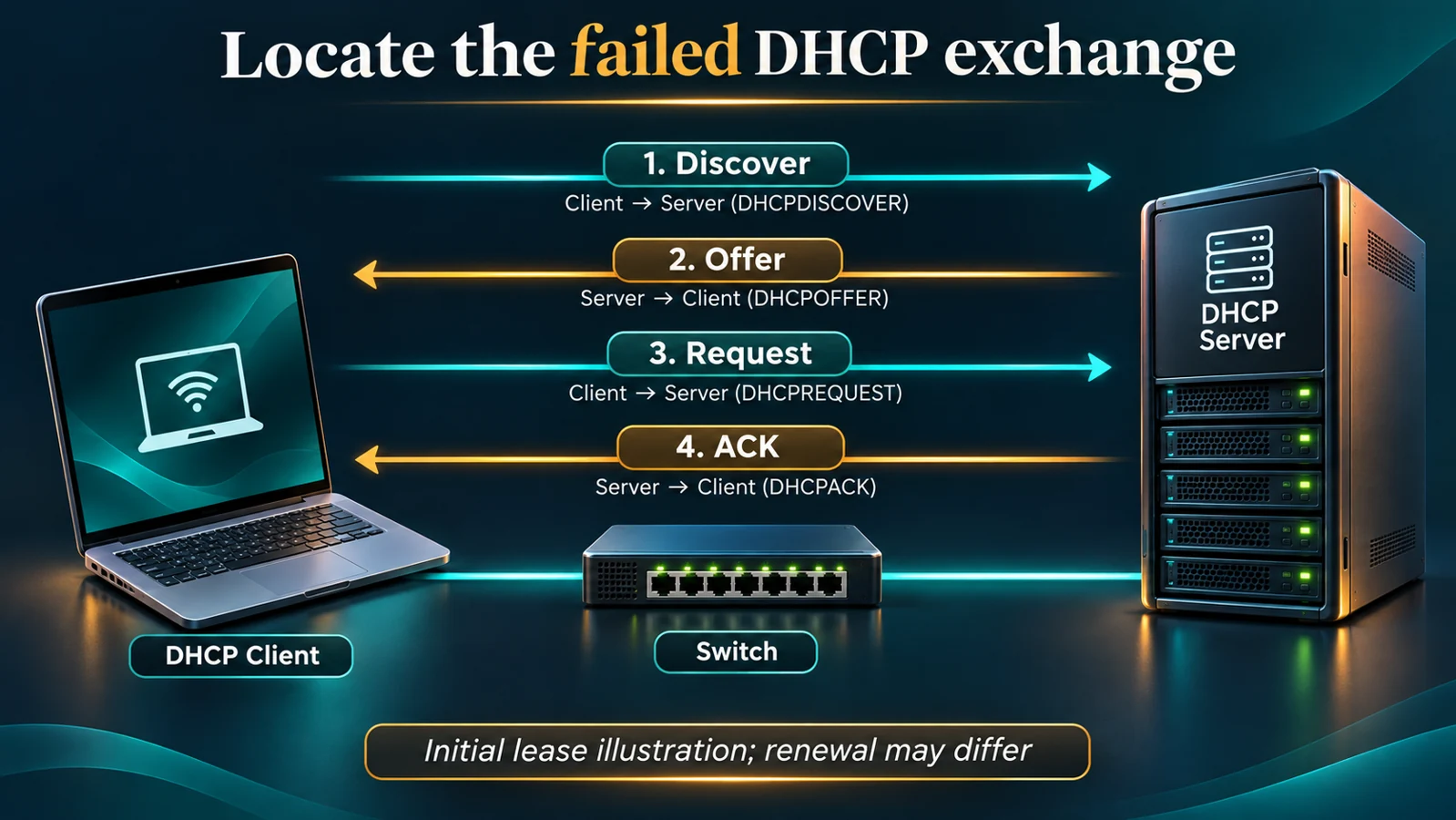
Figure 2 organizes the investigation; use configuration, logs and packet evidence to support each conclusion.
Step 4: retry only the named adapter when recovery is available
Save the original configuration and failure time first. With endpoint administration authorization, open PowerShell as administrator. The following command can reconfigure the interface and interrupt your session. Run it once locally or with an out-of-band recovery path. Do not target every adapter or release the existing configuration first.
ipconfig /renew "Ethernet"
Record the complete error and timestamp if the attempt times out. Avoid repeated retries. If the address changes, immediately compare the address, mask, gateway and DNS with the approved design. An address outside the link-local range alone is insufficient acceptance evidence. Adapter-specific renewal semantics.
Get-NetIPConfiguration -InterfaceAlias "Ethernet" -Detailed
This reports current interface configuration. Confirm the actual business application afterward. If a valid lease is restored but the application still fails, continue with routing, DNS or application-port diagnosis. Get-NetIPConfiguration reference.
Step 5: hand over correlated client and infrastructure evidence
In Event Viewer, inspect the DHCP Client Admin and Operational channels under Applications and Services Logs around the retry time. Channel display names vary; match interface identity and timestamp. Absence of an event is not proof of health. Ask the server administrator to inspect the corresponding IPv4 scope, activation, free capacity, leases, policies and service events. Microsoft client troubleshooting.
If required, arrange an approved maintenance window for simultaneous client and server capture. Match one attempt by timestamp, transaction ID and client identity. Initial allocation normally involves Discover, Offer, Request and ACK; renewal may use a shorter exchange. DHCP uses UDP 67/68, so a TCP port probe cannot establish DHCP availability. Across VLANs, inspect the relay boundaries as well. A missing Offer at the client does not prove the server never sent one. Microsoft DHCP communication guide.
| Correlated evidence | Investigation priority |
|---|---|
| Expected request absent at the client | Capture interface, local service and endpoint policy |
| Client sends; server does not see it | Access VLAN, relay, links and ACLs |
| Server receives but does not offer a usable lease | Capacity, policy, logs and client eligibility |
| Server responds; client does not receive it | Return path, relay and access security |
| Client receives ACK but configuration remains abnormal | Conflicts, client events, drivers and local configuration |
These are investigation directions, not guaranteed diagnoses. Keep captures in authorized storage and remove unrelated traffic from the handover.
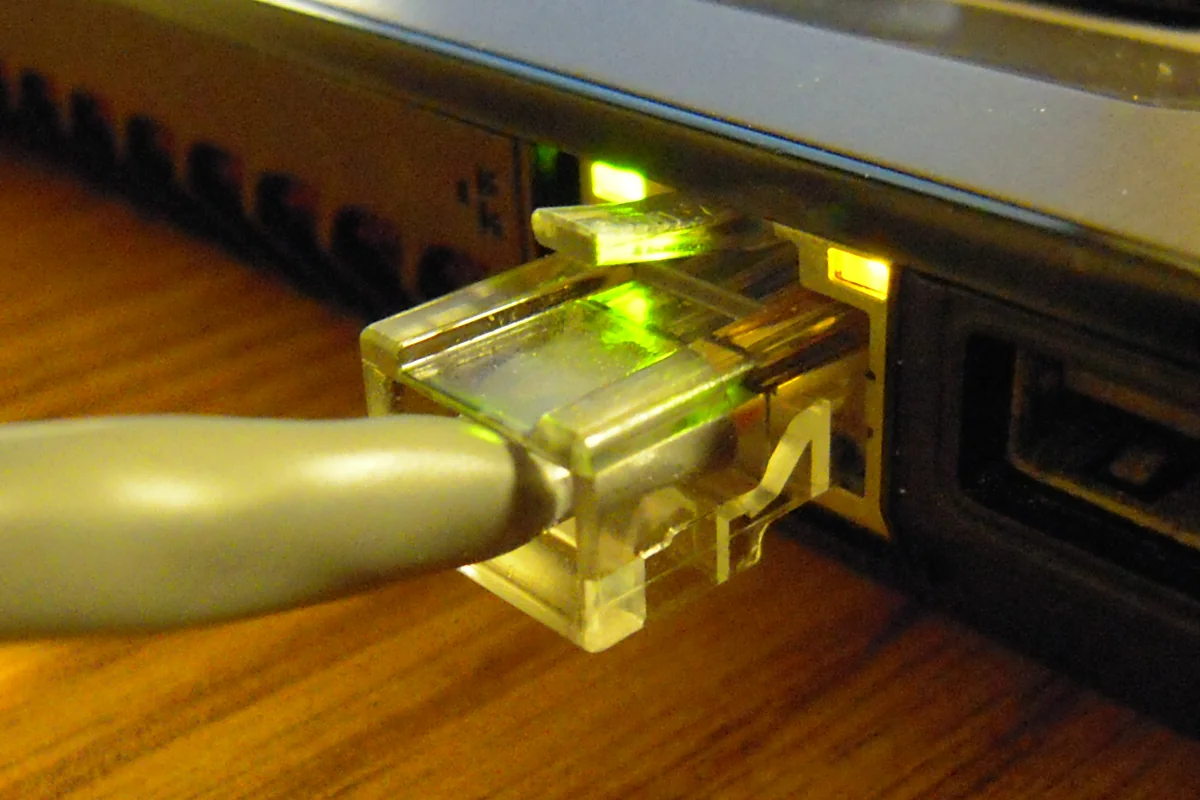
Figure 3: laptop Ethernet connection photograph by Someone’s Moving Castle / Wikimedia Commons, CC BY-SA 3.0. Cropped and compressed; not this article’s site. A physical connection photograph cannot prove that DHCP has issued a lease.

Acceptance, rollback and stop conditions
Record that the same adapter obtains the intended lease, gateway and DNS match the design, and the real application works. Have the onsite owner confirm reconnection remains healthy. Record the specific correction and retest time rather than “reboot fixed it.”
Read commands require no configuration rollback. Restore cables and ports after comparisons. Authorized VLAN, relay or scope changes must use the administrator's saved configuration. Renewal has no guaranteed undo that restores the previous lease; recovery depends on local or out-of-band access. Stop endpoint experimentation when the next action requires scope expansion, admission-policy changes, shared firewall changes or restarting DHCP.
FAQ
Will changing DNS fix this?
Establish a valid address and path first. Changing resolvers does not repair DHCP transport and may break internal name resolution.
Can I just assign a static address?
Only use an administrator-approved temporary address with verified availability, mask, gateway, DNS and lease exclusion, plus a rollback record. An arbitrary address can create conflicts or hide the fault. For an assigned address followed by duplicate-address symptoms, use the separate DHCP address-conflict guide.
Wi-Fi works but Ethernet fails. Is DHCP healthy?
That establishes only that a different path works. The connections may use different VLANs, scopes, relays and admission policies.
Official references and image credits
Linked Microsoft documentation supports the command semantics and protocol discussion. Examples do not claim onsite execution. Figures 1 and 2 are explanatory diagrams. Figure 3 credits and license are provided in its caption.
Related solutions and further reading
For coordinated endpoint, access-switch, relay and DHCP investigation, Yuqi technical support can help establish the scope and maintenance window.
Further reading: DNS negative caching after adding a record; Windows TCP port connectivity troubleshooting.