
If a Windows file share already has a suitable shadow copy, open the historical parent folder, copy the required file to a separate recovery location, inspect it, and obtain approval before replacing anything in the live share. If no pre-deletion version exists, enabling Shadow Copies now cannot recreate yesterday’s file; use your independent backup instead.
This GUI walkthrough describes a single Windows Server 2022 Desktop Experience file server with an NTFS data volume and a Windows 11 client. It uses planning and operation examples based on Microsoft documentation; it does not report a tested customer deployment. Allow a separate maintenance window for configuration and a controlled sample-file exercise.
1. Confirm the recovery method fits the problem
Shadow Copies of Shared Folders provides access to earlier file states through Previous Versions. It is configured for a volume, although the user normally browses a shared folder. It is separate from a workstation’s File History, a NAS snapshot feature, or a cloud document’s version history.
Microsoft’s current VSS overview covers Windows Server 2022. Its system provider uses copy-on-write: preserving original blocks allows Windows to reconstruct earlier states. The history still depends on the relevant original data and shadow storage, rather than being an independent offline archive.
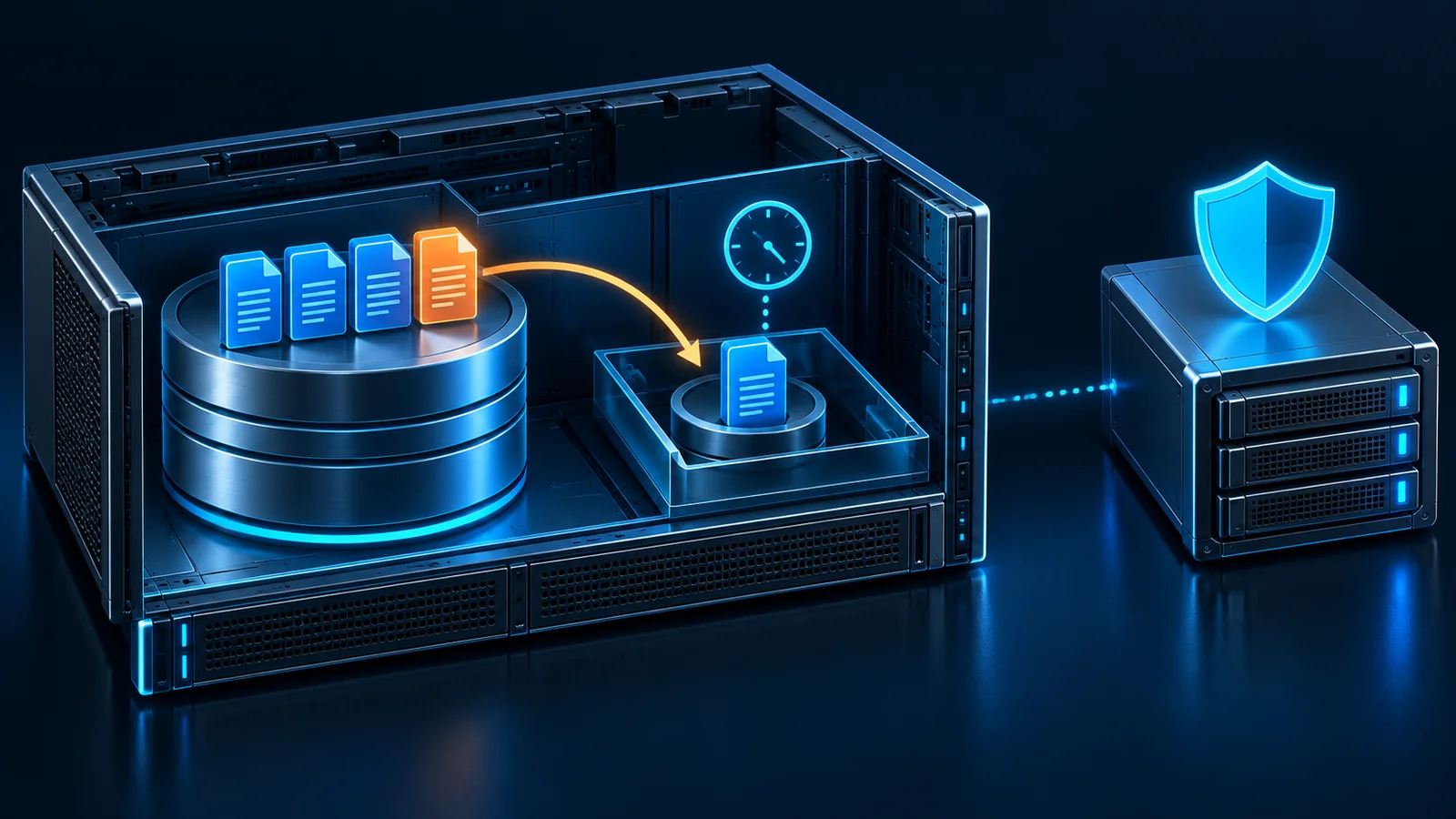
Figure: The file volume and shadow-storage area remain within one server’s failure boundary. The separate backup represents a different recovery layer. This conceptual illustration explains the relationship; it is not a product screen or evidence of a completed recovery.
Use this procedure for ordinary documents that were deleted or overwritten. Stop and use an application-specific recovery procedure for a database, a running virtual machine, or an application with consistency requirements. Do not assume that copying a single database file from a snapshot restores a working database.
2. Prepare a small, controlled configuration
Before changing settings, identify the actual server hosting the share, its data volume, the administrator responsible for backups, and a business owner who can approve file replacement. Confirm that the current share works from the client. A disconnected mapped drive is an access problem, not proof that file history is unavailable.
This example uses the following planning values. Replace them after checking your own capacity and operating hours.
| Item | Example | What you must verify |
|---|---|---|
| Server | FILE01, Windows Server 2022 Desktop Experience | Correct host and approved administrator access |
| Source volume | DATA, drive D, NTFS, 1 TB | The shared folder actually resides on this volume |
| Shadow storage | A separate approved local NTFS volume, drive E | Free space and storage-provider compatibility; a separate volume alone does not establish an independent failure domain |
| Maximum size | A teaching example of 102400 MB | A capacity ceiling, not reserved free space or guaranteed retention |
| Schedule | Weekdays at 12:00 and 18:00 | Server time zone, shifts, backup windows and acceptable recovery gaps |
| Exercise folder | A new folder named ShadowCopy-Lab in the existing test share | No live business data inside it |
| Recovery destination | A restricted folder named Recovery-Staging outside the live share | Enough space, controlled access and a clear owner |
Check the source volume’s Properties to confirm its file system, capacity and free space. If a backup agent already manages shadow storage, obtain its owner’s approval before changing associations or limits. This tutorial does not cover ReFS, clustered shares, DFS target selection, Server Core, or a NAS appliance.
Do not promise “30 days of history” from the example schedule. Retention depends on actual changes, available storage, snapshot count and successful task execution. Changes in other folders on the same source volume also consume shadow-storage capacity; protection is not limited to the one share being recovered. Record the oldest version that is really available during ongoing checks.
3. Record existing settings before enabling anything
- On FILE01, open Server Manager → Tools → Computer Management.
- Expand System Tools, right-click Shared Folders, and look for All Tasks → Configure Shadow Copies. Another management route is the source volume’s context menu in File Explorer.
- Select the volume containing the shared folder. Check the volume identity again; do not select the system volume simply because it is first in the list.
- Record any existing copies, storage location, size limit and schedule. Leave an existing working configuration intact until its purpose is understood.
Microsoft’s archived file-services migration guidance documents Configure Shadow Copies → Settings → Schedule. It is a Windows Server 2012 R2 source, so these navigation steps are an operation example for the stated 2022 environment, not a claim that every build presents identical menus. If the controls differ, stop and check the installed edition, management tools and storage provider.
4. Set storage and the creation schedule
In Settings, verify the source volume, choose the approved shadow-storage location, and enter the agreed maximum size. For a new test configuration, set these values before enabling the feature. Do not move an existing shadow-storage area or shrink its allocation as part of a recovery incident.
Open Schedule and configure the approved working days and times. If the dialog supports multiple schedule entries, create one for each required time and inspect every entry before saving. Replace unwanted defaults deliberately; adding a schedule entry does not necessarily remove existing entries.
Check the server’s displayed time and time zone against the business timetable. A snapshot at 12:00 cannot capture a file created at 12:10 and deleted at 12:20. The appropriate interval follows the acceptable loss of recent edits, available capacity and operational load.
Save the settings, select the intended volume, and enable Shadow Copies only after reviewing the confirmation. Reopen Settings and Schedule after enabling it, and verify the final storage location, 102400 MB teaching-example limit, and weekday 12:00/18:00 entries rather than assuming earlier choices remained unchanged. Inspect the resulting list. If an initial copy appears, record its actual creation time. If necessary, use Create Now once to obtain the exercise’s baseline copy after preparing the test file in the next section.
Checkpoint: A configuration dialog closing successfully is insufficient. You need an actual copy with a recorded timestamp, plus a later scheduled copy created at the expected time. Do not delete existing copies to make a failed test easier to repeat.
5. Prove recovery with a disposable file
Use a dedicated test folder and a harmless text document named Recovery-Test. Do not modify or delete a real document for this exercise.
- From the client, open the already verified server share and create the exercise folder.
- Create the test document, type a distinctive sentence such as “Baseline version A”, save it, and close its application.
- Ask the administrator to create a shadow copy of the correct volume. Record that copy’s time after confirming the file was saved.
- Reopen the test document, change the sentence to “Working version B”, save, and close it.
- On the client, right-click the exercise’s parent folder, choose Properties → Previous Versions, and select the timestamp recorded in step 3.
- Choose Open. Browse the historical folder and locate Recovery-Test. Copy that individual document into Recovery-Staging, keeping it separate from the current version.
- Open the copied document and confirm it contains version A. Separately confirm that the live document still contains version B.
- For a deletion exercise, delete only the disposable test document after confirming that the baseline exists. Repeat the parent-folder procedure and copy the missing file into staging again.
The expected result is two independently checked facts: the historical content can be copied out, and browsing it does not change the live share. Also test one later scheduled snapshot. A manual copy alone does not demonstrate that the schedule works.
6. Recover the real file without rolling back a folder
First record the requested file, its original folder, the approximate loss time, the correct version’s expected content, and the owner authorizing recovery. Ask affected users to close the relevant document. Preserve the current file separately if it still exists.
For a deleted file, select its surviving parent folder in the live share. If that folder was also deleted, work upward to an existing ancestor. Open Properties → Previous Versions, choose an available timestamp before the loss, and select Open. For an overwritten file, you can also inspect the file’s own history where available.
Microsoft’s archived server-folder guidance describes opening an earlier version and copying a deleted file to a safe location. Apply that principle to the selected file, rather than restoring an entire active folder.
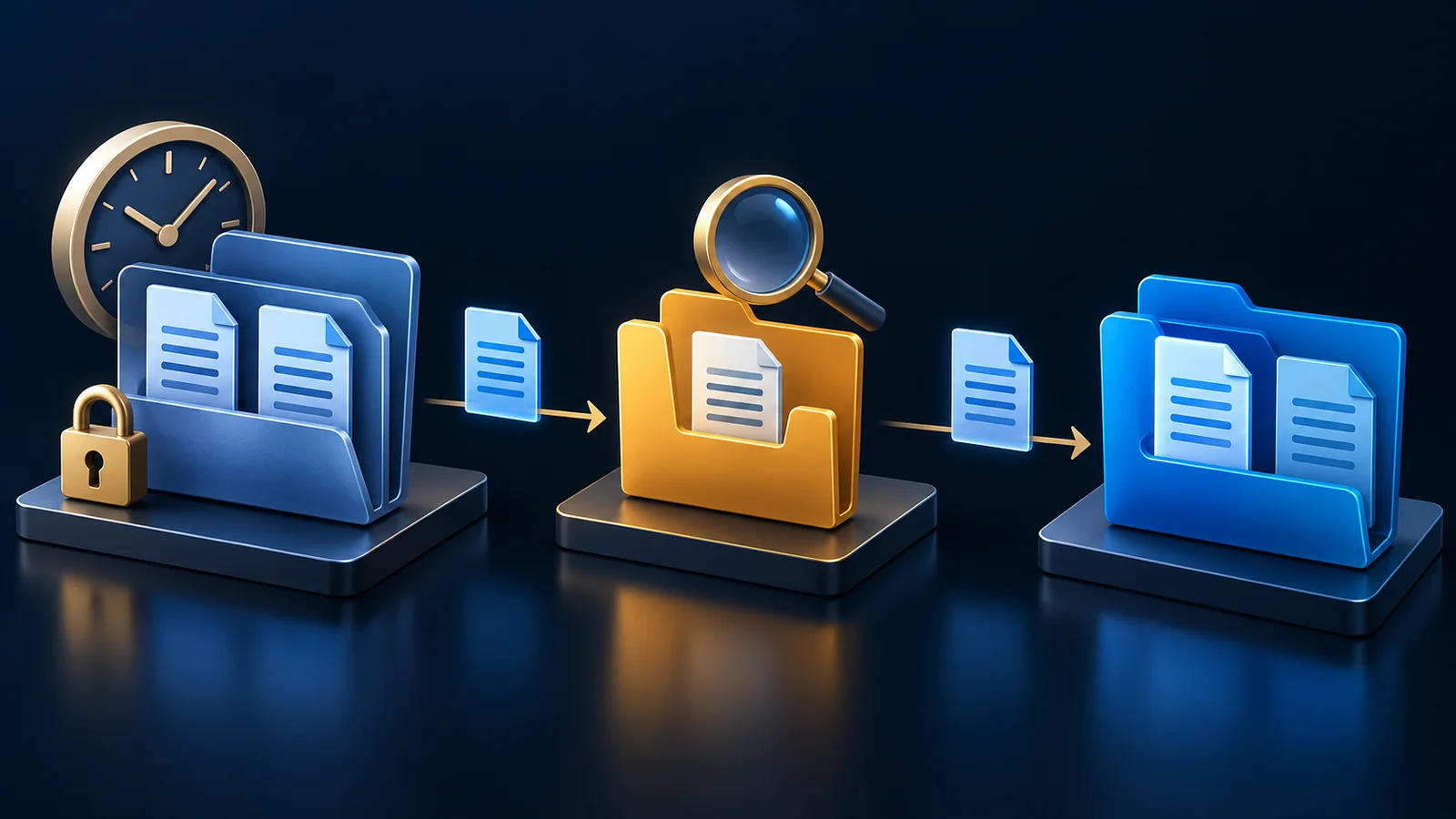
Figure: Open the historical folder, copy the chosen file to staging, inspect it, and then make an authorized replacement. Other current documents stay in place. The illustration describes the procedure and does not certify a recovery result.
In staging, inspect the file name, size, timestamp and actual contents. For a spreadsheet, confirm the required sheet and business values; a matching name alone is inadequate. Keep potentially unsafe documents closed until they have passed the organization’s normal security checks.
Check destination permissions. A normal file copy can inherit the staging or destination folder’s permissions; it is not a complete restoration of the original access-control configuration. Do not solve an access error by granting broad access to the entire share.
Once the owner approves the staged version, arrange a short replacement window. Copy only the approved file back, explicitly resolve any same-name conflict, and verify it using an ordinary authorized user account. Retain the pre-replacement file and the recovery record for the agreed period.
7. Diagnose missing versions in order
| Symptom | First check | Safe next step |
|---|---|---|
| Previous Versions is empty | Correct server, share, source volume and snapshot times | Confirm server-side copies exist; do not create new history and call it a past version |
| A deleted file is absent | Snapshot predates file creation or follows deletion | Inspect another suitable timestamp or use independent backup |
| Only old versions appear | Retained copies versus client-visible history | Review Microsoft’s version-limit explanation; avoid speculative registry changes |
| Manual copies work, scheduled copies do not | Schedule, next run, task results and server time | Inspect Task Scheduler and relevant logs without stopping other backup jobs |
| History disappears early | Free space, change rate and storage limits | Preserve needed files and investigate capacity before changing allocation |
| Historical file opens but cannot be copied | Source authorization and staging permissions | Have an approved administrator perform the narrow recovery |
Microsoft documents separate VSS retention and SMB visibility limits. Increasing a registry limit is not a beginner’s remedy for every missing-version symptom.
Microsoft also describes older copies disappearing under storage pressure. In Event Viewer, correlate the incident time with VSS or Volsnap messages and storage activity. Avoid repeated full-volume jobs while investigating heavy change rates.
8. Define acceptance and a safe stop
Accept the setup only after recording a manually created copy, a scheduled copy, successful staged recovery of both a changed and deleted sample, and an authorized client access check. Record the actual oldest available timestamp, storage headroom and recovery owner. Repeat the sample exercise periodically and after relevant storage or backup changes.
Stop if the original volume is unhealthy, existing backup jobs fail, the storage association is unclear, or the requested historical file is unavailable. Escalate using the independent backup and incident procedure. Do not restart multiple services, disable VSS, delete copies, or reduce retention to “reset” the system.
If the new schedule needs to be suspended, have the owner review its specific scheduled task and dependent backup processes. Preserving existing history and resuming a documented schedule is safer than using a destructive disable-and-enable cycle. Any change that may remove history needs a separate recovery plan.
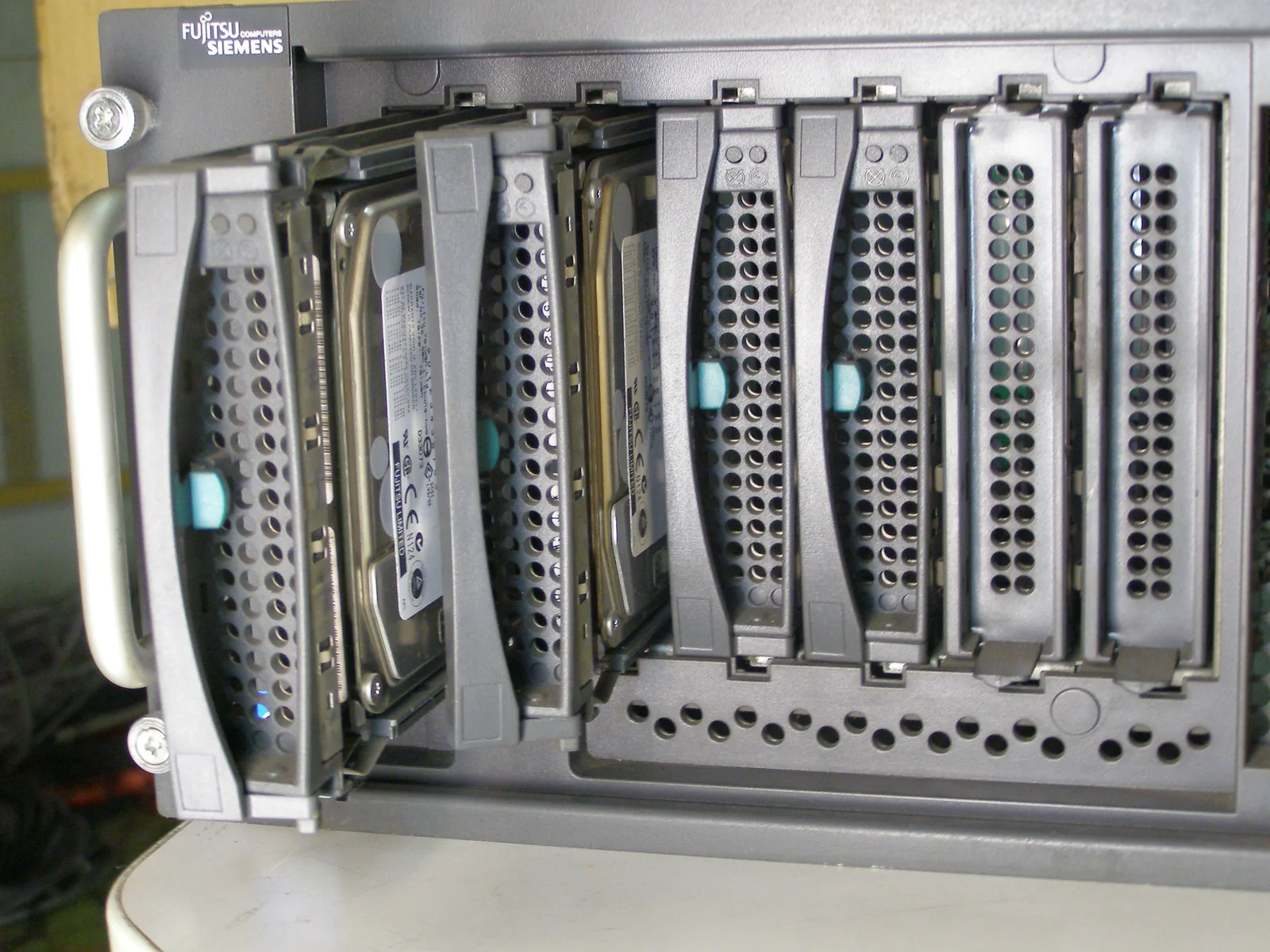
Photograph: Mixabest, 17 June 2010, Wikimedia Commons, public domain. Proportionally resized and converted to WebP; not photographed for this deployment. The physical drive bays make the failure boundary concrete: history depending on the same server or storage cannot replace an independently recoverable backup. The photograph does not establish any Windows configuration or recovery result.


Frequently asked questions
Can enabling Shadow Copies recover a file deleted yesterday?
Only if a suitable earlier copy already exists. Enabling the feature today establishes future recovery points; it does not reconstruct a missing historical state.
Should I choose Restore on the whole parent folder?
For a single-file incident, open the earlier folder and copy only the required file to staging. Replacing an active folder risks affecting unrelated newer work. Obtain approval for any subsequent replacement.
Does a larger allocation guarantee a month of history?
No. Capacity, change rate, retained-copy limits and task execution all matter. Monitor real available timestamps and agree a separate backup retention policy.
Does Shadow Copies protect against a failed server or ransomware?
Do not rely on it for either scenario. Keep independently recoverable backups with appropriate isolation, retention and restore testing, and follow the incident-response process when compromise is suspected.
Related solutions
Backup and disaster recovery planning helps separate convenient file history from recovery after a larger failure.
Related reading
If your team cannot identify the source volume, independent backup or replacement approval owner, clarify those three items before enabling self-service file recovery.