
To migrate a VMware ESXi virtual machine to Proxmox VE, use the integrated ESXi importer to copy its disks and map its configuration, then check firmware, drivers and networking before releasing the service. This guide uses a planned shutdown: back up and rehearse, power off the source, finish the import, validate the target on an isolated network, and then cut over. Keep the source VM, powered off, until the agreed retention period ends.
These are operating examples based on official documentation, not results from your environment. The main example is an ordinary Windows Server 2022 member server. Linux differences are covered separately. Start with a noncritical VM and complete a rollback rehearsal before scheduling a production move.
1. Define the migration before touching either platform
Here, VMware migration means ESXi to Proxmox VE, or PVE. It is a platform conversion, rather than vMotion between ESXi hosts or a direct replacement for VMware Workstation on a laptop. The guest operating system sees different virtual hardware after the move. A successful disk transfer therefore does not establish that Windows, Linux or the application will work.
| Item | Scope and example |
|---|---|
| Source | ESXi 6.5–8.0, the range reported as tested by the official migration guide; this does not establish continuing security support for old releases |
| Target | An updated, supported PVE release with the ESXi import menu; the integrated wizard was introduced with 8.2 |
| First rehearsal | An ordinary Windows Server 2022 member server, 2 vCPUs, 4–8 GB RAM and one system disk |
| Storage | An accessible ordinary datastore; no direct vSAN-backed or VMware-encrypted disk import |
| Method | Powered-off, complete import; leave Live Import disabled for this walkthrough |
| Prerequisites | PVE already installed, usable VM disk storage, independent backup and a prepared isolated test network |
Do not start with a domain controller, clustered database, shared-disk application, passthrough GPU, RDM, encrypted guest or a workload dependent on virtual TPM state. Those require additional recovery and compatibility design. Installing PVE, building a cluster and changing the production network are separate projects. Current official documentation still labels Import Wizard a technology preview. Rehearse on a noncritical VM before deciding on production use; an available menu is not workload validation.
Check the official Proxmox migration guide and the Proxmox ESXi Import Wizard demonstration against the versions actually installed.
2. Build an inventory that can support a rollback
A summary screenshot is insufficient. Record each field in the change ticket, including every disk and interface.
| Area | Record | Reason |
|---|---|---|
| Identity | VM name, hostname, purpose, owner and domain membership | Identify who can accept the migrated service |
| Compute | vCPU, memory and special CPU instruction dependencies | Avoid changing application requirements accidentally |
| Boot | BIOS or UEFI, Secure Boot, system disk and boot order | Match SeaBIOS or OVMF on the target |
| Every disk | Capacity, controller, volume label, drive letter and application data | Prevent an overlooked data disk |
| Every NIC | MAC, port group, VLAN, IP, mask, gateway, DNS and routes | Rebuild connectivity on the correct PVE bridge |
| Application | Service accounts, dependencies, licence bindings and scheduled tasks | A login screen does not prove service availability |
| Recovery | Backup timestamp, restore evidence, source retention and rollback deadline | Make the recovery decision executable |
On Windows, use Server Manager → Local Server for domain and adapter information, Disk Management for volumes, and System Information for the BIOS mode. Check the virtual controllers, port groups and Secure Boot in the ESXi VM settings. Match guest volumes to virtual disks by evidence, rather than assuming their displayed order is identical.
Create an independent backup and verify its recovery path. A completed backup job and a successful restore are different checks. Restore a representative system and its important data in isolation. A VMware snapshot depends on its original disks and is not an independent backup; see Broadcom snapshot best practices. If snapshots exist, verify backup, free datastore space and a maintenance window before consolidation. Defer the migration if consolidation fails or stalls and have the administrator investigate. Do not cancel or forcibly interrupt an active snapshot deletion/consolidation task, and never manually delete disk files.
For directory dependencies, see the Active Directory deployment guide. It does not make this member-server procedure suitable for moving the only domain controller.
3. Prepare capacity, network paths and a realistic outage window
Storage must accommodate the imported disks
Choose target storage that supports VM disk images. An ISO-only storage location is not a valid substitute. Include every source disk, conversion overhead, rehearsal copies, backups and growth margin in the capacity plan. Source thin provisioning does not guarantee identical target allocation: the destination backend and import behavior matter.
Move one VM first and monitor available target space. Establish a capacity stop threshold in advance. If it is reached, stop the migration and inspect the task and created target resources before removing anything. Keep the original source intact.
Separate the import connection from the guest network
The PVE node needs controlled access to the ESXi management endpoint to read the VM configuration and disks. Guest network adapters instead connect to PVE bridges. A working management connection does not establish guest connectivity.
Prepare an import path and a genuinely isolated test bridge. An isolated bridge must have no production uplink, routing, NAT or other forwarding path. A name containing “test” is not proof of isolation. Connect only approved test clients when application testing requires them.
| Source or purpose | Target example | Verify |
|---|---|---|
| Application port group | Production bridge vmbr0, VLAN tag 50 | The bridge allows that VLAN, its physical trunk carries it and the guest does not tag it again |
| First boot of the imported copy | Isolated bridge vmbr99 | No production uplink or forwarding path; only authorized test clients |
| ESXi import endpoint | Trusted ESXi hostname or management address | Reachable from PVE, with verified server identity |
These are example names and values. On an access/untagged physical network, do not copy VLAN 50 into the guest configuration. Determine whether the VLAN tag should be empty from the actual bridge and switch design. Separate bridge or port-group names do not themselves create a security boundary.
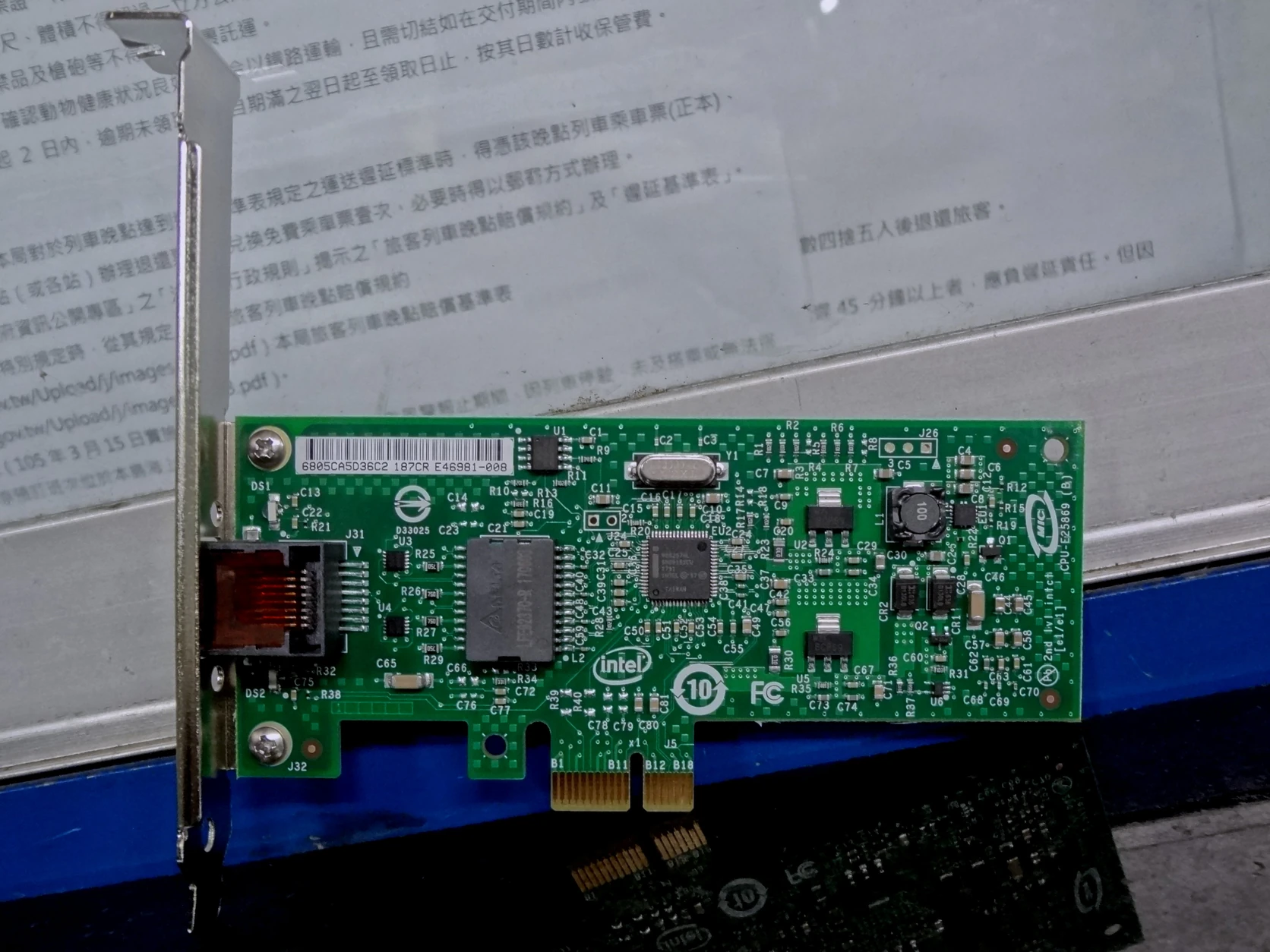
Photo: Solomon203, Intel EXPI9301CTBLK, CC BY-SA 4.0. Resized and converted to WebP; not photographed for this migration. It illustrates physical interface identification, not a hardware recommendation or compatibility claim. Negotiated link speed, drivers, switches and destination storage all affect transfer performance.

Budget more than copying time
As an illustrative calculation, 200 GiB transferred at a measured effective 80 MiB/s takes approximately 43 minutes for copying alone. This is not a performance promise. Add application shutdown, disk conversion, boot, driver work, service testing and time reserved for rollback. Measure a rehearsal: the actual amount read can differ from the guest's reported used space.
Set the latest rollback decision time before the window begins. Initially serialize imports to avoid exhausting ESXi API connections or PVE memory. Do not remove source security limits just to increase concurrency.
4. Add the ESXi import source in PVE
- Select Datacenter → Storage → Add → ESXi. If the menu is absent, check the PVE release, updates and permissions before proceeding.
- Assign a recognizable ID, such as esxi-source. Enter the source ESXi management hostname or address. Prefer a direct ESXi connection: Proxmox warns that importing through vCenter can substantially reduce performance.
- Enter an administrator account approved for the migration and with the required permissions. Use the platform's authentication fields; never place credentials in shared notes, screenshots or examples. Restrict administrator access during the move. After all imports finish and the observation/rollback plan no longer needs the connection, remove the temporary import source and revoke temporary account access, without deleting the original VM data.
- Prefer a trusted server certificate or have the administrator install the internal CA in PVE's trust store beforehand. The wizard offers Skip Certificate Verification, but disabling verification is not the default remedy. Investigate identity, hostname and certificate-chain errors first.
- Select the new source in the resource tree and inspect its VM import list. Confirm the expected VM, configuration location and disks. Listing a VM does not copy it.
The checkpoint is successful enumeration of the expected source inventory. Authentication failures require checking the account, endpoint, network and certificate. Disk-read failures after enumeration require checking datastore permissions, disk type and applicable API or licence restrictions. Avoid repeated source creation or unofficial keys.
Do not assume behavior from the phrase “free ESXi.” Broadcom's free ESXi 8.0 U3e description specifies management API limitations; it does not establish that every free release always fails to provide read access. Rehearse listing and importing a noncritical VM with the actual account. If restricted, stop and evaluate an export or backup recovery path permitted by the entitlement.
5. Prepare the guest and perform its final shutdown
- Confirm the independent backup and restore record. Arrange application-owner approval and a local Windows administrator login, so a DNS or domain connectivity problem cannot block console access.
- Record all static network settings. If removing an old static address is necessary, do it only with console access and a complete record. Do not change the only remote connection without a fallback.
- Obtain a verifiable VirtIO driver ISO compatible with the guest and upload it through the ISO-capable storage’s ISO Images → Upload panel. After Section 6 creates the imported target VM, attach this ISO as described in Section 7. Follow the Proxmox Windows VirtIO driver documentation.
- Follow the official preparation guidance for the old hypervisor's guest tools. If uninstalling VMware Tools, do it after backup and before final shutdown, completing required reboots. Do not remove it prematurely while application-consistent backups still depend on it. Handle Linux open-vm-tools through its distribution's package management, without deleting kernel modules manually.
- Close application ingress, stop writes and record the final data timestamp. Shut down cleanly inside the guest. Confirm ESXi reports Powered off; suspended is not powered off.
Keep the original VM powered off. Control its automatic startup and document how to restore it during rollback. Avoid changing the OS version, partitions and application release during the same move.
6. Review the wizard and finish the full import
Select the source VM and click Import. Exact labels may vary with the installed release.
| Field | Initial choice | Check before proceeding |
|---|---|---|
| VM ID / Name | An unused ID, for example 220 | Clearly distinguish it from existing VMs |
| CPU / Memory | A suitable equivalent to the source | Target capacity and application instruction requirements |
| Default Storage | A backend supporting VM disks | Every disk mapped and sufficient space |
| Default Bridge | The verified isolated test bridge | No accidental production connection |
| Advanced | Inspect every disk, NIC and optical drive | No missing data disk, second interface or obsolete ISO |
| Resulting Config | Read the final configuration | Firmware, boot disk and mappings match the inventory |
| Live Import | Disabled for this procedure | Complete copying before first boot |
Submit once after confirming the source is off. Open the task log and wait for the final successful task result. A 100% progress display alone is insufficient. Inspect the imported disks and task outcome. On failure, read the log and identify existing target resources before retrying.
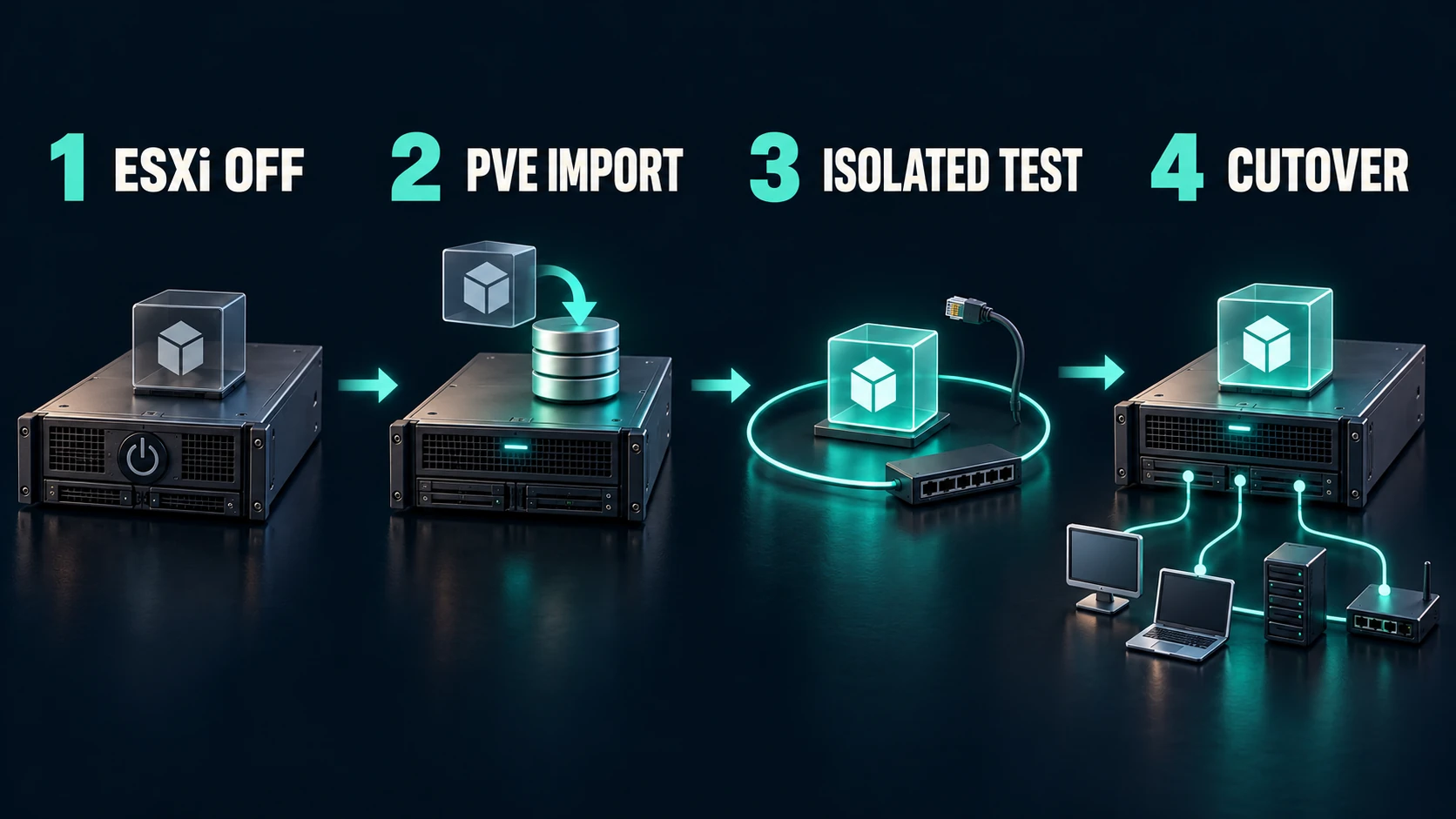
ESXi OFF indicates the stopped source; PVE IMPORT is the complete copy; ISOLATED TEST is target validation. CUTOVER is a separate release decision. This is a conceptual illustration, not a product screenshot or a successful test result.
Live Import still requires the ESXi source to be switched off. It starts the target before background copying finishes. Proxmox warns that import failure can lose writes made since import began. Use a normal, complete import first, rather than assuming Live Import is uninterrupted vMotion.
7. Boot Windows safely, then optimize its devices
Match firmware and boot order
Keep the target off the production network. In Hardware and Options, match legacy BIOS to SeaBIOS and UEFI to OVMF, checking the EFI disk and boot entries. Handle Secure Boot according to the required signed-boot and key configuration; do not casually disable it to hide a boot error.
In Options → Boot Order, enable and prioritize the actual system disk. Remove stale installer media from the boot sequence. If no boot device is found, inspect firmware, boot order and missing disks before modifying the guest. An imported UEFI guest may also need a boot entry recreated in firmware. Do not format the original system disk as a repair shortcut.
Use SATA initially if Windows lacks the storage driver
Windows can fail with INACCESSIBLE_BOOT_DEVICE when its system disk uses VirtIO SCSI before the boot driver is ready. The migration documentation describes IDE or SATA for initial compatibility. This example uses SATA.
- Power off the target and record the system disk's volume identity.
- In Hardware, select that disk and choose Detach. It should become an Unused Disk. Detaching a device is different from deleting its data; cancel any confirmation that would remove disk data.
- Edit the same Unused Disk and attach it at an available SATA position.
- Enable the SATA system disk in Boot Order, verify the other disks, and start the guest on the isolated network.
The checkpoint is a successful login with the original volumes and data present. A boot animation is insufficient. If it still fails, record the error and compare firmware and controller settings with the source inventory. Change one relevant factor at a time.
Switching to VirtIO SCSI requires two boots
- Keep the system disk on SATA. Attach the uploaded VirtIO ISO through Hardware → CD/DVD Drive → Edit, or Add → CD/DVD Drive when no optical drive exists. Install signed drivers matching the Windows version and architecture. Have a recoverable target backup before modifying the boot storage path.
- With the VM off, select VirtIO SCSI single as the SCSI controller and use Hardware → Add → Hard Disk to create a small temporary SCSI disk, for example 1 GiB. Leave the system disk on SATA.
- Boot Windows and let the real VirtIO SCSI device trigger driver loading. Confirm the controller and temporary disk appear correctly in Device Manager. The temporary disk does not need initialization or formatting.
- Shut down. Detach the SATA system disk, reattach that same disk as SCSI, and update Boot Order. Do not substitute a data-deletion action for Detach.
- Boot again and verify the original system, data volumes and services. Remove the temporary disk only after identifying it positively. If boot fails, power off, restore the system disk's SATA attachment and boot order, then investigate the driver.
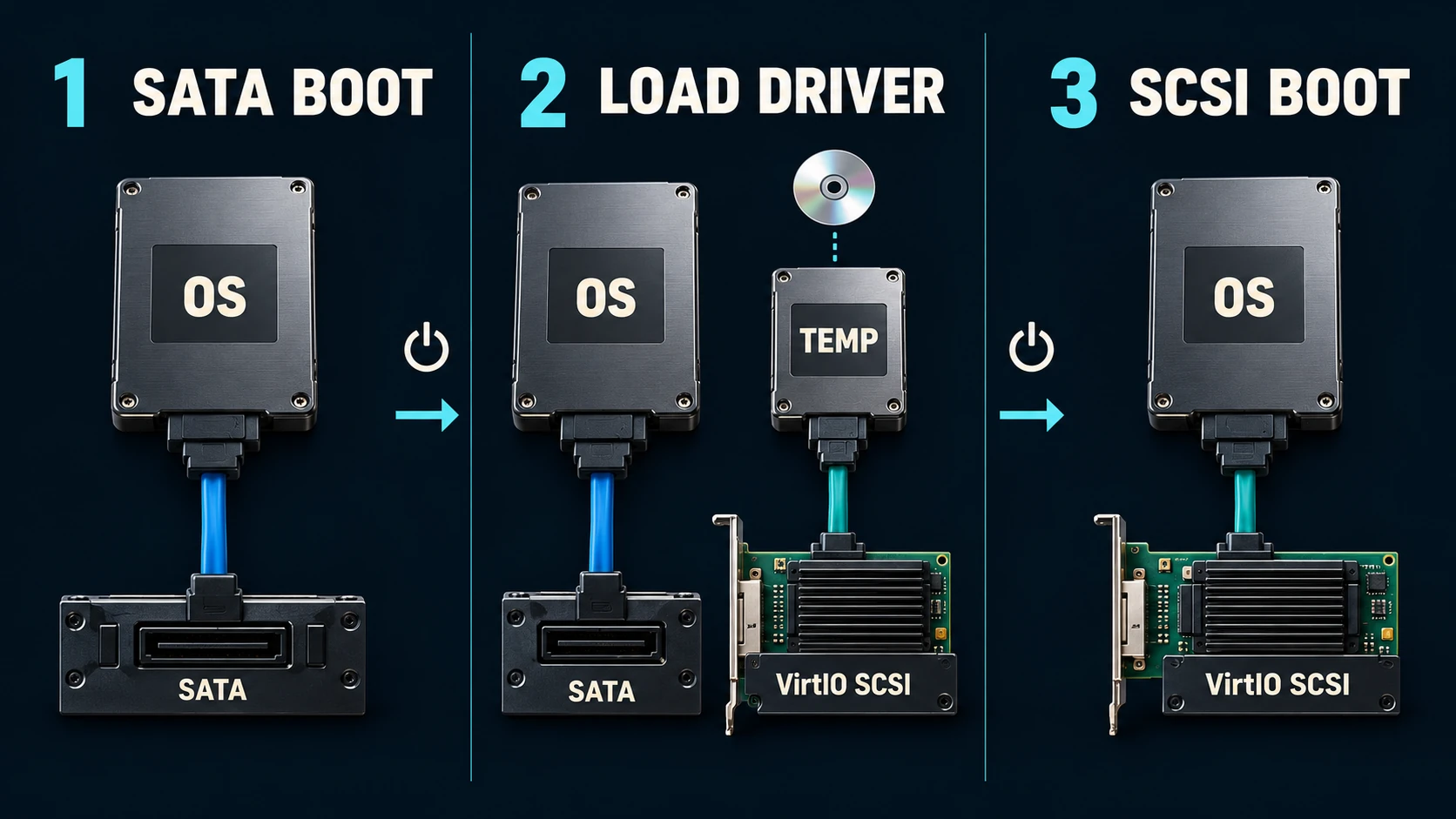
The stages are SATA BOOT, LOAD DRIVER and SCSI BOOT. Completing an installer does not prove the boot driver has been exercised. Verify temporary-device recognition and the subsequent reboot. See Proxmox's Windows paravirtualized block-driver instructions; the illustration is not evidence of a hardware test. Controller-card shapes represent virtual devices, not a requirement to buy physical cards.
Restore networking and guest integration
Check each adapter's model, bridge, VLAN and MAC. A VirtIO network adapter needs its matching Windows driver. Windows may identify a new adapter while the old, hidden device retains its static IP. Investigate the old interface and address inventory before assigning the production address; do not work around the warning by inventing a new address.
Restore the correct mask, gateway, DNS and required routes. Keep the isolated test arrangement until cutover. Do not replace internal AD DNS with public DNS to mask a resolution problem.
QEMU Guest Agent is a separate integration service, rather than a storage or network driver. If required, install it in the guest and enable it in PVE. Confirm the guest service is running; selecting a host option alone does not establish integration.
8. Account for Linux differences
Many Linux distributions include VirtIO drivers, but custom kernels, older distributions and specialized boot images may not provide the necessary early-boot support. Check the supported guest version, root filesystem identification, boot-image drivers and any configuration bound to the old interface name or MAC before migration.
After importing, use the console to verify the system disk and every data volume. Interface names may change. Map the old network settings to the actual new interface using the distribution's supported tools, then verify addresses, routes and DNS. Inspect services bound to a disk path or MAC. Never copy another server's interface name or assume every Linux guest starts without adaptation.
If boot drivers are missing, the guest enters emergency mode or a volume is absent, stop the cutover and use that distribution's recovery procedure or the rehearsed rollback path.
9. Validate, cut over and retain a usable rollback path
Isolated validation must reach the application
| Layer | Minimum check | Evidence to record |
|---|---|---|
| Operating system | Login, another successful reboot and correct time | Boot result and relevant event or system errors |
| Storage | Every volume, key directories, permissions and representative files | Paths, counts or verification results |
| Drivers | Working storage and network devices | Device models, driver versions and errors |
| Network | Intended bridge/VLAN, addressing, routes and DNS | Authorized test-client results |
| Application | Authentication, queries, reads, test writes and background jobs | Owner acceptance and test-data cleanup |
| Operations | Target backup, monitoring and alarm delivery | Recovery plan and updated monitoring objects |
If the application needs directory services, production DNS or a database, provide controlled test dependencies or design a specific validation window. Record any untested dependency. Console access alone is not full application acceptance. Keep test writes isolated; do not write to both production copies.
Cut over with one active business copy
After isolated acceptance, shut down the target. Confirm the source is still off and its automatic startup is controlled. Apply the planned production bridge and VLAN mapping, start the target, restore ingress and perform a limited real-client check before the owner releases the service.
Apply any DNS, load-balancer or firewall changes through the change plan, allowing for caches and propagation. Retaining an IP does not eliminate dependency checks. Keep the source powered off through the agreed observation period.
New writes change the rollback decision
Before production writes have been released, a failed validation can usually follow this planned rollback: power off and disconnect the target, confirm it has left service, then restore the source's network and startup arrangements and verify the original service.
After real writes reach the target, do not simply boot the old source. Its disks lack the new data. Stop writes, preserve target data and have the application owner choose synchronization, recovery or forward repair. Retaining the original VM preserves an earlier point in time; it is not an unconditional lossless rollback.
10. Troubleshoot the first failure before adding changes
| Symptom | First checks | Stop boundary |
|---|---|---|
| No ESXi import menu | PVE release, updates, permissions | Prepare the supported tool first |
| VM listed but disks unreadable | vSAN, encryption, permissions, datastore and API/licence limits | Evaluate an authorized alternative path |
| Slow import or 503 responses | Concurrency, API throttling, snapshots, link and storage I/O | Stop adding parallel jobs |
| No boot device | SeaBIOS/OVMF, boot order, system disk, UEFI entry | Do not format the original disk |
| Windows boot-device blue screen | SATA compatibility path and VirtIO driver readiness | Recover SATA boot before further changes |
| OS works but service fails | Adapter, bridge, VLAN, route, DNS, licences and dependencies | Do not release an unexplained failure |
| Rollback requested after new writes | Data timestamps and application recovery plan | Do not start the stale source copy |
FAQ
Is this a zero-downtime VMware migration?
No. Both normal import and Live Import require a stopped ESXi source. Live Import starts the target before copying completes and has additional failure consequences. Workloads requiring shorter outages need a separately designed application replication and cutover process.
Can the wizard move vSAN, encrypted disks and VMware vTPM state directly?
The official guide excludes direct vSAN-backed and encrypted-disk imports and states that VMware vTPM state cannot be migrated to PVE. Prepare backups and recovery keys, then design a supported storage, encryption or rebuild path with the responsible owner.
Is a snapshot sufficient for recovery?
It is not an independent backup. Retain a verified backup and the powered-off source. Once the target accepts new writes, recovery also needs a plan for that newer application data.
Why can Windows still fail after the driver installer finishes?
The guest may not yet have loaded the intended boot-storage driver for an actual device. Keep the SATA boot disk while a temporary SCSI disk exercises the controller, then shut down, reattach the system disk and update boot order. Also check firmware and disk mapping.
Related solution
For assessment, rehearsal, cutover and operational handover, see virtualization migration and resource consolidation.
Further reading
- Windows Server daily health checks for post-migration operations.
- Uptime Kuma business availability checks for application-aware monitoring.
Start with one noncritical VM and rehearse backup, import, acceptance and rollback before scheduling the first business workload.