
Start with business availability, then check critical services, recent events, disk capacity, resource trends, backups and hardware alerts. Record changes against an agreed baseline. An exception should enter an approved incident or change process; a daily check should not restart services automatically.
Scope and daily checklist
This guide covers Windows Server 2019, 2022 and 2025, using Windows PowerShell 5.1 locally with administrator access. Commands are read-only examples based on Microsoft documentation, not a verified run on the production environment described here. Identify the server role, application owner, maintenance window and previous day's record before starting. Domain controllers, clusters and databases also require role-specific checks.
Common stop condition: if a CIM or other query fails, returns no data or has missing fields, verify permissions, the provider and applicability first. Do not treat missing data as zero or a passed check. Record that check as incomplete and escalate.
| Area | Record each day | Escalate when |
|---|---|---|
| Business and boot time | Business test and boot timestamp | Service unavailable or unexpected restart |
| Critical services | Explicit list and expected state | State differs from approved baseline |
| Events | New Critical/Error events within 24 hours | New, recurring or linked to disruption |
| Disks | Free GiB, percentage and growth | Insufficient headroom for the next operation |
| CPU and memory | Samples with workload context | Sustained change affects response |
| Backup and hardware | Restore point, job status, out-of-band alerts | RPO missed or hardware fault |
| Updates | Compliance and restart requirement | Approved deadline missed or window needed |
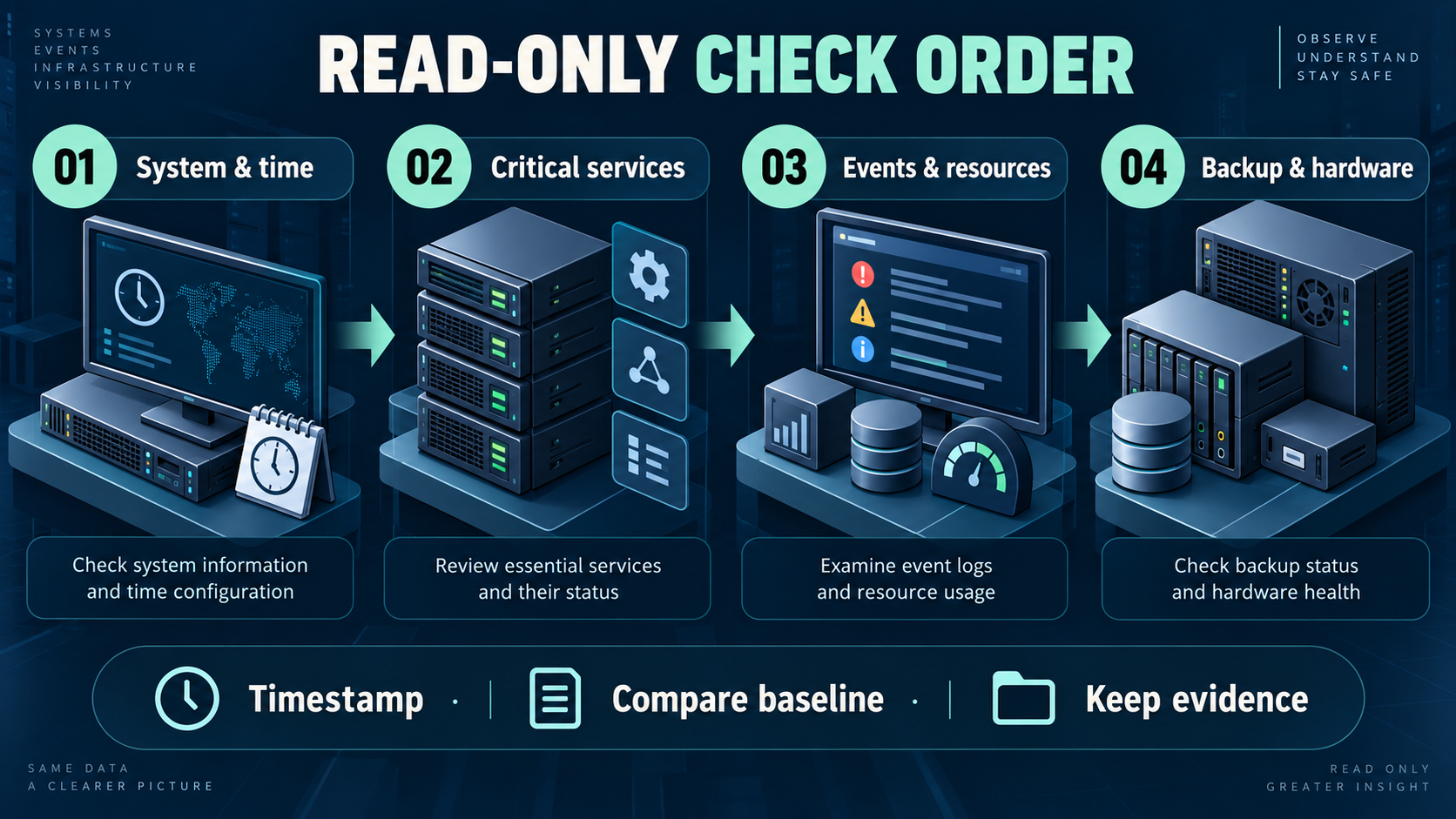
Illustration: a technical workflow created for this article, not an on-site photograph. Source and creation details are recorded in the attachment credits.
1. Confirm business availability and boot time
Test the application entry point, shared files or critical task agreed with the owner. Being able to log in does not establish application health. Then inspect system identity and boot time:
$os = Get-CimInstance -ClassName Win32_OperatingSystem
$os | Select-Object Caption, Version, LastBootUpTime
New-TimeSpan -Start $os.LastBootUpTime -End (Get-Date)
Compare the returned version, boot timestamp and uptime with the maintenance record. Investigate an unexplained restart using event and virtualization records. Do not restart again to obtain a preferred uptime. After an approved repair, repeat the business test and confirm the boot record. See Microsoft's operating system field reference.
2. Check an explicit critical-service list
Build the list around the server role. This example contains only Event Log and Task Scheduler, not every database, backup agent or business service:
$criticalServices = @('EventLog', 'Schedule')
Get-Service -Name $criticalServices -ErrorAction Stop |
    Select-Object Name, DisplayName, Status
Compare each returned status with its expected state. A missing service produces an error: resolve the name or inventory mismatch rather than recording a pass. A stopped trigger-start service may be working as designed. Confirm dependencies, business impact and change history before approving a start or repair. Recheck the same list and business function afterwards. See Get-Service.
3. Review serious events from the last 24 hours
$since = (Get-Date).AddHours(-24)
Get-WinEvent -FilterHashtable @{
    LogName = @('System', 'Application')
    StartTime = $since
    Level = @(1, 2)
} -ErrorAction Stop |
    Select-Object TimeCreated, LogName, ProviderName, Id, LevelDisplayName, Message
Levels 1 and 2 select Critical and Error events. Group findings by provider, event ID and time, then correlate them with symptoms. Record an owner, reason and review date for known noise; do not permanently exclude an entire log. A query with no matching events can report an error. Distinguish that condition from denied access or an unreadable log, which leaves the check incomplete. Log rollover and disabled application logs can also leave gaps.
Escalate new storage errors, recurring crashes or business disruption. Preserve evidence. Following an approved repair, query the same period and observe new events instead of clearing logs to remove alerts. See Get-WinEvent.
4. Compare free space with growth and operating needs
Get-CimInstance -ClassName Win32_LogicalDisk -Filter 'DriveType=3' |
    Where-Object { $_.Size -gt 0 } |
    Select-Object DeviceID,
        @{Name='FreeGiB'; Expression={[math]::Round($_.FreeSpace / 1GB, 2)}},
        @{Name='FreePercent'; Expression={[math]::Round(100 * $_.FreeSpace / $_.Size, 2)}}
This reports local fixed logical drives. GiB uses binary units, not decimal GB. It does not cover every folder mount, network store, storage pool or RAID condition; inspect those separately. Review both absolute headroom and percentage, then account for logs, backups and update workspace. There is no universal percentage suitable for every server.
If headroom cannot support the next maintenance period, escalate and stop unnecessary new writes. Archive logs under the retention policy or expand capacity after approval. Do not blindly remove database files, backup chains or system directories. Recheck free space and application writes. See the logical disk reference.
5. Use resource samples as context
1..3 | ForEach-Object {
    $sampleTime = Get-Date
    Get-CimInstance -ClassName Win32_Processor |
        Select-Object @{Name='SampleTime'; Expression={$sampleTime}}, DeviceID, LoadPercentage
    Start-Sleep -Seconds 5
}
$os = Get-CimInstance -ClassName Win32_OperatingSystem
$os | Select-Object @{Name='FreeMemoryGiB'; Expression={[math]::Round($_.FreePhysicalMemory / 1MB, 2)}},
    @{Name='TotalMemoryGiB'; Expression={[math]::Round($_.TotalVisibleMemorySize / 1MB, 2)}}
CPU LoadPercentage gives each processor's average load over the last second. Three queries spaced five seconds apart are not continuous five-second averages and can still miss peaks. Memory fields use KiB; the calculation converts them to GiB. Free memory alone does not establish memory pressure. Compare the same business period and monitoring trend; arrange sustained performance collection when necessary. Escalate sustained abnormalities that affect service, and repeat observations under comparable load after an approved adjustment. Do not terminate processes during a routine check. See the processor reference.
6. Separate backup completion from recoverability
If Windows Server Backup is installed and a backup catalog is available locally, inspect versions:
wbadmin get versionsIf the feature is absent, the catalog is inaccessible or another product is used, consult that backup platform. Versions do not replace the latest job result. Check completion time, protected scope, destination access, failures and the agreed RPO. A successful job does not prove application consistency, available decryption keys or acceptable recovery time.
Escalate a missed recovery point to the backup owner. After an approved repair, confirm a new recovery point and schedule a restoration exercise in an isolated environment. A destructive production restore is not a daily check. See wbadmin get versions.
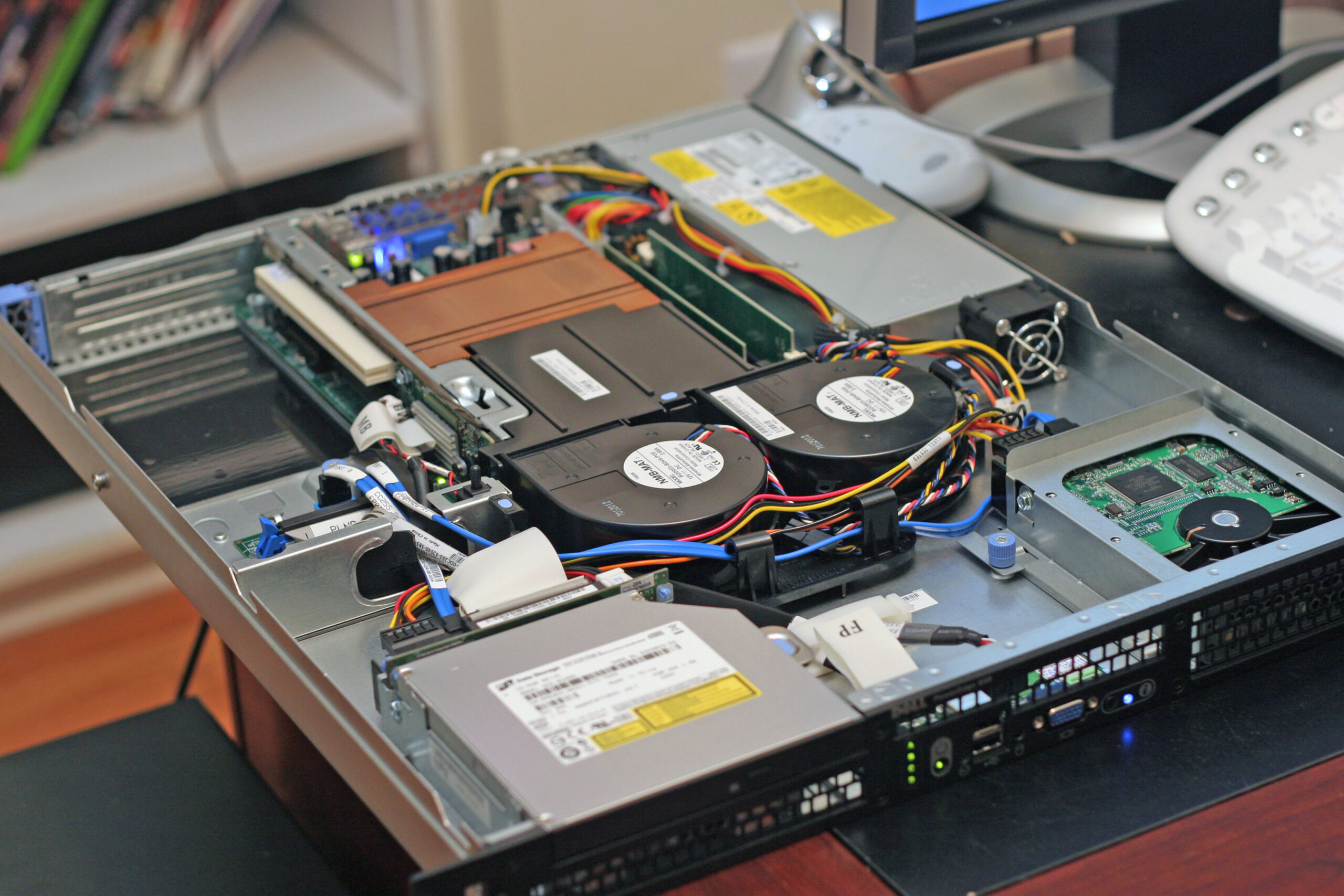
Photo: Inside and Rear of Webserver.jpg, Rodzilla, photographed on 24 September 2005; CC BY 2.5, unchanged. This is not the article's site and establishes neither OS compatibility nor hardware health. It illustrates physical connections and cooling checks. Daily chassis opening is unnecessary; shutdown, access and ESD precautions follow the manufacturer's procedure.

7. Observe hardware, updates and restart requirements
Operating system checks do not replace iDRAC, iLO or equivalent checks for power, fans, temperature, arrays and hardware logs. Virtual machines also need host and storage monitoring. Escalate predictive disk failure, degraded arrays or thermal alerts to the hardware owner; recheck out-of-band status and service after the approved vendor procedure.
Use the enterprise update platform to observe approved patches, installation status and restart requirements. Update history is not complete compliance evidence, and one registry indicator cannot cover every restart requirement. Installation, reboot and firmware changes belong in an approved maintenance window with backup, dependency and rollback checks.
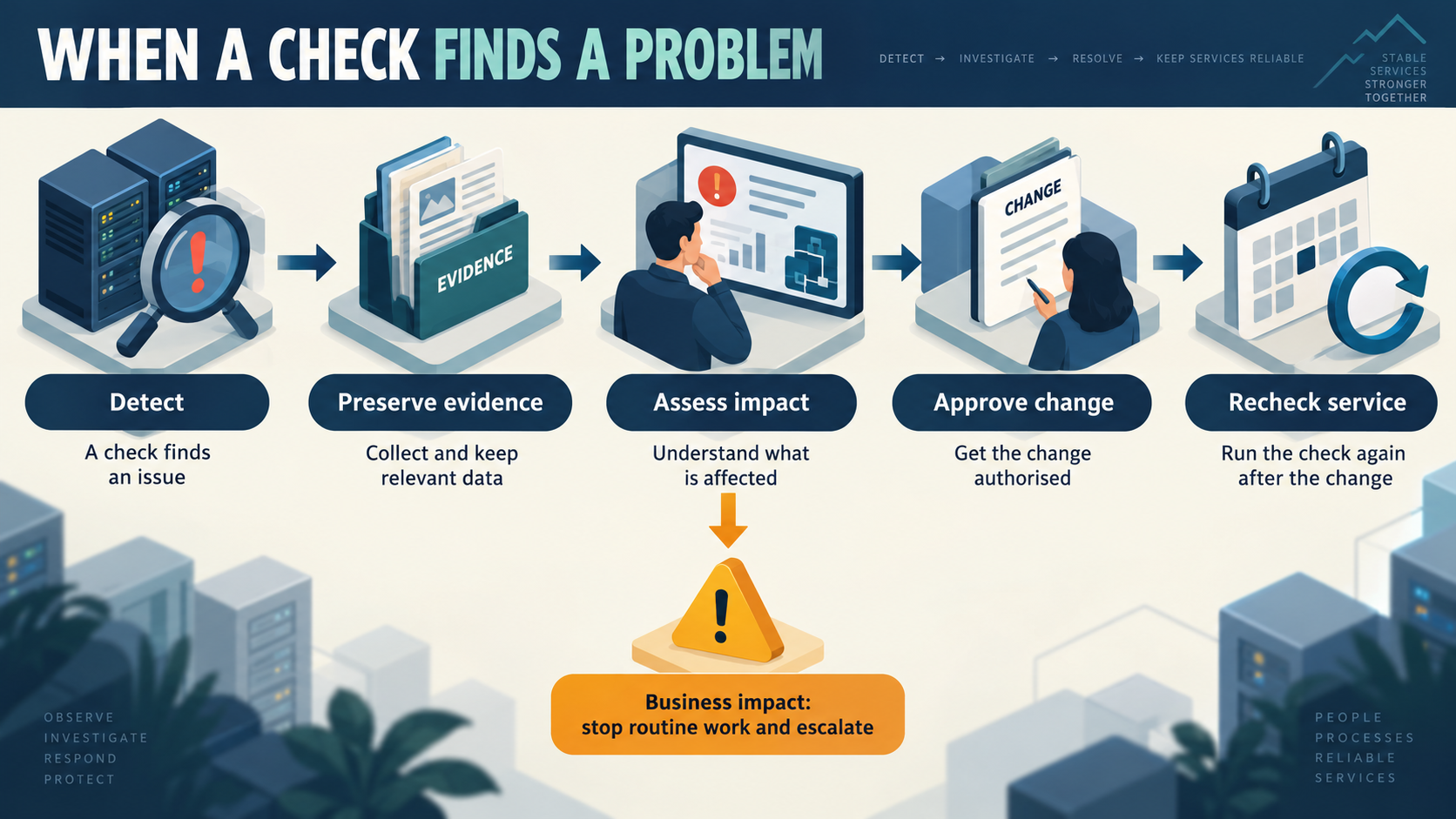
Illustration: a technical escalation workflow created for this article, not an on-site photograph. Source and creation details are recorded in the attachment credits.
FAQ
Is one daily check enough?
No. A daily record complements continuous monitoring. Set alert frequency against the service SLA and assign an owner for unattended periods.
Should an error event trigger an immediate reboot?
First identify its source, frequency, business impact and change history. An unapproved reboot can enlarge the outage and lose evidence. Follow the incident process when the business service is unavailable.
Can one free-space percentage cover every disk?
No. Capacity, write rate and operational needs differ. Establish growth trends and minimum headroom per disk before setting alerts.
Related solutions
For multiple servers, manage inventory, role baselines, alerts and maintenance windows together. Yuqi server repair and maintenance provides a starting point for discussing support scope with existing records and recovery requirements.
Further reading
See Microsoft Windows Server documentation for role-specific tasks, plus enterprise IT alert closure and server disk-space alert thresholds.
To build a daily baseline, start with the business-service list, responsible owners and recovery targets before discussing a support plan.