
To deploy DHCP for a new office subnet, give the server a static address, install and authorize the DHCP role, create an inactive scope, check its address pool and options, then activate it for one pilot client. Confirm the lease on both the client and server before connecting more devices.
This documentation-based example uses Windows Server 2022 Desktop Experience and a wired Windows 11 client. It covers a new, single-subnet deployment through graphical interfaces. Existing-server migration, DHCP relay across VLANs, and high availability need separate plans.
1. Confirm that this is a new DHCP deployment
DHCP supplies an address and related network settings to a client for a limited lease period. It does not create the physical network, configure switch ports, or make a gateway route traffic. Microsoft's DHCP overview explains the server's role and the information a client can receive.
Before installation, ask the network owner which device currently provides addresses. Check the router, firewall, wireless controller, virtualization platform, and any existing Windows DHCP server. A current client's connection details can show its DHCP server, but one client is not an inventory of every possible server.
Stop if the subnet already has a DHCP service, or ownership is uncertain. Do not connect another active scope to discover what happens. Use a separately approved, isolated test VLAN instead. Its switch ports, routing, and access to the required domain services must already be configured. Change every example address consistently if the isolated network uses a different subnet.
VLAN 30 below is a planning label. A VLAN ID does not configure itself when you enter an IP address. Ask the switch administrator to verify the actual access-port assignment, or the virtual machine's port group and VLAN settings. The DHCP server and pilot client must share the intended broadcast domain for this guide.
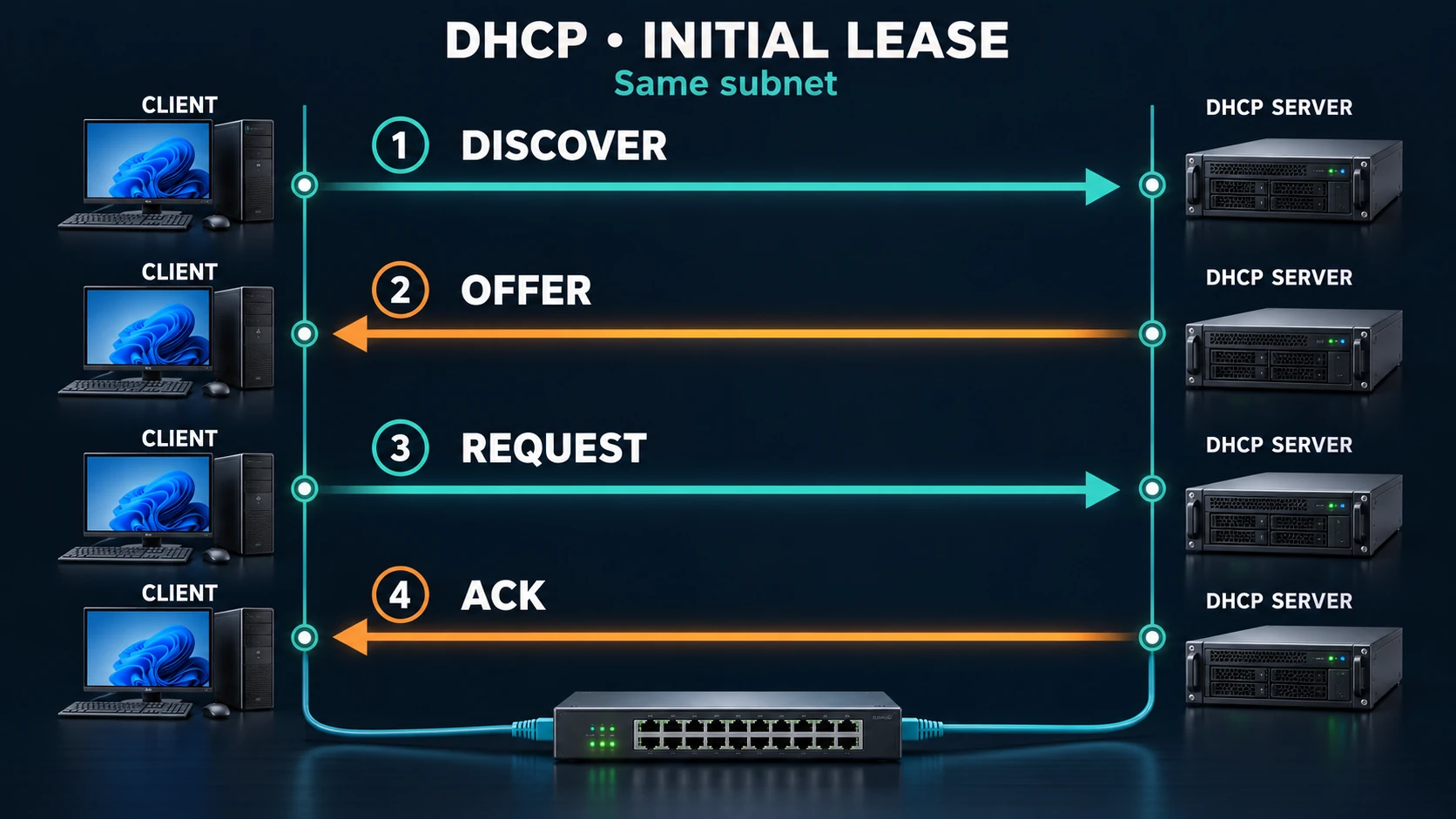
Lease process illustration. The DORA sequence shows the initial exchange on one subnet; it is not a packet capture or evidence of a completed deployment.
2. Write the address plan before opening the wizard
Use this worksheet as a sample, then replace it with your approved network plan.
| Item | Example value | Check before use |
|---|---|---|
| Operating system | Windows Server 2022 Desktop Experience | Domain member; current organizational patch baseline |
| Server identity | DHCP1 in corp.example.com | Name and domain membership already established |
| Subnet | 10.20.30.0/24 | Mask 255.255.255.0; actual network matches |
| VLAN | 30 | Switch or virtual network configuration verified |
| DHCP server address | 10.20.30.20 | Static; unassigned; outside this pool |
| Default gateway | 10.20.30.1 | Real router interface for this subnet |
| AD DNS | 10.20.30.10; optionally 10.20.30.11 | Second address only if that DNS server exists |
| Scope name | Office-VLAN30 | A descriptive management name |
| Distribution range | 10.20.30.100–10.20.30.199 | 100 addresses, including both endpoints |
| Exclusion | 10.20.30.100–10.20.30.119 | 20 addresses withheld from general allocation |
| Printer reservation | 10.20.30.150 | One unused address and the printer's actual NIC identity |
| Lease duration | 8 days | Planning example; choose for your client population |
A subnet describes the network boundary. A scope is the DHCP server's administrative configuration for allocating addresses on that subnet. The pool can cover only part of the subnet. An exclusion prevents ordinary dynamic allocation from part of that pool; a reservation assigns a particular address to a particular DHCP client. See Microsoft's scope planning guidance.
For this design, 100 pool addresses minus 20 exclusions leaves 80. Reserving one of those addresses for the printer leaves 79 addresses for general, unreserved allocation. That is design capacity, not the current number of free leases. Existing leases, declined addresses, and additional reservations can reduce availability.
The server's static address, 10.20.30.20, is outside the pool, so this scope does not need an exclusion for it. Still record it in the organization's address inventory. DHCP cannot prevent someone from manually assigning the same address elsewhere.
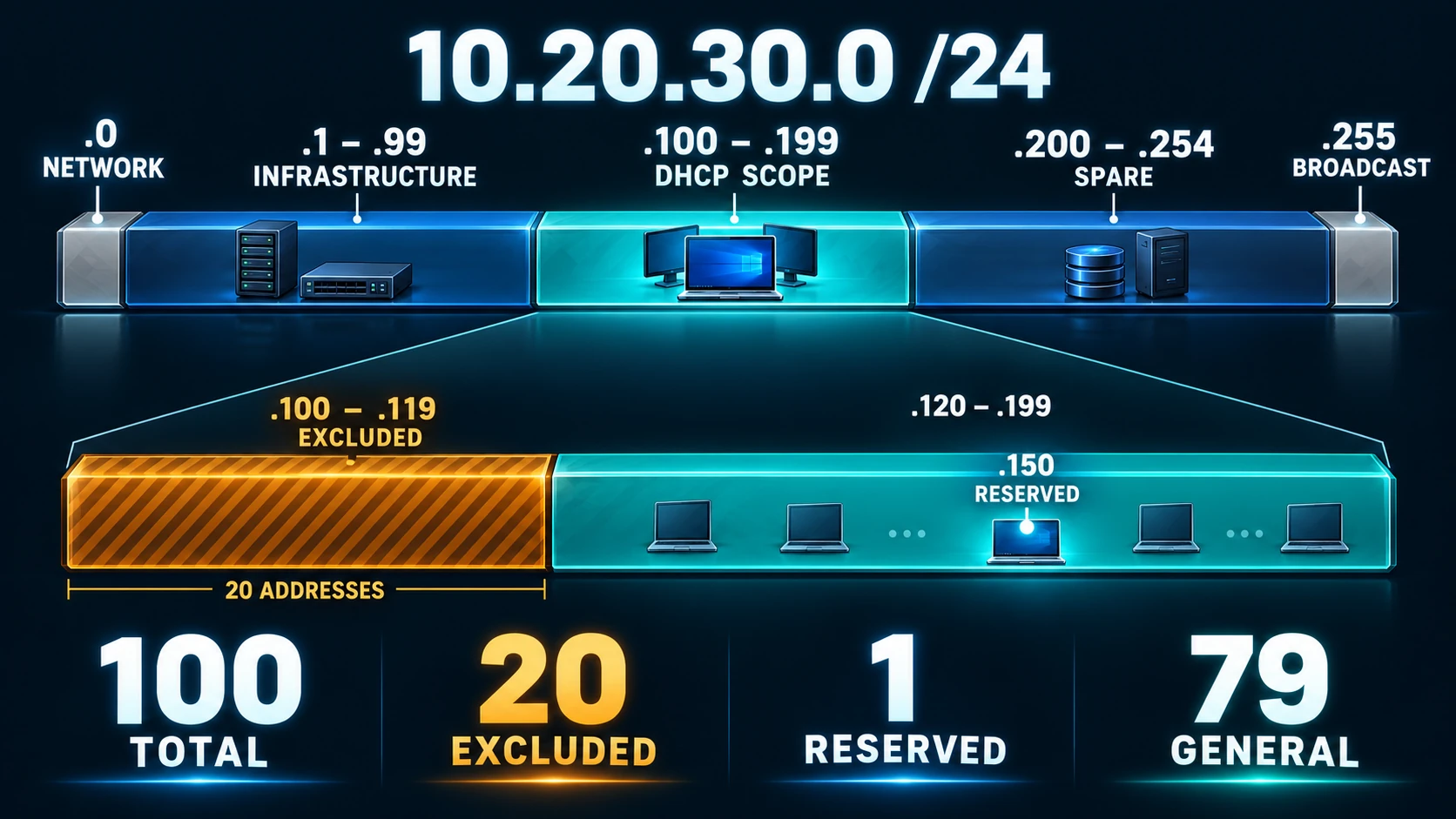
Address allocation illustration; segment lengths are not to scale. The pool has 100 addresses; the 20-address exclusion and one printer reservation leave a planned general capacity of 79.
3. Prepare the server and your access
Arrange console or equivalent out-of-band access before changing a server's network settings. Editing the adapter that carries a remote desktop session can disconnect that session.
In Server Manager → Local Server, open the Ethernet connection. Alternatively, open Control Panel → Network and Sharing Center → Change adapter settings. Identify the intended adapter by its connection and network, then open Properties → Internet Protocol Version 4 (TCP/IPv4) → Properties.
Enter the approved static address, mask, gateway, and AD DNS addresses from the worksheet. Do not enter 10.20.30.11 merely because the sample contains it. An address without a working DNS service provides no redundancy. Save the settings, reopen them, and compare every field against your plan.
In Local Server, confirm that the computer belongs to corp.example.com. If domain membership or access to the domain controllers is not working, resolve that prerequisite first; this guide assumes a prepared member server. The Active Directory deployment guide covers the surrounding directory-service work.
Separate the permissions needed for installation, authorization, and routine administration. Installing a role requires local administrative rights. Authorizing DHCP in AD requires Enterprise Admin privileges or specifically delegated permission to modify the authorization data under AD's NetServices container. A local administrator account alone does not supply that directory permission.
Have the directory administrator perform the authorization as a dedicated privileged action. Afterwards, return to the appropriately limited management account. Do not keep a forest-level account signed in for daily lease administration. Microsoft's authorization troubleshooting guidance identifies directory permissions and domain-controller connectivity as separate requirements.
4. Install the DHCP role and finish post-deployment setup
Use these Server Manager selections:
- Manage → Add Roles and Features.
- Choose Role-based or feature-based installation and select DHCP1.
- Select DHCP Server, accept Add Features, review the selection, and install.
- Open the notification flag and Complete DHCP configuration. Complete the security-group configuration. Use the planned privileged authorization action, or explicitly defer authorization to that administrator.
- Open Tools → DHCP. If authorization remains pending, the authorized administrator right-clicks DHCP1 and selects Authorize. Allow time, then refresh.
These GUI entry points follow Microsoft's DHCP installation quickstart. An installation success message alone does not establish authorization or a usable scope.
On DHCP1, open Server Manager → Tools → Computer Management → Local Users and Groups → Groups. Confirm that DHCP Administrators and DHCP Users exist. The former supplies delegated DHCP administration; the latter supplies read-only viewing. Assign membership through your organization's approval process, and do not confuse either local group with the directory permission needed to authorize a server.
Under Computer Management → Services and Applications → Services, locate DHCP Server. Check that it is running and that its startup configuration matches the deployment baseline. If the groups are missing, the routine account cannot manage DHCP, or the service is not running, stop and have the authorized administrator investigate post-deployment setup and event logs. Keeping an Enterprise Admin session open is not a workaround.
Authorization governs participating Windows DHCP servers; it does not block a router or other non-Windows rogue DHCP service. Network enforcement, such as correctly designed DHCP snooping, requires separate switch administration.
Before creating the scope, right-click the DHCP1 server node and look for Add/Remove Bindings; some management-console versions expose a Bindings entry under server properties. Confirm that the intended static IPv4 adapter is selected and unrelated interfaces are not serving this subnet. Names and entry points can vary slightly by management-console version. If the expected interface is absent, stop and correct the server's adapter configuration rather than selecting an unrelated interface.
Keep the Windows firewall enabled. If a security baseline blocks DHCP traffic, review the applicable DHCP service rules and network policy with the security owner. Do not solve this by allowing all inbound traffic.
5. Create the scope without activating it
Right-click DHCP1 → IPv4 → New Scope, then use the worksheet:
| Wizard page | Selection |
|---|---|
| Scope Name | Office-VLAN30 |
| IP Address Range | Start 10.20.30.100; end 10.20.30.199; length 24 |
| Add Exclusions and Delay | Add 10.20.30.100–10.20.30.119 |
| Lease Duration | 8 days for this example |
| Configure DHCP Options | Configure now |
| Router | Add 10.20.30.1 |
| Domain Name and DNS Servers | corp.example.com; verified AD DNS addresses |
| WINS Servers | Skip if your environment has no WINS |
| Activate Scope | No, I will activate this scope later |
Finish, then expand the new scope. This staging point lets you find a transposed address before clients receive it.
Under Address Pool, compare the range and exclusion with the worksheet. Under Scope Options, inspect 003 Router, 006 DNS Servers, and 015 DNS Domain Name. Check their values, not just the presence of their names. Review inherited server options as well; an unexpected option at server level can make a new scope behave differently from your plan.
Use AD DNS servers for domain clients. Adding a public resolver as a supposed backup can cause inconsistent internal-name resolution. The suffix corp.example.com also does not join a computer to the domain. Domain membership is a separate operation.
Eight days is a sample lease policy, not a universal best value. A stable office and a busy visitor network have different turnover. Estimate the number of simultaneously connected clients, growth, and address retention before choosing a duration. Do not change leases across existing networks as part of this new-scope exercise.
6. Prepare a reservation using the client's actual network interface
A reservation depends on the DHCP identity of the interface making the request. A device hostname, product serial number, or the server adapter's address is not a substitute for the client's MAC address. A laptop's wired and wireless adapters have different identities, and private or randomized Wi-Fi addresses complicate reservations. Use a wired pilot for the initial test.
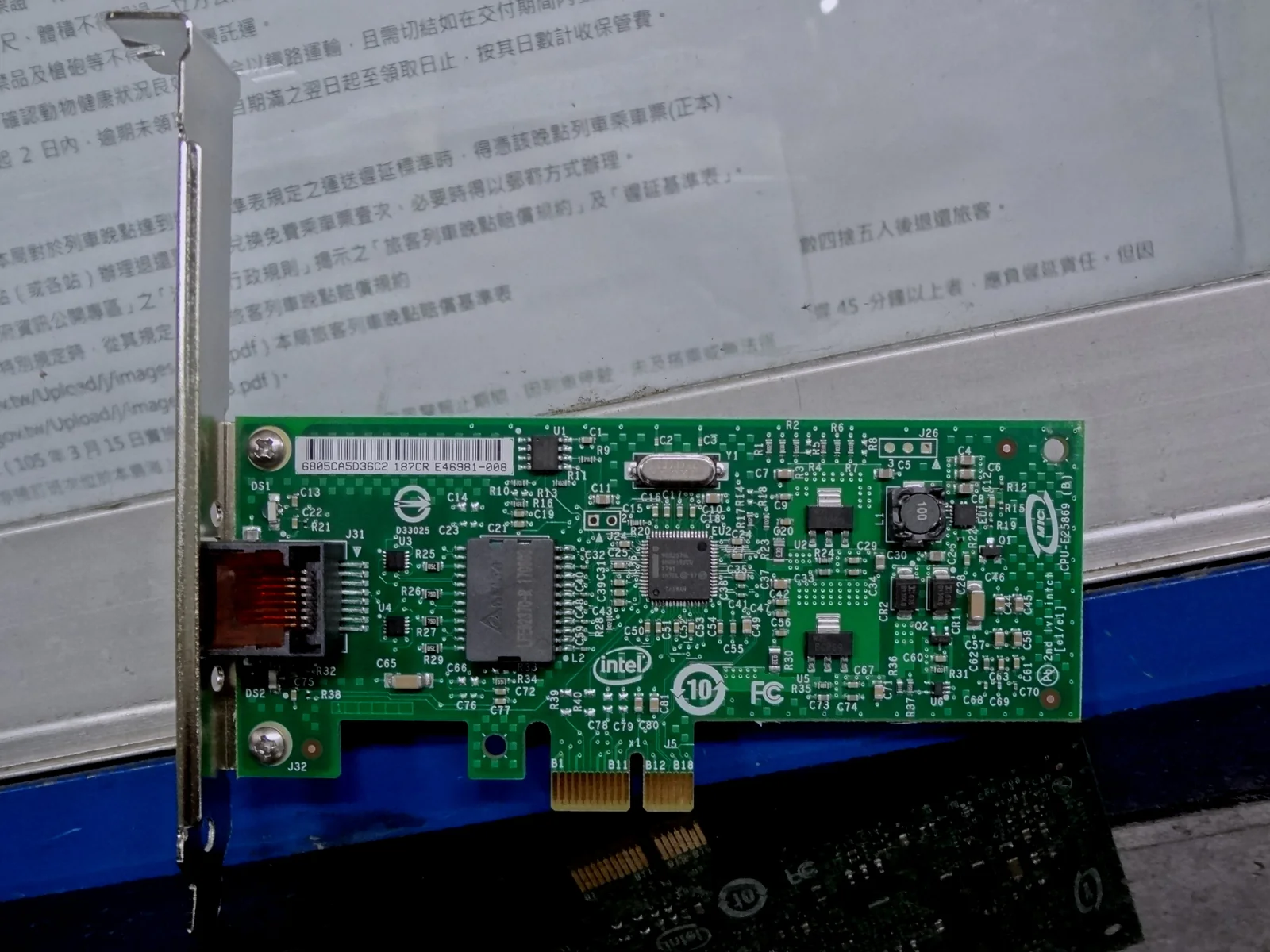
Real product photograph: Intel EXPI9301CTBLK network interface card, photographed by Solomon203, CC BY-SA 4.0. Resized and converted to WebP; the derivative image retains that license. This is not a photograph from this deployment or a product recommendation.

For the printer, first confirm through the address inventory and the relevant device owners that 10.20.30.150 is unused. An empty lease list alone does not prove this: manually configured devices do not need to appear there. Read the printer's Ethernet MAC from its network settings or configuration page and verify which interface is connected.
In Reservations → New Reservation, enter a descriptive name, 10.20.30.150, the real MAC address in the accepted field format, and an identifying description. Select DHCP as the supported type when the printer uses DHCP. Save and reopen the entry to check it. Set the printer itself to obtain its IPv4 configuration automatically; a reservation cannot override a manual address configured on the device.
Windows requires the reserved address to fall within the scope's configured distribution range. A reservation can still work inside an exclusion; these mechanisms are not mutually exclusive. This plan puts .150 outside the exclusion for simpler bookkeeping. Microsoft's reservation range explanation documents that distinction.
7. Activate the scope and connect one pilot
Before activation, have another operator compare the pool, mask, exclusion, reservation, options, binding, and authorization against the approved worksheet. Confirm again that the test network has no competing DHCP service. If any entry is uncertain, leave the scope inactive.
Right-click Office-VLAN30 → Activate. Connect one Windows 11 wired pilot to the verified VLAN. Record its original IP and DNS settings before making changes, especially if it currently uses a manual address.
On the pilot:
- Open Settings → Network & internet → Ethernet and select the correct connection.
- Under IP assignment → Edit, choose Automatic (DHCP) and save.
- Under DNS server assignment → Edit, choose Automatic (DHCP) and save.
- Open Advanced network settings → More network adapter options if available. Alternatively use Control Panel → Network and Sharing Center → Change adapter settings.
- Open the wired adapter's Status → Details and record its DHCP server, IPv4 address, subnet mask, gateway, DNS servers, and lease times.
Windows 11 builds use slightly different labels. If Settings omits a field, the adapter status details provide the alternate inspection route.
If necessary, briefly disable and enable only this pilot's adapter through its context menu while you have local access. This interrupts the pilot's connection and can trigger DHCP negotiation; it does not guarantee an immediate different address or lease. Do not disable a server adapter or restart unrelated clients to force the demonstration.
On DHCP1, refresh Address Leases. Match the pilot's address and client identity to the client-side details. If you want the pilot to retain that currently leased address, right-click its lease and select Add to Reservation, then inspect the resulting reservation. This preserves the observed client identity instead of guessing it. Keep that optional pilot reservation separate from the printer's .150 reservation, and adjust capacity records if you retain both.
8. Accept the deployment using separate evidence
Use this acceptance sheet before adding more clients:
| Check | Expected evidence | What it establishes |
|---|---|---|
| Client DHCP server | 10.20.30.20 | Which server supplied the observed lease |
| Client address | An allowed pool address | Allocation follows this design |
| Client mask | 255.255.255.0 | Intended IPv4 subnet boundary |
| Gateway and DNS | Approved worksheet values | Expected options reached this client |
| Lease obtained/expires | Plausible times for the selected duration | A lease was accepted |
| Server lease | Same address and client identity | Client and server records agree |
| Known internal application | An approved internal hostname opens the expected service | A separate application and name-resolution check |
| Permitted external endpoint | An approved destination works as expected | A separate routing, policy, and application check |
Use an internal hostname whose correct destination your administrator has already confirmed. Observe its expected application response; do not treat any page loading as proof of the right destination. Where more precise DNS diagnosis is required, use the organization's separate DNS investigation procedure.
A lease alone does not establish that client DNS records were dynamically registered. Opening an internal service also does not establish internet access. Record each result separately, including failed or unavailable checks. For DNS-specific symptoms, continue with the domain-controller DNS troubleshooting guide.
9. Stop safely when a check fails
Begin with observation rather than broad configuration changes. Microsoft's DHCP troubleshooting checklist separates server state, pool availability, client connectivity, and network placement.
| Symptom | Read-only first check | Stop boundary |
|---|---|---|
| Client has a 169.254 address | Cable, adapter state, VLAN, scope activation | Do not expand the pool blindly |
| DHCP server is unexpected | Client details and network-owner inventory | Isolate the pilot; do not keep testing on production |
| Server shows authorization trouble | DHCP status and Event Viewer | Escalate directory permissions/connectivity |
| Correct lease, wrong DNS behavior | Received DNS values and known internal service | Do not replace AD DNS with public DNS |
| No available addresses | Scope statistics and lease list | Do not delete active leases to create space |
Open Server Manager → Tools → Event Viewer. Inspect Windows Logs → System, and, where present, Applications and Services Logs → Microsoft → Windows → DHCP-Server. Record timestamps and event details. Event 1046 is associated with authorization failure; it is not a universal explanation for every DHCP problem.
For a broader investigation of an existing network, use DHCP and IP conflict troubleshooting. Avoid mixing that repair work into this new deployment.
10. Back up the configuration and document rollback
First prepare a dedicated, dated backup folder on DHCP1 itself. In File Explorer, check the destination drive's free space and the folder's Properties → Security permissions. Have the administrator provide the access needed by the actual operator and DHCP service identity. Do not guess a service-account ACL or grant Everyone full control.
In the DHCP console, right-click DHCP1 and choose Backup. Select that prepared local folder. Even when you manage DHCP from another computer, do not confuse a folder on the management computer with the destination on DHCP1. Do not blindly overwrite the default backup location or an older known-good copy.
Check the completion result for success or errors, then inspect the actual folder on DHCP1 for newly created files and their modification times. A missing directory, access error, insufficient space, or missing current backup is a failed backup and stops handover. After confirming the local backup, copy it to approved storage outside this server and check that the copy is readable. Limit access because lease information can expose device identities.
Record the server name, static settings, scope worksheet, reservation identities, acceptance results, and backup location in your operations record. A backup operation is not evidence of successful disaster recovery; restoration requires its own planned test.
If the pilot fails acceptance, deactivate only the newly created scope, keep the evidence, and restore the pilot's recorded adapter settings or disconnect it from the test network. Deactivating a scope does not instantly erase addresses or options already held by clients. Account for those existing leases before reconnecting devices elsewhere.
Replacing an existing DHCP service requires coordinated handling of lease data and address ownership. Do not restart an old overlapping scope as a rollback shortcut. Use a separate migration procedure; Microsoft's DHCP migration guide provides the relevant starting point.
Frequently asked questions
Does installing the role immediately start allocating addresses?
Role installation alone is insufficient. In this domain-member example, authorization, a suitable interface, an active scope, and client reachability also matter. Keeping the new scope inactive gives you a deliberate review point.
Why does a reservation not change the printer's address immediately?
The printer may still have a manual address, a current lease, or a different active interface. Check its actual DHCP setting and Ethernet identity. A reservation does not push an immediate address change into every device.
Do I need a DHCP relay for VLAN 30?
This example places the server and pilot on the same subnet and broadcast domain. If your server is elsewhere, stop and design the relay and routing separately. Creating a scope does not make DHCP broadcasts cross a router.
Does an authorized DHCP server prevent all rogue DHCP offers?
No. AD authorization does not enforce trust on every network device. Coordinate separate switch protections with the network owner, and verify the DHCP server observed by the pilot.
Related solutions
Enterprise network equipment and routing services cover the switching and routing environment around a DHCP deployment. If you need help, bring the approved address plan and pilot observations so the next decision can be based on actual configuration.