

An open port and a successful HTTP response do not prove that a business page contains the right content. For an enterprise portal, knowledge base or read-only query page, Uptime Kuma can check a stable keyword in the response body and alert when that content disappears. This is a useful step beyond status-code monitoring. It does not execute browser JavaScript or prove that login, checkout or a database transaction works.
The examples below use the official Uptime Kuma 2.5.6 documentation and implementation. They assume a Linux host with working Docker Compose and an approved read-only HTTP endpoint. Pages requiring interactive login, CAPTCHA or client-side rendering need a different test design. These are documented operating examples, not a report of a customer deployment or a completed transaction test.
Separate connectivity, HTTP success and expected content
| Check | What it establishes | What it can still miss |
|---|---|---|
| TCP connection | The probe can connect to a port | Error pages and broken application dependencies |
| HTTP status | The final response meets the configured status rules | Maintenance and login pages returning 200 |
| HTTP keyword | The returned body contains a case-sensitive literal substring | Browser rendering, complete transactions and deeper data correctness |
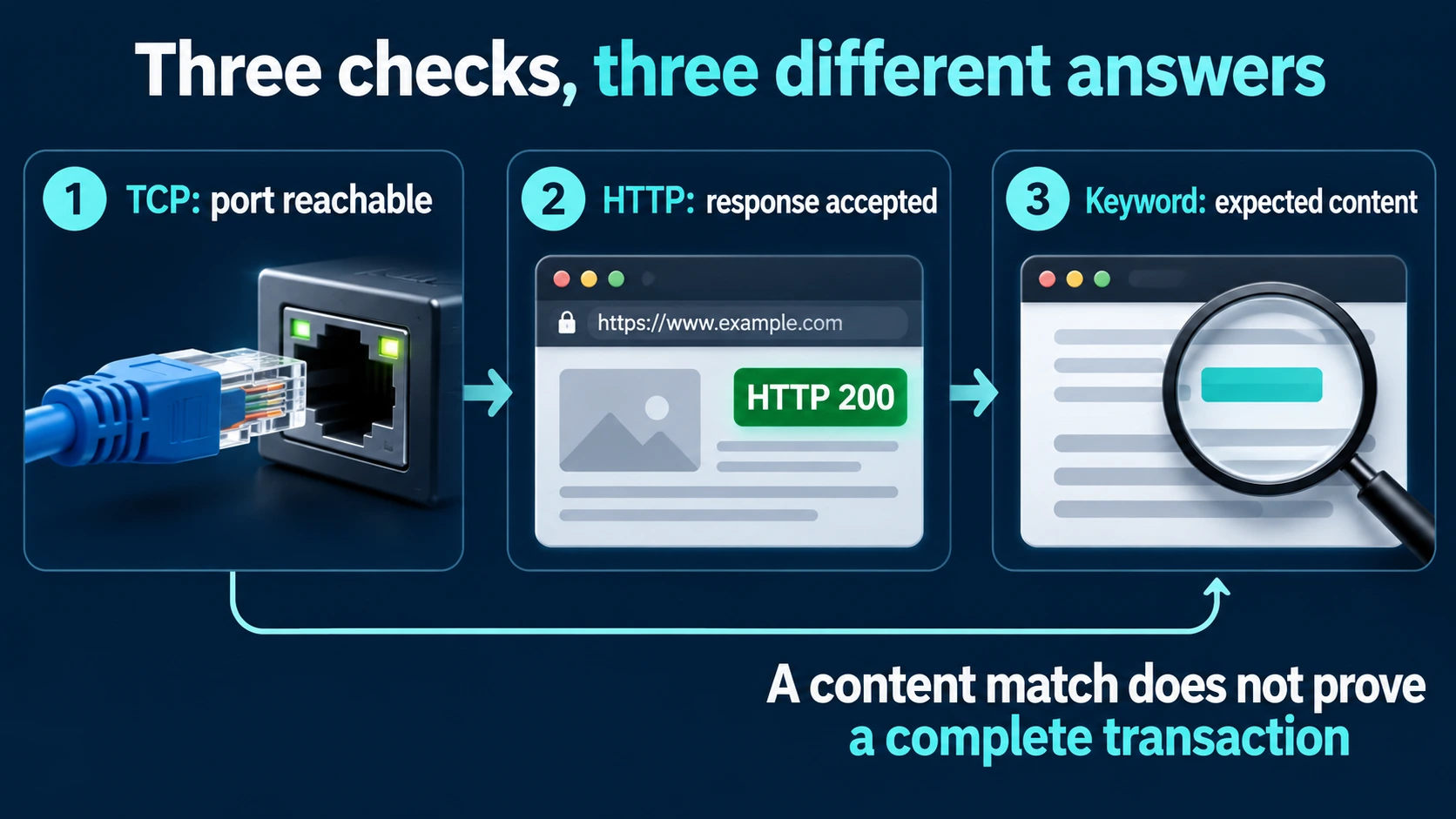
Figure: an illustration prepared for this article. The three checks complement one another; none alone proves a complete business transaction.
Choose content that appears only in a successful server response. A company name reused on the maintenance page is a poor marker. A heading that only appears after JavaScript runs may be absent from the raw response and unsuitable for this monitor type.
Our existing alert-handling article covers ownership and follow-through in Chinese. This guide focuses on designing one content check and validating its alert path.
Confirm the operating boundaries first
- The probe must resolve and reach the target from its own network. For an internal service, place the probe in an authorized reachable segment; do not expose the application publicly just to make monitoring easier.
- Separate the probe from the application it monitors. A shared host can lose both the service and its alarm system during one failure. A colocated trial does not provide host-outage coverage.
- Use local persistent storage. The project explicitly does not support NFS for its data directory. This example uses SQLite in a local Docker named volume, not an external MariaDB deployment.
- Establish an approved management route, backup location and notification recipient. Bind the management port to loopback and initialize through an SSH tunnel.
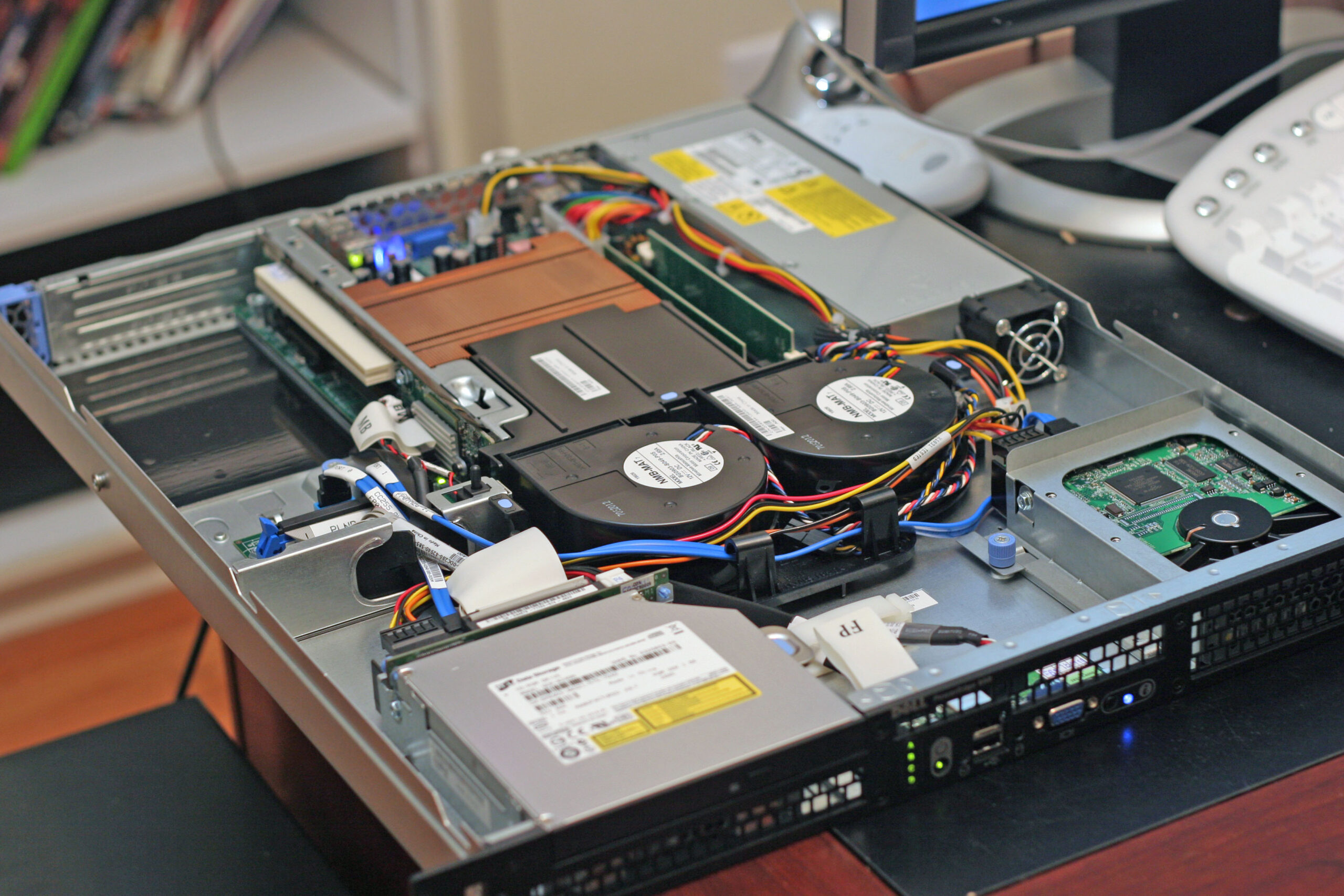
Photo: Rodzilla, Dell PowerEdge850, photographed in 2005; original on Wikimedia Commons, CC BY 2.5. External photograph, not a Yuqi site or this deployment. It illustrates that a monitoring host has its own physical failure domain; it is neither a hardware recommendation nor evidence that this configuration was tested.

Pin the release and restrict management access
All paths and domains below are examples. Start by checking both the Docker client/server connection and Compose. If either fails, stop and use your organization's approved Docker repair process; do not grant world access to the socket.
docker version
docker compose version
mkdir -p "$HOME/uptime-kuma"
cd "$HOME/uptime-kuma"
Expected result: Docker reports client and server information, and Compose reports its version. Save this configuration as compose.yaml in that directory. Unlike a default all-interface port mapping, this example binds only to loopback. It does not mount the Docker socket or use host networking.
services:
  uptime-kuma:
    image: louislam/uptime-kuma:2.5.6
    restart: unless-stopped
    ports:
      - "127.0.0.1:3001:3001"
    volumes:
      - uptime-kuma-data:/app/data
volumes:
  uptime-kuma-data:
Validate, pull and start the pinned image, then inspect its state and logs.
docker compose config --quiet
docker compose pull
docker compose up -d
docker compose ps
docker compose logs --tail=80 uptime-kuma
Expect a valid configuration, a running container and a loopback port mapping. A temporary health: starting state during initialization is not itself a failure. Repeated restarts, insufficient storage, data-permission errors or an all-interface binding must be fixed before adding production monitors. A running container does not establish that the monitored application is usable.
On your own workstation, open a tunnel to the authorized management host. Replace the account and host; choose another local port if 3001 is occupied.
ssh -N -L 127.0.0.1:3001:127.0.0.1:3001 ops@monitor-host.example.com
Open the tunneled local port in your browser, select SQLite in database setup, finish database initialization, then create the administrator and enable supported two-factor authentication. Public reverse-proxy access is a separate design decision, not a prerequisite of this minimal deployment.
Inspect the raw response before configuring the monitor
Run a baseline check from the probe host against an approved read-only page. Do not include credentials, cookies or notification secrets in command history or screenshots.
curl --connect-timeout 5 --max-time 10 \
  --silent --show-error --dump-header baseline.headers \
  --output baseline.html \
  https://portal.example.com/health/readiness
head -n 12 baseline.headers
grep -F -- 'PORTAL_READY_V1' baseline.html
The marker is illustrative. Ask the application owner for a stable literal substring in the real successful response. This command does not follow redirects. Expect HTTP 200 and a matching grep result. A 302 login redirect, 403 response or missing marker needs investigation, not a broader list of accepted status codes. A custom readiness endpoint must calculate dependency readiness; a permanently hard-coded success string proves nothing about those dependencies.
Create a dedicated test monitor of type HTTP(s) - Keyword. Field names may differ slightly by UI language.
| Setting | Example | Interpretation |
|---|---|---|
| URL | Approved read-only readiness page | Use the same address as the baseline and record the probe location |
| Keyword | Application success marker | Case-sensitive literal substring, not a regular expression |
| Accepted Status Codes | 200 only | Do not count redirects or error responses as success |
| Max Redirects | 0 | This readiness endpoint should not redirect; use its final canonical address |
| Heartbeat Interval | 60 seconds | Adjust for load and detection needs |
| Retries | 2 | Two retries after the first failure; intermediate state can be PENDING |
| Retry Interval | 60 seconds | Actual timing also includes request duration, scheduling and delivery |
| Notifications | Named recipient or duty channel | Test delivery first, then run the controlled drill below |
DNS, TLS and HTTP results reflect the probe's location. If a workstation succeeds while the container fails, compare their resolution, proxy, routes and certificate chains. Do not disable TLS validation as a default workaround. Use approved diagnostics rather than adding privileges to the monitoring container.
Exercise the alert path without stopping production
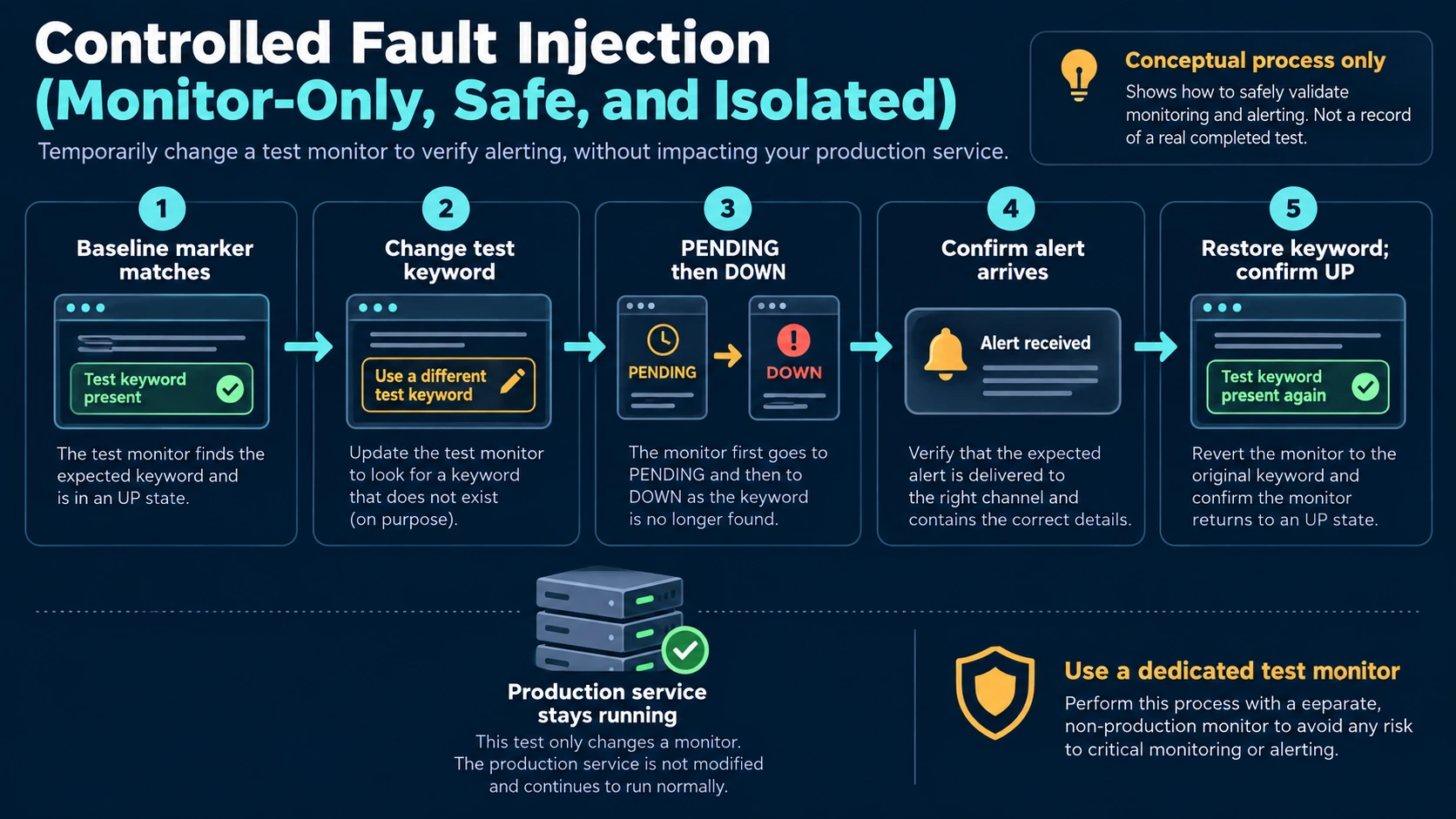
Figure: a proposed controlled drill. The production service stays running; this illustration is not evidence of a completed test.
First establish stable UP status on the dedicated test monitor. Record the correct marker, probe location, channel and baseline time. A successful notification test proves delivery at that moment; it does not prove that a detected fault will traverse the whole alert path.
- Replace the test monitor's keyword with a drill marker absent from the response. Save it. Do not edit the business page or stop its server.
- Observe the first failure, any PENDING state and the transition to DOWN. Record when the recipient actually receives the alert. Do not promise an exact two-minute delay: request timeouts, retries, scheduling and delivery all contribute.
- Verify the message identifies the right monitor and reaches an accountable person. If the monitor never becomes DOWN, inspect the detection rules and retries. If it is DOWN but no message arrives, inspect notification binding and delivery.
- Restore the original keyword, wait for UP and check the configured recovery notification. Confirm that no drill keyword remains.
- Record detection and recovery timing before extending the pattern. Every production monitor still needs its own valid baseline.
| Acceptance item | Required evidence | Stop condition |
|---|---|---|
| Normal baseline | HTTP 200 with the correct raw-response marker | Do not label the service available without it |
| Fault detection | Absent marker causes the test monitor to reach DOWN | Do not deploy the same rule pattern as accepted |
| Alert delivery | Actual recipient receives the matching fault message | Do not rely on the channel for duty coverage |
| Recovery | Correct marker restores UP and configured recovery message is checked | Do not record a complete drill |
| Probe failure domain | An independent mechanism detects a missing probe | Do not claim host-outage coverage from a colocated probe |
This drill tests content mismatch, fault state, notification and recovery. It does not test a login transaction, power loss or a disconnected site.
Back up the complete data directory
Uptime Kuma v2 removed the old JSON Backup/Restore feature. For the SQLite/local-volume setup used here, schedule a maintenance window and stop the container before copying the complete data directory. Monitoring and notification are interrupted while the probe is stopped; inform duty staff and provide another monitoring path.
cd "$HOME/uptime-kuma"
docker compose stop uptime-kuma
Confirm the container has stopped, then use your approved Docker-volume backup procedure. Do not guess the real volume name: Compose prefixes depend on the project name. Inspect the actual mount first.
docker inspect "$(docker compose ps -a -q uptime-kuma)" \
  --format '{{range .Mounts}}{{if eq .Destination "/app/data"}}{{.Name}} {{.Source}}{{end}}{{end}}'
Store the complete data backup, Compose file and release number in an access-controlled location. Backups may contain monitoring credentials and notification secrets; never place them in a public repository. Restart the original instance after backup and recheck its baseline and notifications. Do not run cleanup commands that delete the volume.
docker compose start uptime-kuma
docker compose ps
docker compose logs --tail=80 uptime-kuma
Restore tests belong in an isolated environment with outbound access to production notification channels blocked, avoiding duplicate alerts. External MariaDB deployments require database-aware backup as well; a local directory alone is not a complete backup. Keep a recoverable pre-upgrade backup and do not feed a v2 data directory back into v1.
Frequently asked questions
Why does keyword monitoring fail when the page always returns 200?
The body may contain a maintenance page, login page, proxy-generated response or client-rendered shell. Inspect the response seen by the probe, including redirects and marker presence. A workstation browser is a different observation point.
Can this prove login or checkout works?
A single keyword check cannot prove a multi-step browser workflow or transaction correctness. Use appropriate synthetic transactions and business metrics, with safeguards against creating real orders or changing production data.
Can the probe run on the application server?
For a trial or limited local check, yes. It shares the application's failure domain. Host, uplink and site-outage coverage need an independently placed probe and a way to detect failure of the probe itself.
Why not use the latest image tag?
The official tag documentation says latest is deprecated and points to v1. This example pins 2.5.6. Evaluate upgrades against release notes, compatibility, backups and a maintenance window; a successful image pull does not establish upgrade success.
Technical sources
Version 2.5.6 README, monitor implementation, Docker image tags and v1-to-v2 migration and backup. Operational steps are examples derived from these sources, not a site-specific acceptance report.
Related solutions
Enterprise IT operations can help define probe placement and response ownership. Business continuity planning addresses failure domains and recovery exercises.
Further reading
If your monitoring dashboard is green but staff still cannot use a service, start with one approved read-only endpoint. Validate its response marker, accountable recipient and recovery message before expanding coverage.