
When a team reports that some users can connect to Remote Desktop while others cannot, the first response is often the riskiest one: roll back or restart every server at once. That can erase the timeline you need to understand the incident.
Microsoft’s September 2026 release-health information describes a Windows 11 26H1 issue in which some organizations could see RDS instability, RDP connection or sign-in failures, and server hangs after the security update. Microsoft also documents an out-of-band update, KB5129194, for the RDS-related problem. The useful lesson is not to memorize a KB number; it is to connect the patch, the session, and the workload in one evidence trail.
The short answer: do not roll back the whole estate first
Verify that the affected systems match the documented scope. Then test the remediation on one non-critical session host or a low-risk user group. Widen the change only after the pilot has passed, the business path has been tested, and the change record is complete.
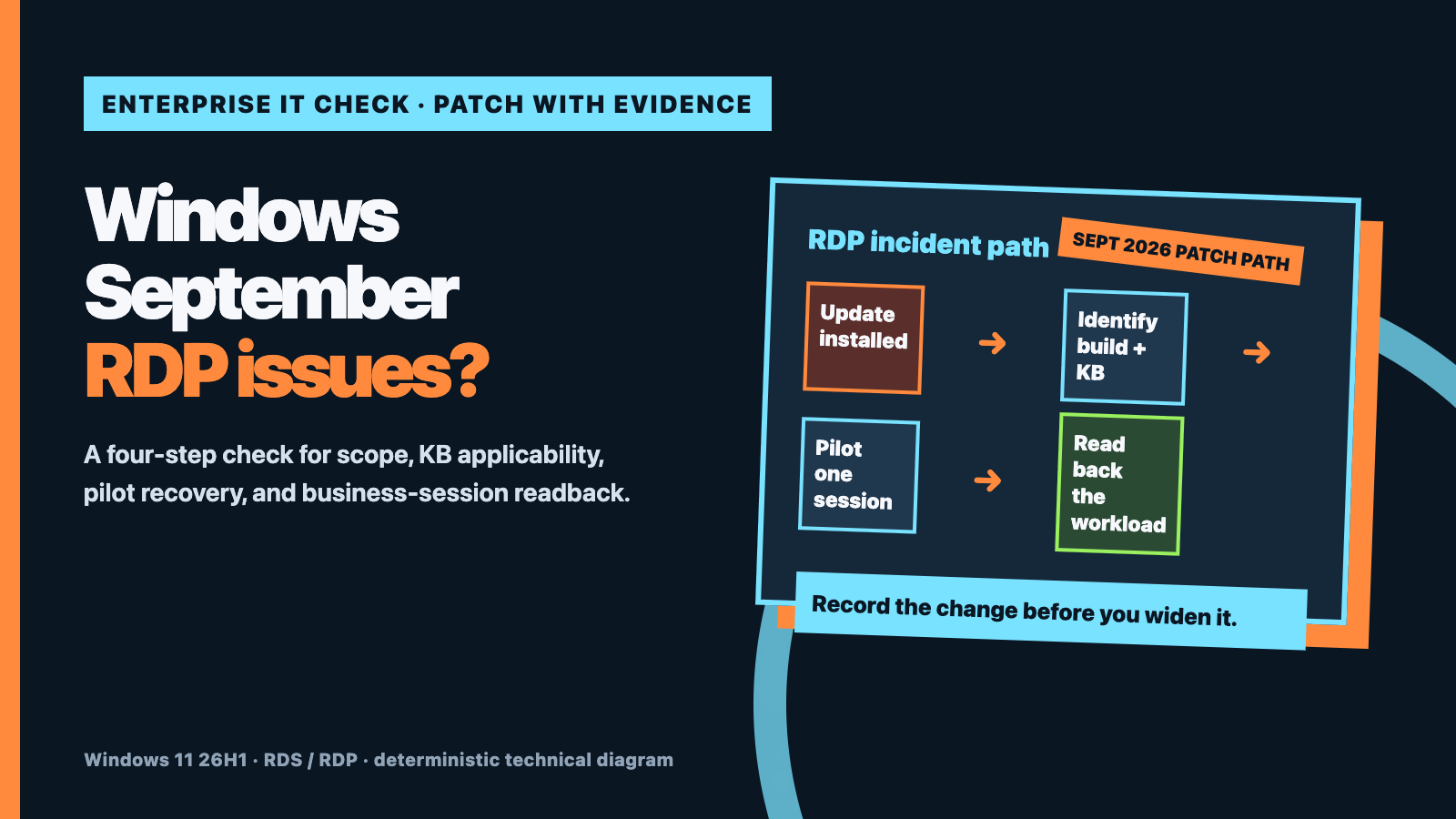
Use this order:
- Scope the incident: one host, one account, or every RDS session? Is the behavior different inside and outside the network?
- Verify the build and KBs: confirm the Windows release, build, installed updates, and installation time.
- Pilot the remediation: evaluate KB5129194 against the affected baseline before broad deployment.
- Read back the real workload: test the application, file access, printing/audio where relevant, and reconnect behavior—not just the login screen.
01 | Separate connection failure from workload failure
Classify the symptom before choosing a fix:
- The connection never starts: authentication, gateway, port, or network-path behavior may be involved.
- The session opens and then stalls: the desktop, application, or mapped resource may not be completing initialization.
- Only some users are affected: compare users, endpoints, policies, and session-host placement instead of assuming a global outage.
- A server hangs after the update: preserve the timeline and logs before repeated restarts overwrite useful evidence.
At minimum, record the host or asset group, affected users and endpoints, first-seen time, Windows build, recent KBs, visible RDP behavior, and whether the symptom can be reproduced. Without that baseline, a successful reconnect can be mistaken for a complete recovery.
02 | Verify the build and patch baseline
The Microsoft notice applies to a particular release and update combination. Check the following before changing anything:
- whether the host is Windows 11 26H1 or otherwise within the documented scope;
- whether KB5124012 applies and when it was installed;
- whether KB5129194 applies and whether it is already present;
- whether session hosts, jump servers, and office endpoints share the same patch baseline.
Start with Windows Update history and winver for a manual check. For a larger estate, use the organization’s existing asset or patch-management export. This article does not claim to have executed commands in your environment; the validation path still needs to be run against your own inventory.
03 | Put KB5129194 in a pilot, not a blind rollout
Microsoft Support lists KB5129194 as an out-of-band Windows 11 26H1 update released on September 14, 2026, addressing the documented RDS instability and RDP connection/sign-in failure scenario. The same page also lists other known issues, so the update should not be treated as a universal fix for every Remote Desktop symptom.
A controlled pilot looks like this:
- Select one non-critical session host or a low-risk account group, and capture the current build, KB list, configuration, and symptom.
- Confirm the maintenance window, restart requirement, rollback path, and business owner before deployment.
- After remediation, create a new session from both the internal network and a representative office endpoint; perform a disconnect/reconnect test.
- Validate the application, file access, printing or audio if used, and the relevant event records.
If the pilot does not recover the path, stop widening the change. Preserve event logs, update history, and the change timeline before escalating. “Restart it again” is not a substitute for evidence.
04 | Four questions to confirm before a wider change
- 01 Scope: Which hosts, endpoints, users, and business windows are affected?
- 02 Baseline: Can the before/after build, KB, logs, and connection behavior be compared?
- 03 Stop line: Who decides to stop, roll back, or change the policy when the pilot fails?
- 04 Workload readback: Have login, application, files, printing/audio, and reconnect all been verified?
Fast-looking actions that increase the risk
- Disabling every security update as soon as RDP fails turns a scoped incident into a patch-baseline problem.
- Installing or uninstalling the KB everywhere before verifying the affected release treats different hosts as if they had the same fault.
- Checking only “I can log in” misses the application and resource path that users actually need.
- Copying an unreviewed registry script from a forum creates a change with no reliable rollback evidence.
What Yuqi can deliver around this problem
Yuqi’s enterprise IT operations and infrastructure hosting service can turn a post-update incident into a controlled change loop: inventory the affected assets and patch baseline, separate server/network/endpoint/application layers, schedule a pilot window, capture before-and-after evidence, and read back the critical workload with follow-up observations. The public checklist above is a starting sequence; the actual response still depends on the release, topology, and business window.
Sources and limits
- Microsoft Learn: Windows 11 26H1 known issues and notifications
- Microsoft Support: KB5129194—Windows 11 26H1 security update
- Microsoft Learn: Prepare for Windows 11
This article summarizes public Microsoft documentation. It does not claim that the fix has been tested in your environment; verify applicability, restart impact, and rollback controls through your own change process.