

Use File Server Resource Manager (FSRM) on the Windows server that stores your shared files to control a folder's combined size. Start with a soft quota to observe usage and warnings, test a hard quota in an isolated folder, then introduce an agreed production limit. A quota manages capacity; share and NTFS permissions still decide who can access files.
This GUI walkthrough uses Windows Server 2022 with Desktop Experience. Its settings and expected outcomes are an official-documentation-based teaching example, not a report of a Windows deployment tested for this article.
Check the environment before changing storage policy
FSRM is a Windows Server role service. Microsoft's overview specifies NTFS volumes; ReFS is not supported. Do not point this procedure at a drive letter mapped to a NAS share: the quota belongs on the server and storage platform that actually hosts the data.
| Item | Teaching environment | What to confirm locally |
|---|---|---|
| Operating system | Windows Server 2022, Desktop Experience | You have the GUI and administrator access to the correct file server |
| Data storage | A local NTFS volume, shown here as D: | File-system type, free capacity and existing storage policies |
| Isolated test folder | D:\QuotaLab | Newly created, empty, outside production shares and existing quota scopes |
| Test limit | 100 MB | A small demonstration limit, never a production recommendation |
| Production example | D:\Shares\Finance, 50 GB | Real usage, growth, application needs and the department owner's agreed limit |
| Test client | A supported Windows client | An ordinary account with write access to the isolated test share |
| Notifications | Event log at 85% and 100% | No SMTP or scripts needed for this initial exercise |
Before proceeding, record the existing share path, permissions, folder usage, volume free space and any parent-folder quotas. Confirm that you can recover important data. A quota does not create a backup or undo an overwritten file; see recovering shared files with Shadow Copies for a separate recovery workflow and its limits.
Stop if the data is on ReFS, you cannot identify the local folder behind the share, an application owner has not approved possible write failures, or capacity is already critically low. Resolve those conditions before introducing a hard limit.
Choose the scope: one combined limit or separate child-folder limits
A normal FSRM quota on a folder counts that folder's contents, including its subtree, toward one limit. It is useful when Finance should share one departmental allowance. It does not give every person an independent allowance. Windows disk quotas based on file ownership address a different policy.
For separate departmental allowances, an auto apply quota creates individual quotas for existing and future subfolders under a selected parent. For example, applying a 50 GB template to D:\Shares can create a quota for Finance and another for Sales. That does not itself impose one 50 GB combined cap on D:\Shares. Check the generated entries rather than assuming that every nested folder gets an independent quota. Microsoft's auto apply quota procedure shows how to inspect them after refreshing the console.

Scope planning: decide whether the policy limits one folder tree or gives separate allowances to child folders before selecting the quota type.
A parent hard quota can still restrict writes inside a child folder even when the child quota has headroom. Physical volume space is another independent boundary. Keep those three values in the troubleshooting record: child usage, parent usage and actual free space.
Install FSRM on the file server
- Sign in to the server that owns the local NTFS data volume. Open Server Manager → Manage → Add Roles and Features.
- Choose Role-based or feature-based installation, then select the intended destination server. Check its name before continuing.
- Under Server Roles, expand File and Storage Services → File and iSCSI Services. Select File Server Resource Manager.
- Accept the required management tools with Add Features. Review the selection and install it. Keep unrelated role services unchanged.
- Read the installation result. If it requests a restart, arrange a suitable maintenance window instead of interrupting users unexpectedly.
- Open Server Manager → Tools → File Server Resource Manager. Confirm that the console targets the correct server and displays Quota Management.
The role-service location is also shown in Microsoft's file-service installation instructions. That page covers NFS as well; this SMB quota exercise does not require enabling Server for NFS. If FSRM was already installed, use the existing installation and inspect its policies first.
Create a dedicated soft-quota template
Use a template with a recognizable name, such as QuotaLab-100MB-Soft, instead of editing a template that production folders already use.
In Quota Management → Quota Templates, choose Create Quota Template. Enter the name, set the space limit to 100 MB, and select Soft quota. A soft quota tracks usage but allows it to exceed the configured limit. A hard quota enforces that limit. See Microsoft's quota template reference.
Add two notification thresholds:
- At 85%, open the Event Log tab and select Send warning to event log.
- At 100%, enable the same event-log action.
Leave email, command/script and report actions unselected for this exercise. Review the threshold list and save the template. A threshold percentage without an enabled action is not a useful notification configuration.
If you later need email, configure and test the FSRM-wide mail settings first, following Configure E-Mail Notifications. A working event-log warning does not prove that SMTP delivery works.
Apply the template to an isolated folder
Create D:\QuotaLab in File Explorer. Verify that the folder is empty and that neither it nor a parent already has a restrictive quota. If D: has production-wide limits, use a suitable separate lab volume instead; do not weaken an existing policy to make the exercise work.
In FSRM, select Quota Management → Quota Templates, right-click QuotaLab-100MB-Soft, and choose Create Quota from Template. Browse to D:\QuotaLab, select Create quota on path, review the summary and create the quota. This follows Microsoft's Create a Quota workflow.
Under Quotas, refresh and open the new entry. Confirm the full local path, 100 MB limit, soft type, source template and threshold actions. Do not continue if you see D:\Shares or a whole volume where you intended the empty lab folder.
For a client test, share only this isolated folder through Properties → Sharing → Advanced Sharing, using a temporary name such as QuotaLab. Give the selected test account the required share and NTFS write permissions without granting broad access to unrelated folders. On the client, browse to the server's QuotaLab share and save a tiny disposable file. If that baseline write fails, fix the account, path or permissions before testing capacity limits.
Verify warnings before enforcing the limit
Use ordinary, non-sensitive, already available files. Three distinct files of approximately 45 MB each make a small teaching dataset. Their combined sizes are approximately 45 MB, 90 MB and 135 MB: the second copy crosses 85%, and the third crosses 100%, without consuming a large amount of storage. Avoid sparse files, compressed datasets and deduplicated test data for this first exercise, because their accounting can complicate interpretation.
- Check that the volume has ample free space, then copy the first test file through the client share.
- Refresh the quota entry and compare the usage with the file you copied. Small differences in displayed values are not evidence of a policy failure.
- Copy the second file under a different name. Refresh the entry: approximately 90 MB should cross the 85% warning threshold. Check for its event before continuing.
- Copy the third distinct file. With this soft quota, exceeding 100 MB should not be blocked by this quota itself. Refresh again: approximately 135 MB should cross the 100% threshold.
- Open Event Viewer → Windows Logs → Application on the server. Inspect new FSRM-related warnings around each test time. Read the message's folder and threshold rather than relying only on an event number.
These are expected checks, not results observed for this article. If writes fail during the soft test, inspect permissions, parent hard quotas and volume capacity. If warnings do not appear, confirm the threshold action and review FSRM's notification limits. Repeated threshold activity may be rate-limited; do not assume every copy operation must create another warning.
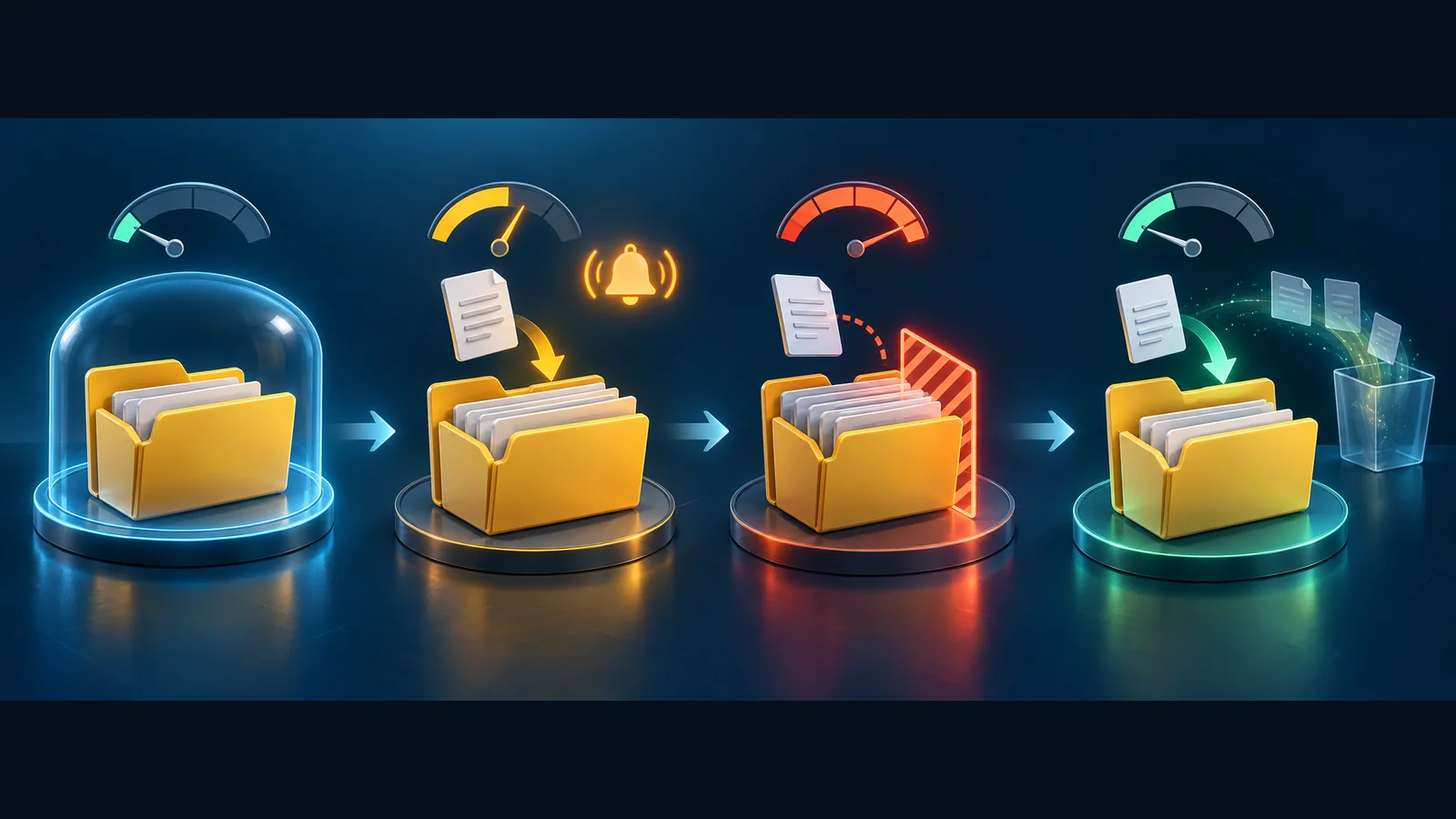
Four-stage lab verification: isolate the folder, confirm soft-quota warnings while writes continue, confirm hard-quota blocking, then remove your own test files and check that a small new file can be saved. Production rollout is a separate decision.
Verify a hard quota and recovery below the limit
Remove only the disposable files you copied into the isolated folder and confirm that quota usage falls. Do not delete departmental data. If it does not fall as expected, stop and investigate the actual path and retained files.
Create a separate QuotaLab-100MB-Hard template with the same event thresholds and Hard quota selected. Confirm again that D:\QuotaLab contains no business data. Under Quotas, delete only the individual soft-quota entry for D:\QuotaLab; keep the folder, share and original source files. Then right-click the new hard template, choose Create Quota from Template, browse to the same D:\QuotaLab path and select Create quota on path. Create it and recheck the exact path, 100 MB hard limit and event-log threshold actions. This replacement affects only the isolated quota rule.
Copy the first two approximately 45 MB files again. Their combined size is approximately 90 MB, so both should fit if no other limit intervenes. Then try the third file. The write that would exceed the 100 MB allowance should fail. The client's wording may resemble a disk-space error, but the message alone does not identify the cause. Correlate it with the quota entry, available volume space and test timing.
A failed copy can leave a partial file. Inspect the lab folder, remove only your test files, refresh usage, then save a tiny new file. This last write checks that normal writes can resume after the lab is below its limit. Also confirm that an existing test file can still be read. Do not describe the quota as “working” based only on one blocked copy.
Introduce a production limit with headroom
The example D:\Shares\Finance limit of 50 GB is a planning value, not a sizing rule. If the folder already contains more than that, applying it as a hard limit can interrupt new writes immediately. Use actual usage, anticipated growth, large-file requirements and application behavior to select a limit with the owner.
Create a new production-specific template and start in soft mode. Choose Create quota on path for one departmental total. Observe usage and notifications through an agreed representative business period. Check whether bulk imports, application temporary files or periodic exports would breach the planned allowance.
Before changing to hard mode, confirm all of the following:
- Usage is safely below the limit, including room for expected large writes.
- The department understands the warning and escalation process.
- Applications tolerate a rejected save, or have an approved alternative workflow.
- A named administrator can restore soft mode or raise the agreed limit if necessary.
- Backups, volume monitoring and parent-folder limits remain appropriate.
Changing a shared template can affect many folders. Microsoft's template update options let you leave derived quotas unchanged, update matching derived quotas or update all derived quotas. The last option can overwrite individual exceptions. Review the target list before applying any bulk update; use a separate template for a narrow trial.
Server drive-bay photograph by Mixabest, released to the public domain by its author. This is a reference photograph, not the server used for this tutorial. Source and license: Wikimedia Commons. Resized and converted to WebP; image content unchanged.

Diagnose unexpected write failures and roll back narrowly
| Symptom | Check first | Safe next action |
|---|---|---|
| Tiny files fail before the quota test | Correct share, test identity, share/NTFS rights | Restore baseline access before diagnosing quotas |
| Child usage is below its cap but writes fail | Parent hard quotas and physical free space | Identify the actual limiting scope; do not raise every limit |
| Hard quota seems ineffective | Actual local path, quota type and copied file size | Confirm the client is writing inside the managed folder |
| No repeated warnings | Enabled event action, timestamps, notification limits | Review configuration and rate limits |
| Existing production users cannot save | Current usage versus newly enforced limit | Return only the new quota to soft mode or restore the approved limit |
For rollback, record the quota path and current settings, open that individual quota's properties, and change it to soft mode if enforcement is the problem. Alternatively, delete only the newly created quota entry after confirming its exact scope. Removing the rule does not delete the folder's files. Do not remove FSRM, disable all quota policies or erase business data as a shortcut.
For an auto apply policy, inspect the parent policy and the child quota entries separately; do not assume deleting one item has removed every generated limit. Recheck a normal client write and retain the change record.
Frequently asked questions
Does 50 GB mean each user gets 50 GB?
No. A single folder quota is a combined allowance for its contents. Separate per-user policy requires a different design, such as distinct home folders with their own quotas.
Can a soft quota prevent the disk from filling?
No. It observes usage and triggers configured notifications. Continue monitoring physical capacity and act on warnings.
Does a hard quota replace access permissions or backups?
No. Permission checks still apply, and capacity limits do not protect against accidental deletion, malware or storage loss.
Should I enable auto apply for every nested folder?
Only if the resulting policy matches your intended structure. Start with a small parent containing disposable child folders, inspect the generated entries and verify the scope before using departmental data.
Related solutions
A file-server storage policy should combine capacity planning, permissions, recoverability and operational ownership. Yuqi IT managed services can help coordinate these operational responsibilities.
Further reading
- Windows Server daily health-check workflow
- Microsoft: quota management
- Microsoft: apply a quota to a volume or folder
- Recover shared files using Previous Versions
If your shared folders support critical applications, ask your IT provider to review the quota scope, recovery plan and application write behavior before enforcing a new limit.