
Give visitors a separate IPv4 subnet, let them use the firewall for DNS, and permit the web ports they need after blocking firewall management and protected networks. A VLAN provides a separate Ethernet segment; pfSense rules decide which routed connections may leave it. Both parts must be correct.
This GUI walkthrough adds wired guest VLAN 20 on a spare physical port. Your existing office LAN stays on its existing port. You finish by checking a real web connection, rejected internal connections, DHCP leases, firewall logs, and switch-management access—not simply whether the guest laptop can reach the Internet.
Scope, equipment, and the address plan
The menu paths follow current Netgate documentation for pfSense CE 2.9.0. On CE 2.8.1, the VLAN editor may omit the newer VLAN Tag Type field; ordinary single-tag 802.1Q is the intended format. This is a configuration example based on official documentation, not a report of a customer deployment. Treat an operating-system upgrade as a separate maintenance change. Netgate release notes describe hardware-specific upgrade issues.
You need an already-working pfSense firewall with three usable Ethernet interfaces, a managed switch with 802.1Q VLANs and enforceable management-plane restrictions, two administrator/test computers, and a maintenance window. Verify the actual interface names: igc0, igc1, and igc2 below are examples, not labels printed on every appliance.
| Item | Example | Required condition |
|---|---|---|
| Existing WAN | igc0 | Existing Internet service already works |
| Existing office/management LAN | igc1, 192.168.10.1/24 | Retain its address, rules, DHCP, and cabling |
| Spare guest parent | igc2 | Unassigned physical port, no IP, no bridge |
| New logical interface | GUEST20, VLAN ID 20 on igc2 | 192.168.20.1/24, no upstream gateway |
| Guest DHCP range | 192.168.20.100–192.168.20.199 | Check for overlap with all local and VPN networks |
| Guest DNS and gateway | 192.168.20.1 | Supplied through guest DHCP |
| Switch management | 192.168.99.2/24, management VLAN 1 | Accessible only through dedicated administrative access |
| Switch ports | P1 uplink, P2 guest, P8 management | Dedicated guest switch; do not connect it to the office switch |
A tagged frame carries a VLAN identifier. An untagged access port presents ordinary Ethernet to a laptop. PVID is the VLAN assigned to an untagged frame as it enters a switch port; changing only the egress membership is insufficient. See Netgate's switch VLAN explanation.
The switch must keep its management service away from guest ports. A product advertised as “smart” or “VLAN capable” does not by itself establish that capability. Check the exact model and firmware manual. If management VLANs or management ACLs cannot enforce the boundary, use suitable hardware before proceeding.
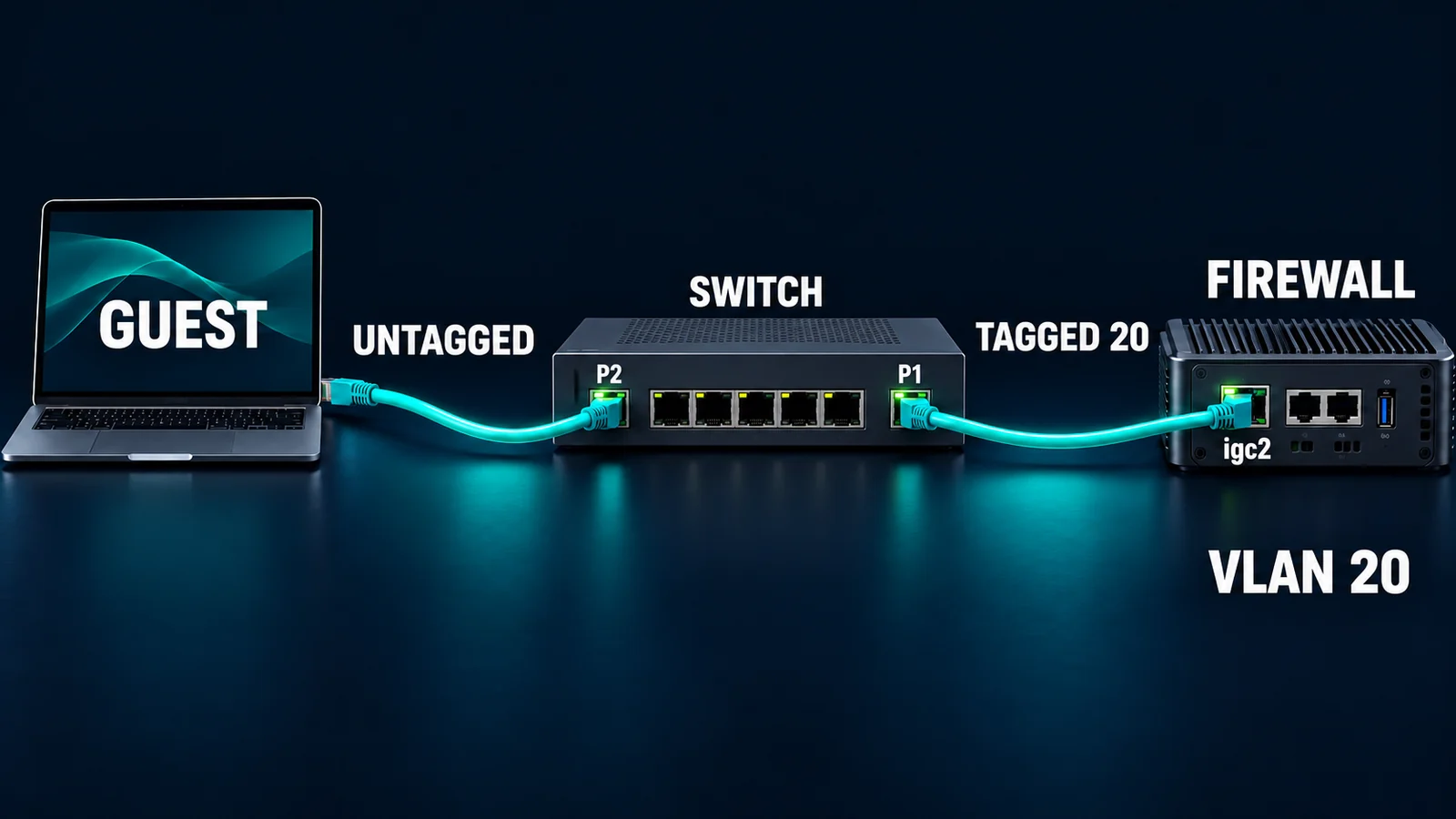
Topology guide: P2 accepts an ordinary guest laptop; P1 carries VLAN 20 to igc2. The existing office LAN uses a different firewall port. P1 and P2 identify roles in this example, not the physical numbering order of a specific product. On a phone, open the full-resolution image for port labels; use the text table for exact settings. The drawing explains the example and is not an installation photograph.
Step 1: Preserve a working administration path
Keep your administration computer connected to the existing office LAN. Confirm you can sign in to pfSense and reach an existing office service before changing anything. Record WAN and LAN assignments, guest-switch port numbers, existing NAT mode, DHCP backend, DNS interface selections, and relevant floating or interface-group rules.
Open Diagnostics > Backup & Restore, leave Backup Area at All, and download the configuration XML. Store it securely: configuration backups can contain secrets. If using backup encryption, confirm you can recover its password. Separately export the switch configuration and record the management-port address and recovery method. Netgate's backup instructions describe the export options.
Stop if the spare port carries existing traffic, any subnet overlaps, you lack a tested local recovery path, or your only administration connection would pass through the ports being edited. Do not repurpose the current LAN as part of this example.
Step 2: Create and assign VLAN 20
- Open Interfaces > Assignments, then the VLANs tab and Add.
- Set Parent Interface to the confirmed spare interface, igc2 in this example.
- Where available, select C-Tag (0x8100). Set VLAN Tag to 20, retain the normal priority, and give it a recognizable description.
- Save, return to Interface Assignments, select the new VLAN on igc2 under Available network ports, and add it.
- Open the new OPT interface. Enable it, name it GUEST20, choose Static IPv4, and enter 192.168.20.1/24.
- Leave IPv4 Upstream Gateway at None. Set IPv6 Configuration Type to None. Do not enable private-network blocking on this internal guest interface. Save and apply.
The assigned VLAN becomes a normal optional interface with its own services and rules; creating the VLAN alone does not allow traffic. Follow Netgate's VLAN procedure and internal-interface addressing guidance. Selecting an upstream gateway here would make pfSense treat the interface as WAN-like for functions such as NAT.
Confirm Status > Interfaces shows GUEST20 with the planned address. Leave the physical igc2 parent unassigned and unnumbered. Do not bridge GUEST20 to LAN.
For this IPv4-only rollout, check Services > DHCPv6 Server and Services > Router Advertisement: there must be no guest DHCPv6 service or guest router advertisements. If an interface tab is absent because IPv6 is disabled, do not enable IPv6 to create it. Retain the existing office IPv6 configuration. A client may still have a link-local IPv6 address; that alone does not establish a routed IPv6 path. See IPv6 interface types and router-advertisement modes.
Step 3: Configure the guest switch without carrying office traffic
Connect the switch administration computer to P8 using its documented management settings. Use the switch's VLAN membership and PVID pages; manufacturers use different menu names, so match the fields rather than copying another model's screenshots.
| Port | VLAN 20 egress membership | Untagged ingress/PVID | Management separation |
|---|---|---|---|
| P1, to pfSense igc2 | Tagged | Native VLAN, if required, is unused at pfSense | No office uplink; parent has no address |
| P2, guest laptop | Untagged | PVID 20 | Remove VLAN 1 membership; restrict to expected untagged client traffic |
| P8, administrator | Not a member | Management VLAN 1 | Dedicated local management access |
Create VLAN 20, configure those memberships, set P2's PVID to 20, and remove P2 from the default management VLAN. Enable ingress membership checking so P2 rejects VLANs to which it does not belong; where supported, admit only untagged client frames on P2. Configure management VLAN/ACL restrictions using the model's documented controls. Disable unused ports, or leave them outside guest access until deliberately configured. Save the running configuration to persistent storage if the switch requires a separate save.
Connect P1 to igc2 only after confirming the settings. Do not connect P1 to LAN, and do not add a second uplink to the office network. Keep the switch management address out of VLAN 20. Adding that address to a firewall alias is additional protection; it cannot police traffic that reaches the switch's own management plane without passing through pfSense.
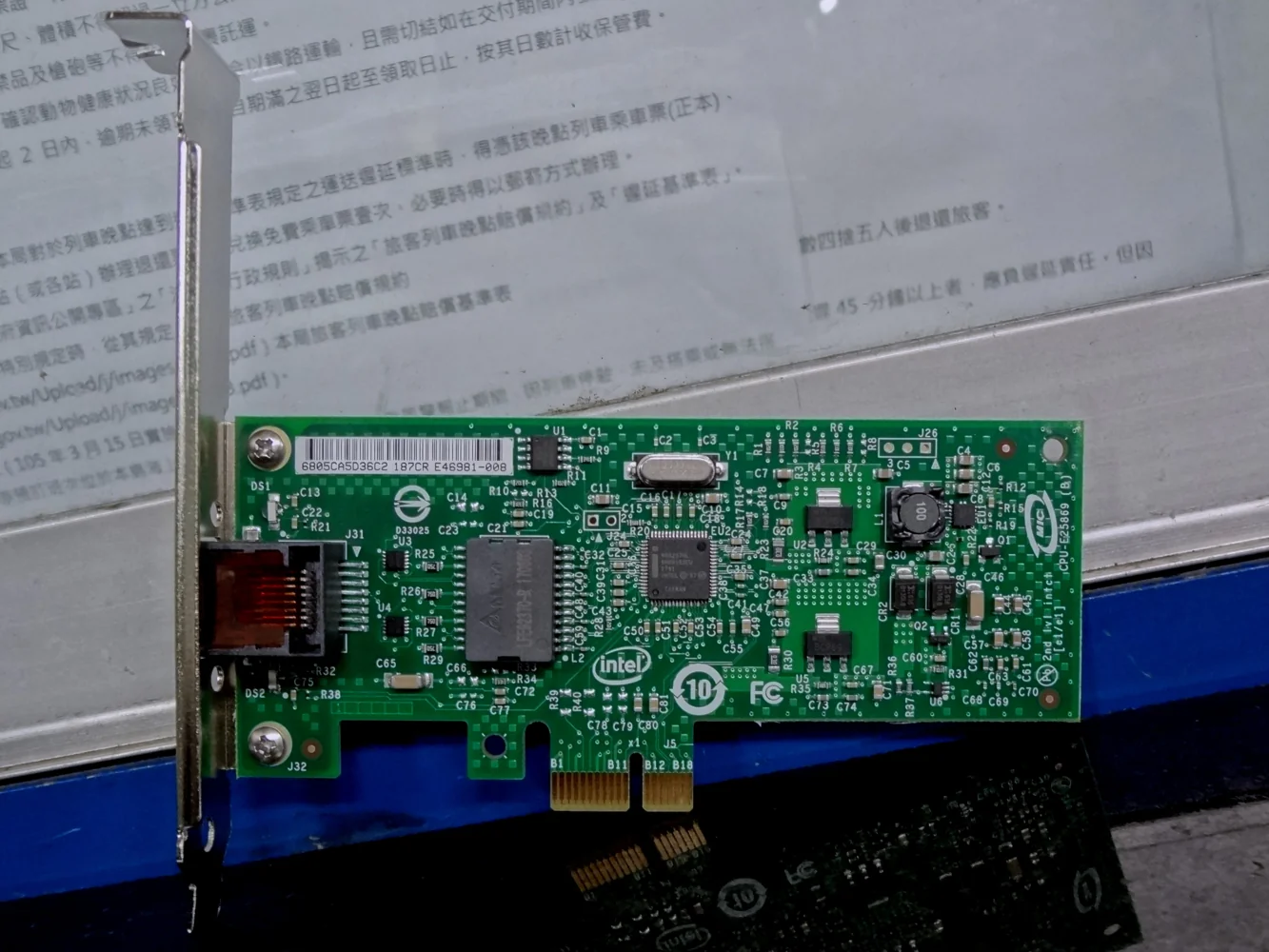
Hardware reference photograph: Solomon203, Intel EXPI9301CTBLK, Wikimedia Commons, CC BY-SA 4.0. Resized and converted to WebP. This is not the example's installed adapter, and the photograph does not establish VLAN-driver compatibility or management isolation.

Step 4: Supply addresses and DNS on GUEST20
In System > Advanced > Networking, inspect Server Backend. This example uses Kea DHCP. Backend selection is global: if your firewall uses ISC DHCP, do not switch it merely to follow this article. Plan and validate that migration separately, including existing office leases and options. Netgate currently recommends Kea.
Open Services > DHCP Server and choose GUEST20. Depending on release, the page label may specify DHCPv4. Enable the server for this interface, set the range to 192.168.20.100–192.168.20.199, and specify 192.168.20.1 as DNS server and gateway. Retain normal lease defaults for the first trial. Do not enable a relay or another DHCP server on the guest segment. Save and apply. The DHCPv4 documentation explains the interface-specific settings.
Under Services > DNS Resolver, confirm the resolver is enabled and accepts queries on GUEST20. If Network Interfaces is All, it already includes available interfaces; if it lists specific interfaces, add GUEST20 while retaining every existing selection and Localhost. Leave Outgoing Network Interfaces unchanged. Save during the maintenance window because resolver changes can affect other users.
Under its Access Lists tab, confirm 192.168.20.0/24 is allowed. Internal-interface networks normally receive automatic access control; if automatic ACLs have been disabled or a custom policy exists, add the required subnet-specific Allow entry and review conflicting restrictions. Do not use Allow Snoop for visitors. Listening and query authorization are separate from a firewall pass rule. See resolver binding and resolver access control.
Using a shared resolver may disclose internal host overrides or registered names. This recipe blocks guest connections to protected destinations; it does not create a separate DNS view. If internal-name confidentiality is required, stop and design a separate guest DNS service and corresponding narrowly scoped rules.
Step 5: Block protected destinations before permitting web traffic
Create a Network(s) alias named LOCAL_PROTECTED under Firewall > Aliases > IP. Include 10.0.0.0/8, 172.16.0.0/12, and 192.168.0.0/16, then add every other protected destination used by your organization: VPN subnets, transit and upstream management networks, internal public-address ranges, and any other non-RFC1918 internal space. The three private ranges alone are not a complete inventory.
Create a Port(s) alias named WEB_PORTS containing two separate entries, 80 and 443. Do not enter an 80–443 range, which would permit every intervening port.
Open Firewall > Rules > GUEST20. Add these rules, using GUEST20 net as the source and IPv4 as the address family. Destination ports below are destination ports; source ports stay at their default any.
| Order | Action and protocol | Destination | Destination port | Purpose |
|---|---|---|---|---|
| 1 | Pass TCP/UDP | GUEST20 address | 53 | Guest DNS only |
| 2 | Block any IPv4 protocol | This Firewall (self) | Any | Block other firewall services and addresses |
| 3 | Block any IPv4 protocol | LOCAL_PROTECTED | Any | Block routed office, VPN, and management targets |
| 4 | Pass TCP | Any | WEB_PORTS | HTTP and HTTPS browsing |
| 5 | Optional Pass UDP | Any | 443 | QUIC, if required by policy |
| 6 | Block any IPv4 protocol, log | Any | Any | Explicit logged denial for remaining IPv4 traffic |
Enable logging on rules 2, 3, and 6 for acceptance testing. Save each rule, verify the displayed order, and Apply Changes. Without rule 5, many browsers can use TCP HTTPS, but test your actual applications rather than assuming every application falls back. Email, VPN clients, external plain DNS, and other ports are intentionally outside this policy.
The DNS exception must precede the firewall block because 192.168.20.1 is a firewall address. This Firewall (self) matches the firewall's addresses across interfaces. DHCP uses automatically generated service rules when configured; do not add a guest-to-any DHCP exception to compensate for a switch-tagging problem. See rule options and automatic rule processing.
Review Floating rules and any interface group containing GUEST20 before accepting this list. Earlier rules or existing connection states can change the result. Interface rules normally evaluate traffic entering that interface; these rules govern guest-initiated traffic, not a complete policy for office-initiated connections. Netgate's rule methodology explains that distinction.

Policy-reading aid: apply the detailed rule table above. DHCP's automatic rules and the wider floating/group/state processing are not a complete firewall ruleset in this simplified diagram.
Do not interpret port restrictions as application filtering: traffic tunneled over permitted HTTPS, DNS over HTTPS, and access to an externally published company service require additional controls if prohibited by policy.
Step 6: Check NAT, then test one wired client
Open Firewall > NAT > Outbound. On an existing single-WAN installation using Automatic Outbound NAT, confirm the generated rules include the guest source network and translate it to the appropriate WAN address. Do not change a working manual/hybrid configuration to automatic. A manual-NAT installation needs a separately reviewed guest-specific rule. NAT translates addresses; it does not replace access rules. See Outbound NAT.
Connect one test laptop to P2. Disable its Wi-Fi, VPN, cellular tethering, and any other route around the test. Disconnect and reconnect Ethernet so it requests a new lease. Use the operating system's network details to check the address, mask, gateway, DNS, and IPv6 state; compare the client's MAC address with Status > DHCP Leases.
| Check | Expected result | Evidence to retain |
|---|---|---|
| IPv4 configuration | Address in .100–.199, /24, gateway and DNS .1 | Client details and matching guest lease |
| Public HTTPS by hostname | A current page loads | Fresh browser connection plus guest-source state |
| Firewall management | New HTTPS connection to 192.168.20.1 and 192.168.10.1 fails | Corresponding block log, source and destination |
| Office resource | Known-working internal HTTPS test page fails from guest | Resource works from office; guest attempt matches block |
| Switch management | Guest cannot reach its management service | Switch configuration plus appropriate switch-side evidence |
| IPv6 | No usable routed guest IPv6 path | No guest RA/default route; no matching IPv6 pass policy |
| Existing office service | Still works from office computer | Repeat the original administration and service checks |
A timeout alone is ambiguous: the service may be down. First prove the internal test target works from the office computer, then repeat from the guest and inspect Status > System Logs > Firewall. Filter by the test client's source address and match the destination, port, interface, and time. Do not enter administrative credentials on the guest computer.
If you previously tested with permissive rules, open Diagnostics > States, filter for the specific guest client address and GUEST20 where applicable, inspect the matching entries, and remove only those guest states. Then start fresh connections. Do not use a global state reset: it would disconnect unrelated sessions. State filtering supports narrowly targeted removal.
Also perform a separate Layer 2 management-plane test. Keep the test computer on P2 with PVID 20 unchanged. An administrator temporarily gives it an address explicitly reserved and confirmed unused in the management subnet, for example 192.168.99.250/24, with no gateway or DNS and all other network paths disabled. Start a new connection to the switch's actual management address, 192.168.99.2, and management port. It must fail while the P8 administrator can still manage the switch. This traffic does not pass through pfSense, so a firewall block log is not expected. A returned login page or certificate is a failure: stop the rollout and correct the switch management VLAN or ACL. Restore automatic addressing and DNS afterward and verify a fresh .20 lease. This acceptance method follows the Layer 2 traffic path described in Netgate's unfilterable-traffic guidance; it is a proposed test, not a performed result.
Faults, stop conditions, and rollback
| Symptom | Check first | Stop condition |
|---|---|---|
| No lease or a self-assigned address | P2 PVID/membership, P1 tagged 20, parent interface, GUEST20 DHCP | Do not weaken firewall rules to fix Layer 2 |
| Office-subnet address appears | Wrong socket, VLAN membership, extra uplink, another DHCP server | Disconnect guest port immediately |
| Correct lease, no websites | Resolver binding/ACL, DNS exception, blocked logs, WAN/NAT | Do not add an unrestricted pass rule |
| Internal page or switch GUI opens | Fresh states, rule order, group/floating rules, switch management controls | Stop guest service until explained and corrected |
| Office administration or DNS breaks | Compare recorded interface/DNS selections | Disconnect new guest path and restore changed settings |
For a failed trial, disconnect the new guest uplink first. From the unchanged office administration path, disable DHCP on GUEST20, disable its interface, and restore any resolver selections you changed without removing existing office entries. Reverse only the new switch memberships through its dedicated management port. If needed, remove the guest rules, assignment, and VLAN in that dependency order after recording the failed test.
Use a full configuration restore only when selective reversal is insufficient and a maintenance plan covers the resulting service impact and any legitimate changes made after the backup. After rollback, repeat office access, DNS, and Internet checks. Do not factory-reset a working office firewall.
Frequently asked questions
Does VLAN 20 stop guest laptops from reaching each other?
No. Devices in the same VLAN may communicate through the switch without crossing pfSense. Client isolation requires suitable switch port isolation/private VLAN controls, or AP client isolation when a wireless design is introduced. Those controls need their own verification.
Why block the firewall when DNS must reach it?
The first rule allows only DNS to the guest interface address. The next rule denies other guest connections to firewall addresses, including management services. Reversing those rules breaks the intended DNS exception.
Can I use this as a wireless guest-network guide?
The routed policy can be a building block, but an SSID also requires correct AP tagging, management separation, and wireless client-isolation checks. Start with the broader guest, office, and device Wi-Fi segmentation guide before extending this wired example.
What must be rechecked after adding a VPN or internal subnet?
Update LOCAL_PROTECTED, inspect relevant group/floating/NAT rules, and repeat negative tests using fresh guest states. A new internal public prefix is not covered merely because the RFC1918 ranges remain blocked.
Related solution
For a deployment that includes switch selection, management-plane restrictions, address planning, and acceptance records, review enterprise network switching and routing services.
Further reading
If you need help reviewing an existing design, prepare the interface map, switch model/firmware, protected-network inventory, and the results of the positive and negative tests above.