

Expand the correct VHDX on the Hyper-V host, then extend its existing data volume inside Windows Server. Increasing the VHDX maximum alone leaves the added space unallocated in the guest. Before either change, verify the disk mapping, recoverable backup, host capacity and partition layout.
This GUI walkthrough uses a standalone Windows Server 2022 Hyper-V host and a Windows Server 2022 guest, both with Desktop Experience. The 200-to-300 GB example and verification results described below are teaching expectations based on Microsoft documentation, rather than measurements from a deployment performed for this article.
Confirm that this procedure fits your disk
The example expands an existing secondary data disk. It preserves the drive letter and existing files; it does not create another virtual disk.
| Item | Example | Required check |
|---|---|---|
| Host and guest | Windows Server 2022 | Desktop Experience and access to both management interfaces |
| VM | A standalone file-server VM | Correct host, VM identity and an agreed maintenance window |
| Virtual disk | VHDX attached to a SCSI controller | Exact attached file, controller and location recorded |
| Guest storage | Basic GPT disk, NTFS data volume D: labelled DATA | One existing data partition with room to extend at its right edge |
| Capacity change | VHDX maximum 200 GB → 300 GB | Enter the new total, rather than adding a second 300 GB disk |
| Recovery | Independent, usable backup | Known recovery point, location, owner and verified restore procedure |
Use an account authorized to manage Hyper-V on the host and an administrator account inside the guest. Open the management tools with the required elevated permissions.
Use another procedure for system or recovery partitions, BitLocker-protected volumes, Windows Dynamic Disks, Storage Spaces, pass-through or shared disks, failover clusters, replication, and checkpoint or differencing-disk chains. A VM generation alone does not identify how a particular disk is attached.
Microsoft documents online resizing for SCSI-attached VHDX files in its online resizing overview. The Server 2022 resizing reference also distinguishes SCSI from IDE attachment. This guide uses a planned shutdown so a beginner can complete one controlled maintenance sequence; online support does not guarantee uninterrupted application service.
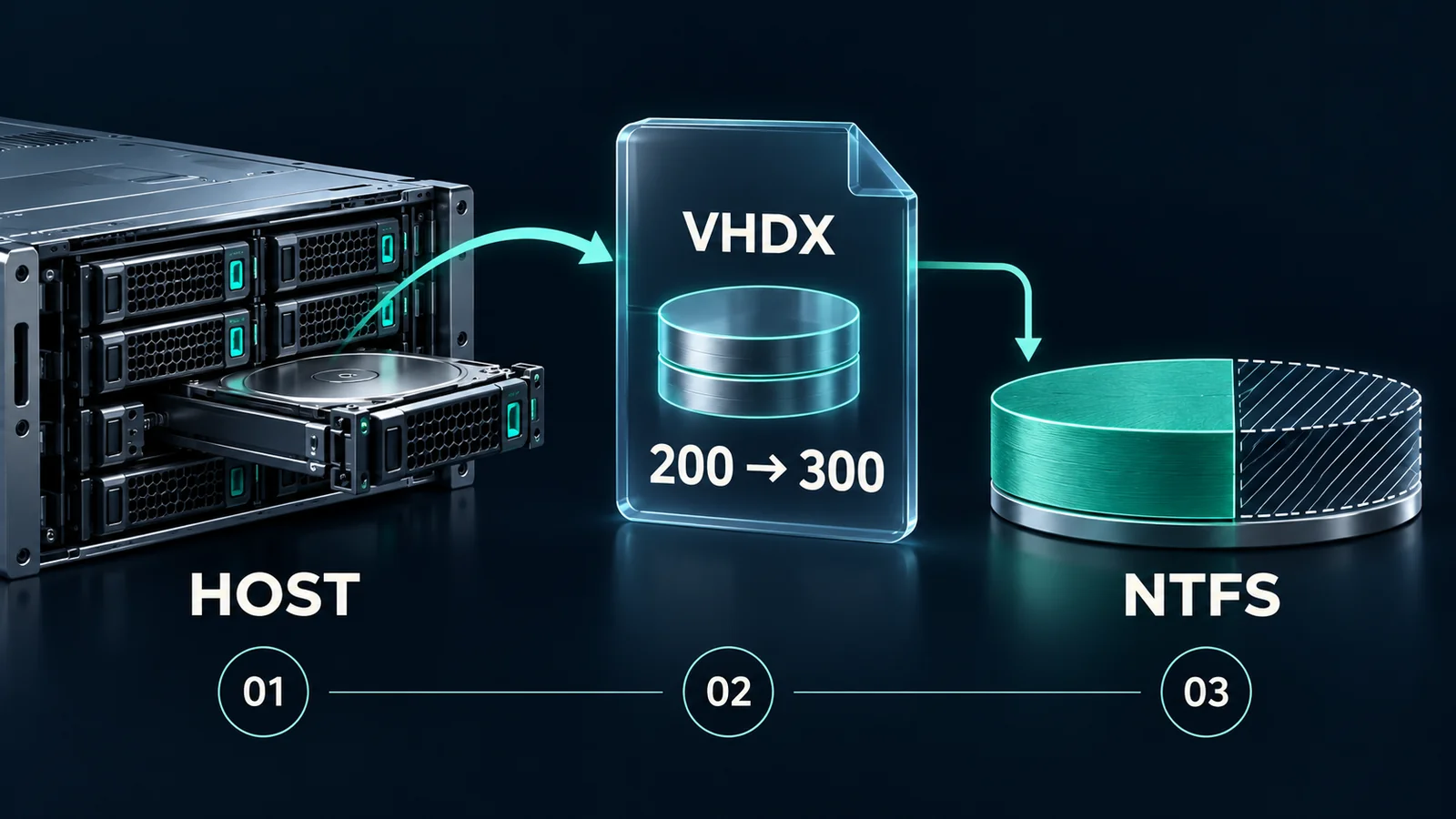
Expanding the VHDX changes the guest disk's available capacity. The existing NTFS volume needs its own extension before applications can use the additional space.
Record the original state and a recoverable backup
Ask the application owner to confirm the maintenance window and how writes will be stopped. Record the current D: capacity, free space, volume label, important folders, application status and any relevant existing storage errors. Keep the before-and-after observations with your regular Windows Server health-check record.
Confirm a recent backup covers the VM and required application data. Its storage and recovery method must remain available if the host storage fails. A completed backup job is useful evidence, but recovery readiness also needs a known restore procedure and a verified way to retrieve the data. Do not substitute a checkpoint for that recovery copy.
In Hyper-V Manager, select the VM and inspect its checkpoints and current activity. Stop if checkpoints exist, a backup or merge is running, the attached path ends in AVHDX, or disk inspection shows a parent dependency. Even an empty checkpoint pane does not by itself prove that no backup-created differencing disk remains. Ask the backup or virtualization administrator to resolve that state first. Microsoft's checkpoint guidance explains that Hyper-V manages the merge; never delete AVHDX files in File Explorer.
Check the host's real storage headroom
On the host, identify the volume that actually stores the attached VHDX. In File Explorer, open that volume's properties and record its available space. Check the storage system's own available capacity and alerts as well if the volume is backed by thin-provisioned storage.
A dynamically expanding VHDX can have a maximum larger than its current file allocation. Increasing that maximum permits future growth; it does not install more storage. Fixed-size expansion has a different allocation impact. Budget both the new 100 GB logical increment and any still-unallocated growth within the original 200 GB maximum, along with other VMs' growth and your operational reserve. A free-space percentage on its own is not a capacity plan. Microsoft's Hyper-V storage reference explains the virtual-disk allocation types.
FSC Primergy TX200 S2 hot-swap drive bay, photographed by Mixabest and released into the public domain. This reference photograph is not the host used for this tutorial and does not establish its capacity or Windows compatibility. Photograph and license: Wikimedia Commons. Centre-cropped to a horizontal frame, resized and encoded as WebP; the drive-tray subject is retained.

Stop if the host volume or backing pool is critically low, reports storage faults, or lacks enough approved headroom for the intended growth. Resolve the storage constraint before editing the VHDX maximum.
Match the guest volume to the attached VHDX
- On the host, open Server Manager → Tools → Hyper-V Manager. Select the intended host, then the VM. Read its name and current state.
- Open the VM's Settings. Expand its SCSI Controller entries and select the intended Hard Drive. Record the controller, location and full attached VHDX path. Use Inspect to check its current type and maximum size.
- In the guest, open Server Manager → Tools → Computer Management → Storage → Disk Management. Locate D: using its label, capacity and partition layout. Open the associated disk's Properties → Volumes to verify its GPT partition style; confirm that Disk Management shows a basic disk and NTFS for D:.
- Match these observations against the existing VM storage inventory. The host file, SCSI attachment and guest data volume must form one identified mapping. A guest disk number or a familiar filename alone is insufficient.
If several attached disks have matching sizes, or your inventory does not establish which file contains D:, stop and obtain an authoritative mapping from the virtualization administrator. Do not detach disks or edit one experimentally to discover the answer. Cancel out of Settings after recording the values.
Also inspect the guest disk's partition order now. This example expects D: to be the last data partition, so expansion adds usable unallocated space immediately to its right. An intervening partition changes the work required.
Shut down cleanly and expand the VHDX
Close applications and stop business writes using the agreed maintenance procedure. In Hyper-V Manager, right-click the VM and choose Shut Down, or shut down normally from inside the guest. Wait until Hyper-V reports Off. Do not use Turn Off, reset or a saved state as a substitute for a clean guest shutdown. Microsoft's integration-services reference describes the guest shutdown mechanism.
With the VM off:
- Select the host in Hyper-V Manager and choose Edit Disk in its Actions pane.
- Browse to the exact VHDX path recorded from the VM's settings. Compare the full path before proceeding.
- Choose Expand. Enter 300 GB as the new maximum total for the 200 GB example. Do not select conversion, compaction or shrinking.
- Review the file and requested size, then finish. Wait for completion and record any error text.
- Inspect that same attached disk again. Confirm its maximum is now 300 GB and that the VM still uses the recorded path and SCSI location.
Microsoft's GUI resizing procedure documents the disk-editing and guest-volume stages. It is an older Windows Server 2012 R2 article; the modern Server 2022 reference above confirms the attachment-related resizing rules.
If Expand is unavailable or the edit fails, preserve the original attachments and record the failure. Check VM state, file identity, locks and checkpoint dependencies with the administrator. Do not bypass a lock by deleting a checkpoint file or disabling backup protection.
Start the guest and extend D: into adjacent space
Start the VM, connect to its console and verify Windows starts normally. In the guest, reopen Server Manager → Tools → Computer Management → Storage → Disk Management. Select Action → Rescan Disks if the changed capacity has not appeared.
Find the same data disk again. The expected intermediate state is the original D: partition followed immediately by roughly 100 GB of black-bar Unallocated space, all on one disk. The drive's existing files should remain accessible. Displayed sizes can differ slightly because of units and metadata.
If Windows asks to initialize or format the disk that previously held D:, cancel and investigate. Initializing, formatting or choosing New Simple Volume is not part of extending this existing data volume.
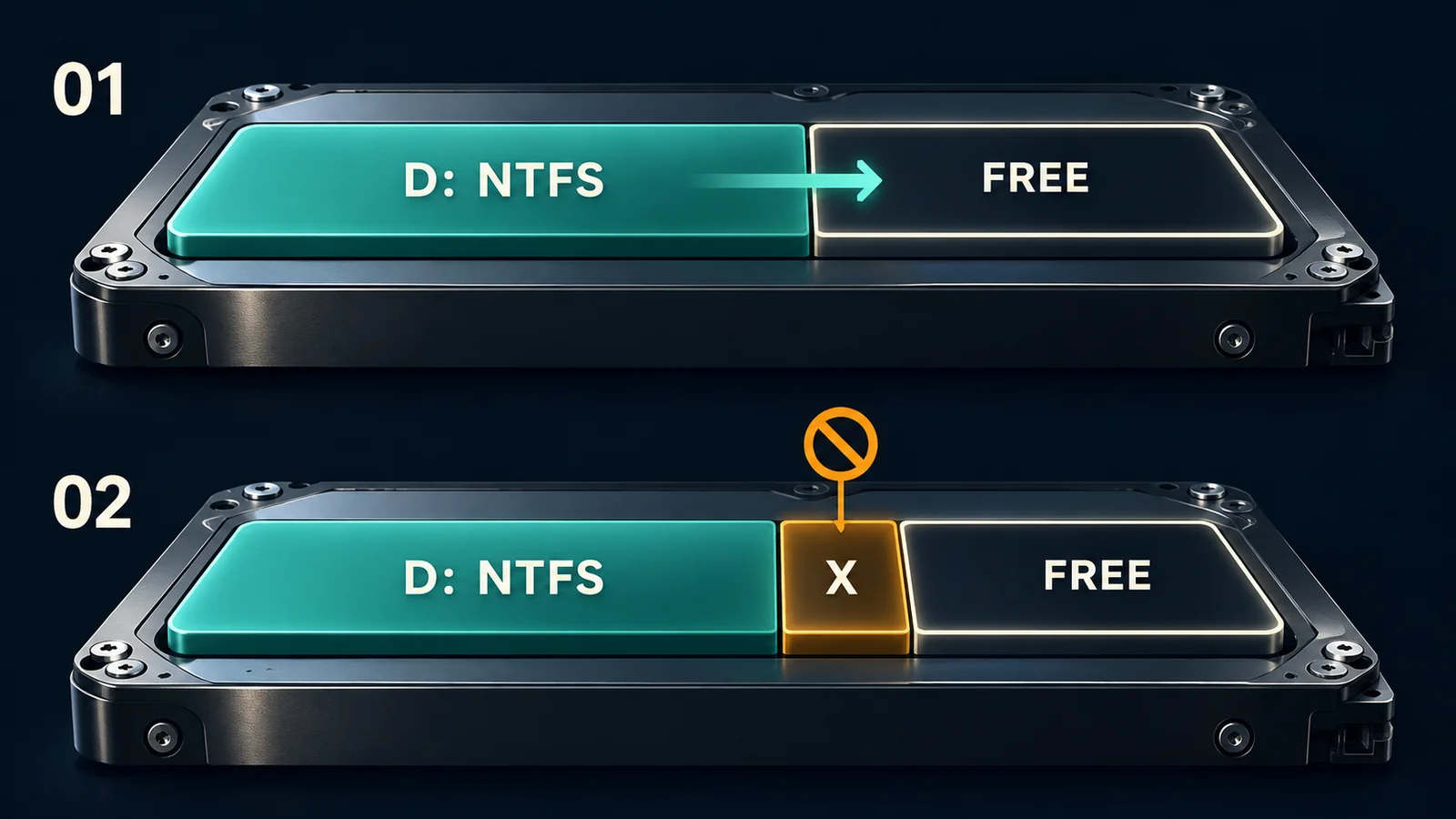
Inspect the partition order on the same disk. Free space elsewhere, including on another virtual disk, does not meet this basic-volume layout requirement.
Once the expected layout is present:
- Right-click the D: partition rectangle, rather than the disk-number label or the unallocated region, and choose Extend Volume.
- Select Next. On Select Disks, confirm the selected disk is the existing data disk.
- Check Select the amount of space in MB against Maximum available space. This is the amount being added to the volume, unlike Hyper-V's new total capacity field. Use the displayed maximum to consume all of this example's adjacent space, or the smaller amount approved for the change; do not enter 300 GB as an increment.
- Select Next, review the summary and choose Finish.
- Refresh Disk Management and D:'s properties in File Explorer. Confirm the volume is larger and healthy and the unallocated region has reduced by the selected amount.
The expected result is one larger NTFS data volume, close to the new 300 GB disk capacity, with the original letter and files. Microsoft's current volume-extension documentation gives the adjacency and file-system requirements. If the wizard proposes spanning disks or changing the disk type, cancel: that is outside this procedure.
Diagnose a greyed-out extension without deleting partitions
| Observation | Check | Next action |
|---|---|---|
| Guest still shows the original total | Attached VHDX path, completed host edit, guest rescan | Reconcile the recorded mapping and sizes; do not edit another disk speculatively |
| Larger disk, unchanged D: | Whether unallocated space exists | Continue only if it directly follows D: on the same basic disk |
| Another partition sits between D: and the free space | Full partition order and each partition's owner | Stop and plan a separate migration or partition-layout change |
| Space is on another disk | Disk boundaries in the lower pane | Another disk cannot extend this basic volume through this workflow |
| Target is MBR and the plan exceeds 2 TB | Partition style and total target size | Arrange a separate GPT migration plan before proceeding |
| D: is missing, RAW or unexpectedly offline | Original disk identity and new storage errors | Stop writes, preserve evidence and escalate recovery |
Do not delete a recovery, system or unfamiliar data partition to make the button available. Do not convert the guest disk to a Windows Dynamic Disk. A dynamically expanding VHDX file and a Windows Dynamic Disk describe different storage layers.
For larger MBR disks, the ordinary Disk Management conversion workflow requires removing existing volumes. Microsoft's partition-scheme documentation describes that destructive prerequisite. It is not a safe extra click in a live-data expansion tutorial.
Verify the service and define the recovery boundary
Check all three layers before closing the change:
- Host: the intended attached VHDX has the new maximum, the backing volume and pool retain their approved headroom, and no new storage errors appear.
- Guest: D: retains its label, NTFS file system and expected larger capacity. Existing files open normally. Review Event Viewer → Windows Logs → System for new disk or file-system errors around the change time.
- Application: ask the owner to verify normal operation. For an SMB share, use an ordinary account with its existing permissions to open a known file and create, read and remove a small disposable file in an approved test folder. Keep production files intact.
If a share still rejects writes, inspect its permissions, actual free space and folder-quota policy. A larger volume does not raise an FSRM limit. Recheck the backup plan, run a new backup after acceptance and update the VM storage inventory.
If expansion succeeds but the guest volume cannot be extended, leave the extra space unused while planning the next change. Once NTFS has been extended or new data written, changing the VHDX maximum back to 200 GB is not a simple rollback. Stop additional changes, preserve new writes and error evidence, and use the approved recovery plan with the application owner. Restoring an older backup can discard later writes; agree that recovery point before proceeding.
Frequently asked questions
Why does File Explorer still show 200 GB after Hyper-V shows 300 GB?
The VHDX capacity and NTFS volume size are separate. Check the guest's unallocated space, then extend the existing volume if the layout meets the requirements.
Can I do this while the VM is running?
SCSI-attached VHDX supports online resizing in the documented environment. Application behavior, backup activity and guest-volume operations still need planning. This walkthrough deliberately uses an agreed shutdown window.
Is increasing the VHDX maximum enough when the host is nearly full?
No. A larger virtual maximum does not provide physical capacity. Resolve host and backing-storage headroom before allowing more guest writes.
Can I shrink the disk immediately if something looks wrong?
Treat shrinking as a separate storage operation with its own prerequisites. After a guest-volume extension, do not attempt to reverse the change by entering the old VHDX maximum.
Related solutions
Storage expansion needs a capacity owner, a recovery plan and service verification. Yuqi IT managed services can help coordinate those responsibilities across the host and guest.
Further reading
- Windows Server daily health-check workflow
- Windows Server FSRM folder-quota configuration
- Microsoft: extend a basic or dynamic volume
For a production VM with uncertain disk mappings or a complex partition layout, ask your IT provider to review the storage inventory and recovery plan before approving the change.