

To add a standby server to an existing Windows Server 2022 DHCP service, install and authorize DHCP on the second server, then run Configure Failover from the working server. Select Hot standby, confirm that the new partner is Standby, and verify the relationship before testing an interruption. Do not independently create an identical scope on the second server.
This guide walks through one IPv4 subnet using graphical administration tools. It assumes your first DHCP server already works; use the single-server DHCP deployment guide first if clients cannot obtain correct addresses yet. The procedure below is a documentation example based on Microsoft guidance, rather than a report of a deployment tested on your network.
1. Define the lab and the change boundary
Use an isolated test VLAN with two Windows Server 2022 Desktop Experience machines and two disposable Windows clients. Both servers already belong to the same Active Directory domain. Their names must resolve correctly through your AD DNS service.
| Item | Example value | Check before proceeding |
|---|---|---|
| IPv4 subnet | 192.168.50.0/24 | Both server adapters and test clients use the intended VLAN |
| Existing DHCP server | DHCP1, 192.168.50.10 | Its scope already leases correct addresses |
| New standby server | DHCP2, 192.168.50.11 | Its address is static and outside the dynamic pool |
| Existing scope | 192.168.50.100–192.168.50.199 | Record exclusions, reservations and current free capacity |
| Router option | 192.168.50.1 | This is the actual test-subnet gateway |
| DNS option | 192.168.50.2 | Replace with your actual reachable AD DNS server |
| Failover mode | Hot standby | DHCP1 active; DHCP2 standby |
| Standby reserve | 5% | Allow enough genuinely free addresses for your test |
| MCLT | 1 hour | Record the selected value; keep the default for this exercise |
| Automatic state transition | Disabled initially | An administrator controls any partner-down decision |
Example addresses are planning values, not instructions to renumber an existing network. Keep servers, routers and other static devices outside the dynamic pool or appropriately excluded. Do not change a working lease duration merely to make a demonstration finish faster.
A standby DHCP server does not make your switch, VLAN, gateway, DNS service or virtual-machine host redundant. If both servers share one failed host, neither can answer clients. If DNS is unavailable, obtaining an IP address does not restore domain access.
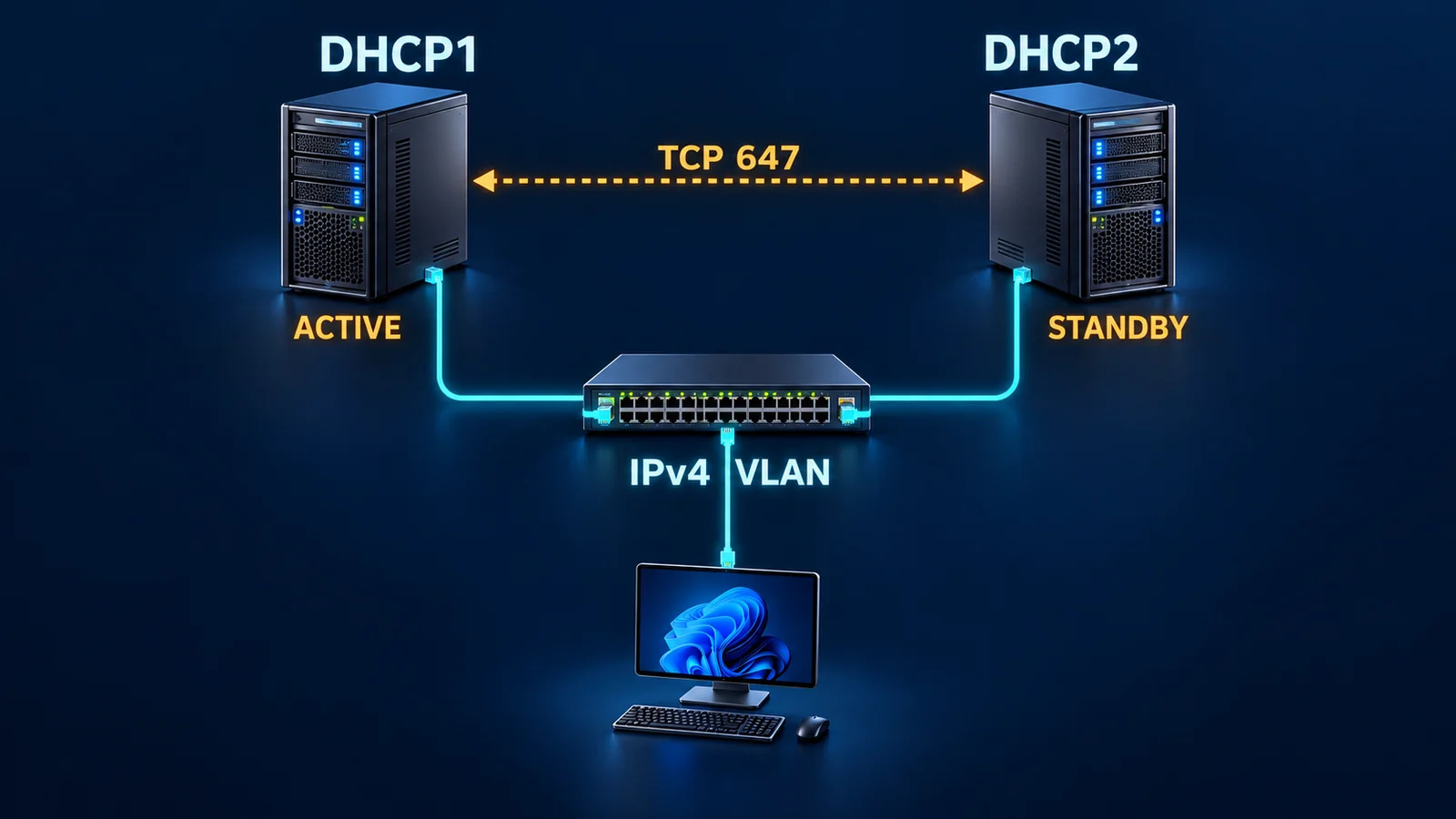
Original Yuqi planning illustration, copyright Shanghai Yuqi Intelligent Technology Co., Ltd.; not an on-site photograph. DHCP1 is active and DHCP2 is standby; the dotted peer link is logical communication over the network, not a separate physical cable. The separately required gateway and AD DNS are omitted from the drawing.
Stop here if you cannot identify every DHCP responder on the VLAN. A home router, virtual-network DHCP service or forgotten server can invalidate the test. Investigate unexpected responses using the DHCP address-conflict troubleshooting guide before adding another service.
2. Record a working baseline and back up DHCP1
Open Server Manager → Tools → DHCP on DHCP1. Expand the server and IPv4, then select the existing scope. Record its address range, subnet mask, lease duration, exclusions, reservations and scope options. Check options 003 Router, 006 DNS Servers and, when used, 015 DNS Domain Name against your existing design. Preserve any policies and inherited server options as part of the change record.
Right-click the DHCP1 server node and choose Backup. Select a protected folder available on that server. Confirm that backup files exist and copy the backup through your approved protected backup process. Record the server name, date and destination. A backup that exists only on the same failed disk provides limited recovery value. Do not put exported data into a public share.
On a working Windows test client, open Control Panel → Network and Sharing Center → Change adapter settings. Open the active adapter's Status → Details. Record its IPv4 address, mask, default gateway, DNS servers, DHCP server and lease timestamps. The expected DHCP server before the change is 192.168.50.10.
You now have two useful comparison points: what DHCP1 is configured to supply and what a client actually received. A wrong DNS address in both places is a configuration problem; failover would preserve that problem.
Stop here if clients already show unexpected DNS servers, a self-assigned address, duplicate-address warnings or an almost exhausted pool. Resolve the baseline before testing availability.
3. Install and authorize DHCP2
On DHCP2, open Server Manager → Manage → Add Roles and Features. Choose Role-based or feature-based installation, select DHCP2, then select DHCP Server. Accept the associated management tools, review the destination and install the role. Avoid selecting unrelated roles.
After installation, open the notification flag and choose Complete DHCP configuration. Complete the post-installation wizard with an account permitted to authorize DHCP servers in Active Directory. Do not assume that local administrator rights grant this domain permission. Check the wizard's task results before closing it.
Open Server Manager → Tools → DHCP. If necessary, right-click the DHCP2 server node and choose Authorize, then refresh the console after authorization has had time to propagate. Confirm authorization instead of interpreting installation success as permission to serve clients.
Before configuring failover, right-click the DHCP2 server node, choose Backup, and preserve its separate baseline backup in a protected location.
Expand IPv4 on DHCP2. Leave the example scope absent. The failover wizard will create the partner copy. If an identical scope is already there, investigate its purpose and existing clients; do not delete an unfamiliar scope to make the wizard continue.
Use Server Manager → Local Server to check the intended network adapter and static addressing. In the DHCP console, inspect server bindings under the server node's Properties → Advanced → Bindings. Use the client-facing test interface; do not accidentally bind DHCP to a storage or unrelated management network.
4. Check partner connectivity and DNS-update identity
Both servers must communicate with each other, and clients must be able to reach both servers. Microsoft identifies TCP 647 for the failover conversation. DHCP clients also need the appropriate UDP 67/68 path. In Windows Defender Firewall with Advanced Security, inspect the installed DHCP rules and any network firewall policy rather than disabling the firewall as a workaround.
Confirm both servers' clocks agree. Keep the clocks within one minute; repair domain time synchronization before continuing if they differ. Also verify that DHCP1 and DHCP2 names resolve to their intended addresses.
This lab keeps clients and servers on the same VLAN. In a routed deployment, review the router or switch relay configuration separately: it must forward client DHCP requests to both partner addresses. A relay that knows only DHCP1 can leave clients unable to reach DHCP2 even when the relationship itself is healthy. Do not change production relay settings as an unplanned extension of this lab.
If DHCP updates DNS records for clients, review IPv4 → Properties → Advanced → Credentials on each server. Configure the same approved DNS-update identity on both partners, with the permissions required by your DNS design. Use your organization's credential process; never include a password in the article, a screenshot or a public change record. Matching scope DNS options does not by itself solve DNS-record ownership problems.
For a domain-resolution problem, follow the domain-controller DNS troubleshooting sequence before changing failover settings.
5. Create the relationship from DHCP1
Return to the console managing DHCP1. Recheck the server name in the tree before starting; the server from which you initiate configuration matters.
- Right-click IPv4 → Configure Failover. Select only the existing 192.168.50.0 scope for this exercise. Clear any all-scopes selection that includes unrelated networks.
- On the partner page, select or enter DHCP2. Check that the resolved destination is 192.168.50.11.
- Create a new relationship for this lab. Give it a recognizable name, such as DHCP1-DHCP2-LAB50.
- Change Mode from its load-balancing default to Hot standby.
- Set the partner's role to Standby. Read the label carefully: DHCP2 is the partner in this wizard. DHCP1 remains the active server.
- Keep Addresses reserved for standby server at 5% and Maximum Client Lead Time at 1 hour for the initial exercise.
- Leave automatic state transition, represented by the State Switchover Interval option, disabled initially. Do not enter a short interval merely to accelerate testing.
- Keep message authentication enabled and enter a strong shared secret through the wizard. Store it only in your approved secret manager.
- Review the scope, server roles and settings, then finish. Read each task result before closing the wizard.
The percentage is a reserve for new clients while the standby operates under restricted conditions. It is not a guarantee that five additional clients can always connect: exclusions, reservations, existing leases and address availability still matter. Microsoft's management guide describes the console workflow and scope prerequisites.
Stop here if partner configuration or authentication fails. Preserve the error and inspect both consoles before retrying. Do not create another overlapping scope or relationship as a workaround.
6. Verify synchronization before simulating failure
Refresh both DHCP consoles. The example scope should now appear under DHCP2. Compare the address range, exclusions, reservations and scope options with the baseline. Check Address Leases for a client you recorded earlier.
On each server, open the scope's Properties → Failover and inspect the relationship. Confirm Hot standby, the intended partner and a healthy Normal state. A green server icon alone is insufficient evidence that lease information has synchronized.
Later lease activity is exchanged by the failover mechanism, but changes you make to scope configuration need an explicit replication step. When you change an option or reservation, identify the authoritative server first. From that server, right-click the scope and select Replicate Scope, review the result, then check the partner. For this procedure, DHCP1 remains the configuration source. Starting replication from an older copy can overwrite the settings you intended to keep.
Do not assume every server-level setting follows the scope. Review bindings, DNS-update credentials, authorization and other server-specific configuration separately. The DHCP failover overview distinguishes shared scope information from the surrounding deployment requirements.
7. Understand the states before stopping anything
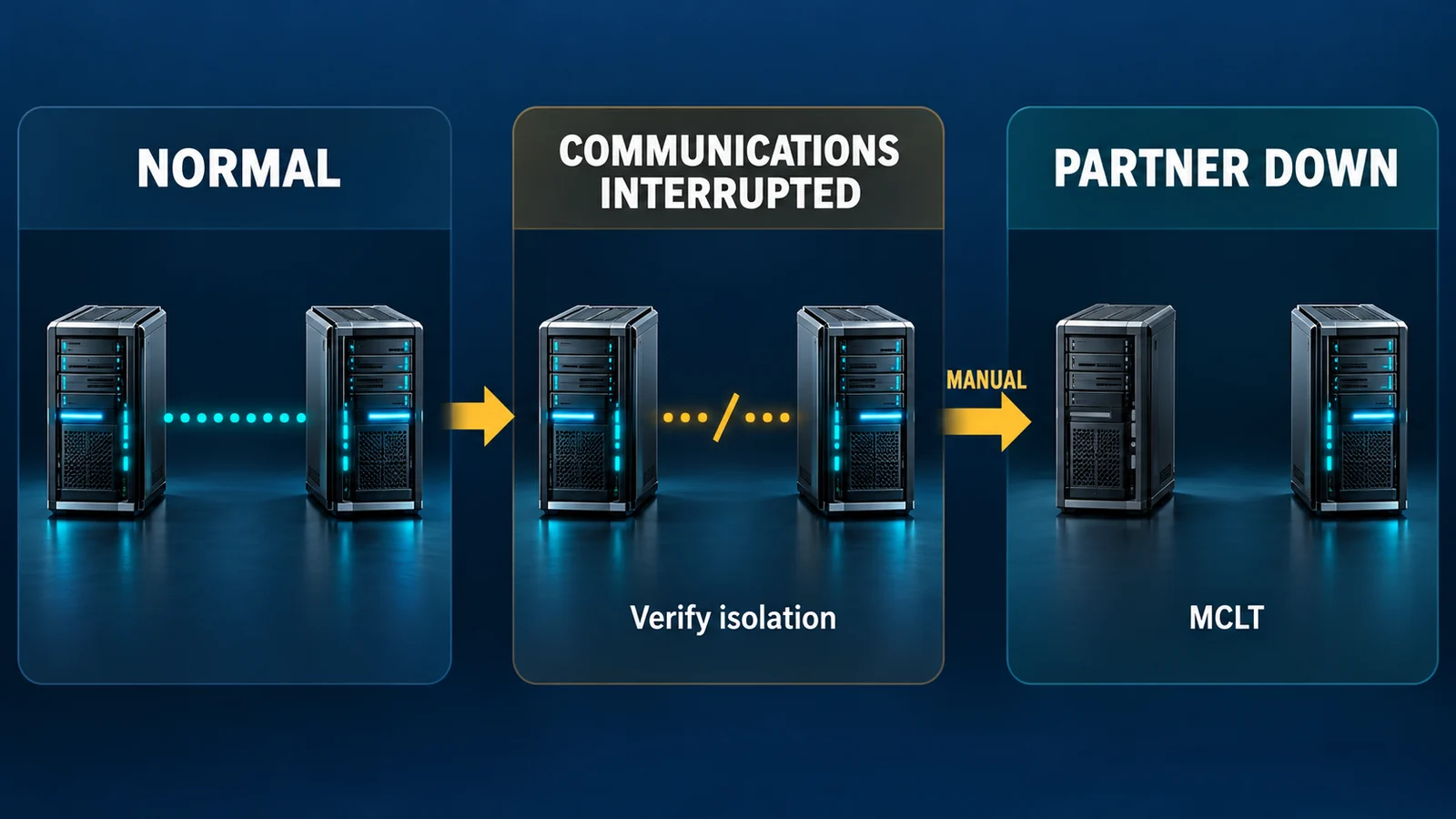
Original Yuqi state illustration, copyright Shanghai Yuqi Intelligent Technology Co., Ltd.; not an on-site record. Read state and time together. The diagram shows the manual exercise in this guide; it does not promise a fixed recovery time or show every transitional state.
| Observation | Meaning for this exercise | Appropriate response |
|---|---|---|
| Normal | Partners communicate normally | Continue baseline checks |
| Communications Interrupted | The partner conversation is lost | Establish whether the other server can still serve clients |
| Partner Down | The survivor treats its partner as unavailable | Use only after positively isolating the failed service |
| Recovering or another transitional state | Rejoining and synchronization are incomplete | Wait and investigate; do not declare recovery |
MCLT is not a simple failover countdown. It limits how far one server can extend a lease beyond information held by its partner. It also contributes to safe takeover timing. Waiting an hour while a server remains in Communications Interrupted does not automatically give it unrestricted use of its partner's pool.
A broken connection between servers does not prove that the active server has stopped answering clients. If both sides are told to act independently while both can reach clients, your intervention can undermine lease safety. The initial manual state-transition choice makes that decision explicit. See Microsoft's failover settings reference for the timer definitions; it is an older reference, used here alongside the current Windows Server guidance.
8. Perform a controlled service-only interruption
Use a planned lab window with local or hypervisor console access to DHCP1. If DHCP1 also provides AD or DNS, leave the server running. Shutting down a domain controller would mix several failures and could remove the DNS service you need for diagnosis.
On DHCP1, open Server Manager → Tools → Services, locate DHCP Server, open its properties and select Stop. Confirm that the service status is stopped. Record the time and keep its startup configuration unchanged. Do not stop DHCP Client, which is a different service.
On DHCP2, refresh the relationship view. Observe the state and inspect relevant events in Event Viewer → Applications and Services Logs → Microsoft → Windows → DHCP-Server. Do not use a single failed ping or a stale console as proof of isolation.
Keep one previously leased client online. An existing lease can remain valid while the original server is absent, so continued browsing proves little about standby allocation. Observe a subsequent renewal or rebinding and compare lease details; it need not happen immediately after stopping the service.
For a new-allocation test, use a separate disposable client with a genuinely new DHCP identity and DHCP-enabled adapter. Connect it to the test VLAN and open its adapter's Status → Details. Check the assigned range, gateway, DNS servers and DHCP Server field. If DHCP2 issued the lease, the server field should identify 192.168.50.11. Correlate that result with Address Leases on DHCP2.
Disconnecting and reconnecting an already leased client may reuse its existing lease. Label that evidence correctly. Do not repeatedly consume reserve addresses with cloned machines, and do not copy an active client's MAC address.
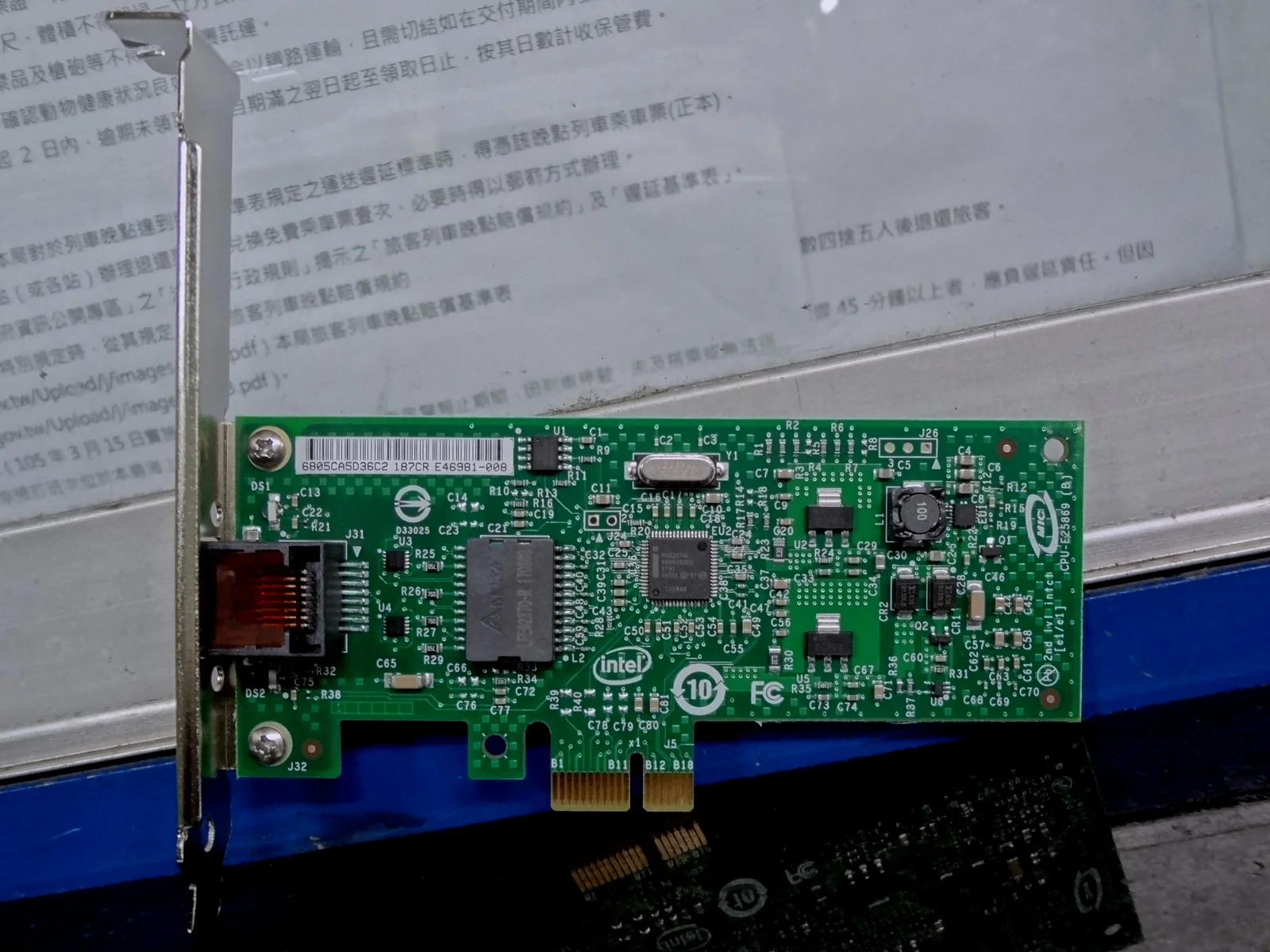
Photo: Solomon203, Intel EXPI9301CTBLK, CC BY-SA 4.0. Resized and converted to WebP; derivative image remains CC BY-SA 4.0. Reference hardware photograph, not this deployment. Separate server interfaces do not protect against failure of their shared switch; this image does not demonstrate redundant links.

If you need to demonstrate full-pool takeover, first positively confirm that DHCP1's service is stopped and cannot resume unexpectedly. On DHCP2, open IPv4 → Properties → Failover, select the relationship and choose Edit. Use Change to partner down only under that confirmed isolation. Record the transition time and respect the configured MCLT and observed state before expecting broader allocation. This optional exercise requires a longer window; reserve-based allocation and full-pool takeover are separate acceptance points.
Stop testing if DNS disappears, another DHCP server answers, free capacity is uncertain or you cannot guarantee primary isolation. Restore the controlled service and investigate rather than forcing a takeover.
9. Restore DHCP1 and confirm Normal
In Services on DHCP1, start DHCP Server. Allow the partners to reconnect and reconcile lease information. Refresh both consoles and wait for the relationship to return to Normal on both servers. Record transitional states and investigate persistent errors before making configuration changes.
Compare the test clients' leases and options again. Allow subsequent DHCP activity to show normal hot-standby behavior; an existing lease does not have to change immediately. Verify DNS updates if your DHCP design uses them. Do not delete leases merely to make a server address change in the client display.
Your acceptance record should separate four outcomes: healthy synchronization before interruption, an existing client retaining valid configuration, a new client obtaining a verified standby lease, and both partners returning to Normal. Record full-pool takeover separately if you actually performed that longer test. MicrosoftLearning's AZ-800 lab provides another official training workflow for configuring hot standby.
10. Roll back deliberately
Rollback is a change of scope ownership, not a reason to delete both copies. Back up the current configuration and choose which server will remain responsible. For this exercise, retain DHCP1.
With both servers reachable and synchronized, use the DHCP console on DHCP1 to deconfigure the scope's failover association. Read the confirmation carefully and verify which server retains the scope. If removing the entire relationship through IPv4 → Properties → Failover → Delete, confirm that no other required scopes belong to it. Microsoft's documented relationship deletion retains scopes on the initiating server and removes their partner copies; choosing the wrong console changes the outcome.
Afterward, verify DHCP1 has the intended active scope, leases and options, and DHCP2 has no independently active overlapping copy. Confirm client allocation again. If a partner is unreachable or the removal is incomplete, do not improvise by activating duplicate scopes. Preserve the backup and resolve ownership before returning the network to service.
FAQ
Do I need Windows Failover Clustering?
This procedure uses the DHCP failover relationship between two servers. It does not require installing the Failover Clustering feature or building shared storage.
Does it protect IPv6 scopes too?
No. Windows DHCP failover applies to IPv4 scopes. Design IPv6 availability separately.
Why does a client still show DHCP1 after I stop its service?
The client may be using a valid existing lease and may not yet have renewed through DHCP2. Use a controlled new client and correlate client details with DHCP2's lease record.
Can I enable automatic state transition later?
Yes, after evaluating partition risks, monitoring and the operational response. Document the chosen interval and test the resulting behavior. A shorter setting is not automatically safer.
Related solutions
For a wider availability plan, see business continuity planning to include the switch, DNS service, virtualization host and recovery responsibilities.
If the deployment spans several VLANs or sites, agree the DHCP relay destinations, DNS-update identity, server placement and recovery ownership before the change. Record those responsibilities as part of the change plan.
Related reading
- Deploy a working Windows Server 2022 DHCP service
- Investigate DHCP address conflicts
- Check DNS when Windows cannot find a domain controller
If your team needs help planning a DHCP change, bring the subnet plan, current lease capacity and recovery window to the discussion.