

When operational scripts and configuration examples live on individual laptops, a handover can leave you guessing which copy is current. Start with a dedicated Gitea pilot and one repository containing harmless sample files. Verify persistence, Git transport and denied access before importing business projects.
This guide uses the standard Gitea 28.3.0 Docker image, SQLite and a single instance on Ubuntu 24.04 LTS. The web service listens on the server's loopback interface and is reached through an SSH tunnel. Git SSH is published on the private network at port 2222. This is a controlled small-team pilot, not a high-availability deployment or a public hosting service. The commands are worked examples based on official documentation; validate them in your own isolated environment.
Understand the three connections before you start
Gitea hosts repositories and their collaboration records. Git runs on each client and records commits. Replacing a container must not replace its persistent data.
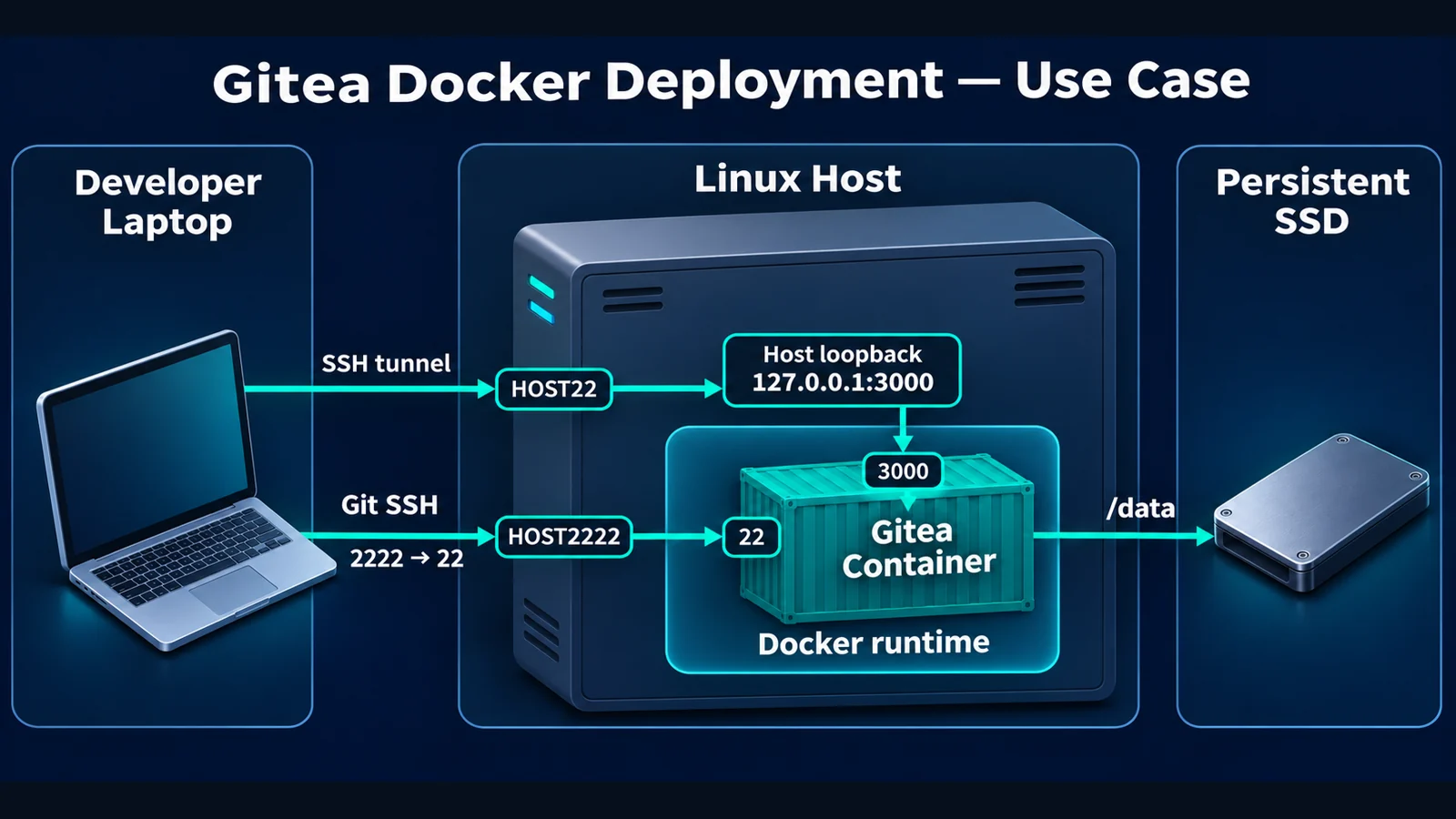
The diagram explains the example topology. It does not certify a completed deployment.
| Purpose | Example | What to verify |
|---|---|---|
| Pilot server | 192.168.50.20 | Use your dedicated server's actual private address |
| Host administration SSH | 22 | Use an existing authorized host account |
| Web backend | Server 127.0.0.1:3000 | Keep HTTP login off the network |
| Git SSH | 192.168.50.20:2222 to container port 22 | Keep it separate from host SSH |
| Persistent data | Host /srv/gitea-pilot/data to container /data | Retain it when replacing the container |
ROOT_URL describes the web address seen by the user. In this tunnel-only pilot it points to the user's own loopback endpoint. SSH_DOMAIN names the private server, while SSH_PORT determines the advertised Git clone port. It does not move the container's OpenSSH daemon to that port. Check these settings against the Gitea configuration reference.
1. Check the dedicated host and prerequisites
Use Ubuntu 24.04 LTS on a dedicated test VM. Two CPU cores, 2 GB RAM and 20 GB free storage are a starting allocation for this article, not an official sizing guarantee. Repository size, indexing and concurrent activity change the requirements. Define who owns the service and where recovery will happen; the isolated VM restore guide explains the related recovery boundary.
Install a supported Docker Engine and Compose plugin using the official Ubuntu instructions before starting. Client workstations need Git and OpenSSH. Do not replace an existing Docker installation or stop unrelated containers to follow this tutorial.
Run these read-only checks on the server:
docker version
docker compose version
ip -br address
sudo ss -lntp
df -h /srv
Confirm that the example IP belongs to this host, ports 3000 and 2222 are unused, and administration through host port 22 already works. Stop if the address, capacity or ownership is unclear. Docker manages published-port rules itself; an apparent UFW rule alone is not evidence of isolation. Review Docker's port-publishing behavior.
2. Create a separate data directory and Compose project
Use a new pilot directory. If it already contains data, inspect its ownership and purpose instead of overwriting it.
sudo install -d -m 0750 -o "$USER" -g "$(id -gn)" /srv/gitea-pilot
cd /srv/gitea-pilot
sudo install -d -m 0750 -o 1000 -g 1000 data
nano compose.yaml
Save the following configuration. Version 28.3.0 was checked against the official release on 9 November 2026. Future upgrades require a separate review; a floating latest tag would make this example less reproducible.
name: gitea-pilot
services:
  gitea:
    image: docker.gitea.com/gitea:28.3.0
    restart: unless-stopped
    environment:
      USER_UID: "1000"
      USER_GID: "1000"
      GITEA__database__DB_TYPE: sqlite3
      GITEA__server__DOMAIN: "127.0.0.1"
      GITEA__server__ROOT_URL: "http://127.0.0.1:3000/"
      GITEA__server__SSH_DOMAIN: "192.168.50.20"
      GITEA__server__SSH_PORT: "2222"
      GITEA__service__DISABLE_REGISTRATION: "true"
      GITEA__service__REQUIRE_SIGNIN_VIEW: "true"
    volumes:
      - ./data:/data
      - /etc/localtime:/etc/localtime:ro
    ports:
      - "127.0.0.1:3000:3000"
      - "192.168.50.20:2222:22"
The host directory must match the configured numeric UID and GID. SQLite keeps this pilot to one instance; it is not a shared database for multiple application instances. Do not switch an existing data directory between standard and rootless images by changing only the image tag. See the official Docker installation guide for those image and storage distinctions.
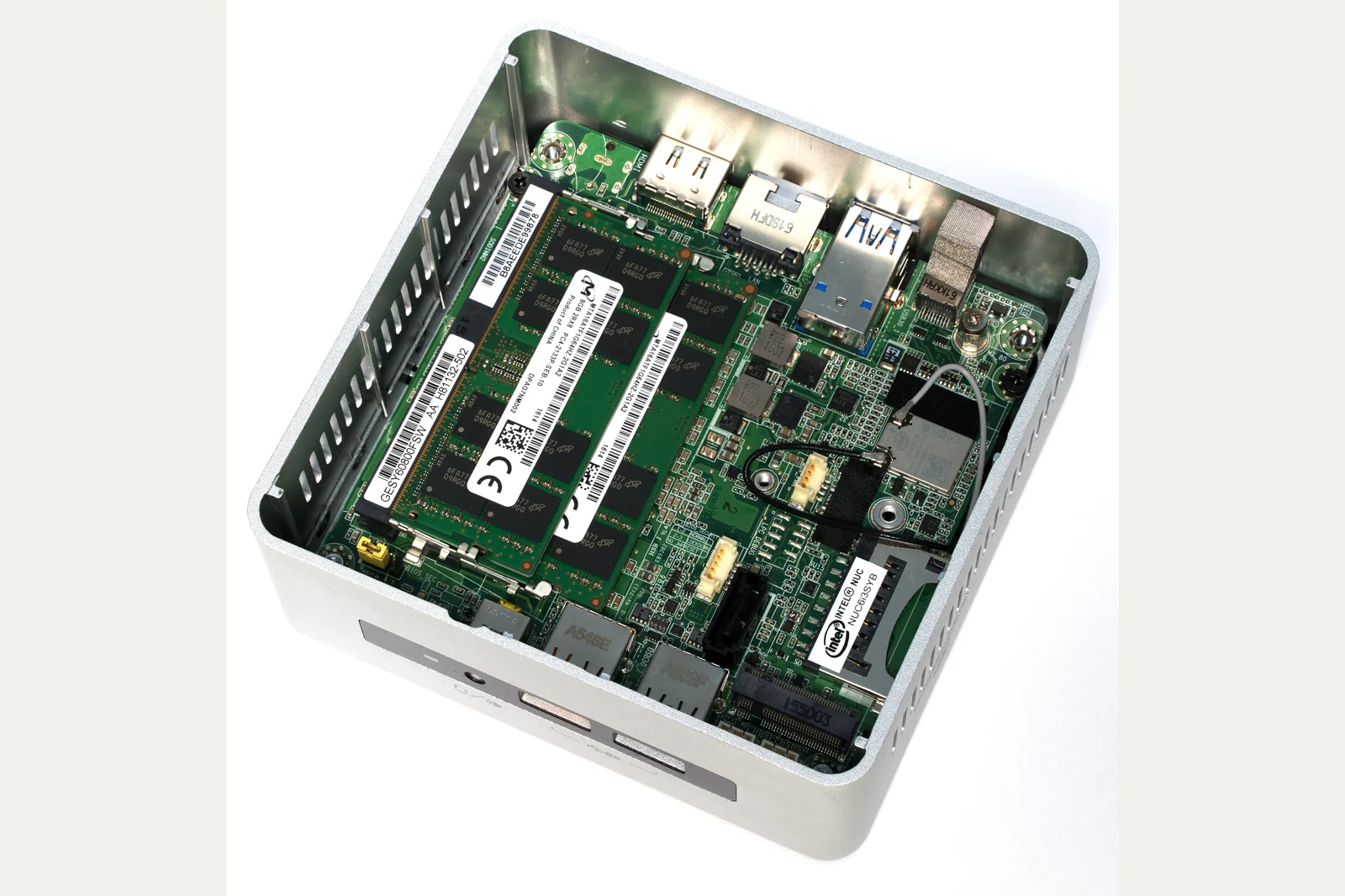
Photo: Laserlicht, Intel NUC 6 inside, CC BY-SA 4.0; resized and transcoded. This is not the article's deployment site or a hardware recommendation. It illustrates the physical storage behind persistent data, not proof that this machine ran the example. Container recreation neither adds disk capacity nor creates a backup.

3. Start the service and inspect the result
In the server's pilot directory, run:
docker compose config --quiet
docker compose pull
docker compose up -d
docker compose ps
docker compose logs --tail=80 gitea
Configuration parsing is only a syntax/model check. Then verify that the service stays running and that its published ports match the intended interfaces. Logs help locate startup failures; redact account names, paths and private infrastructure details before sharing them.
For a data-directory write error, check the numeric ownership rather than assigning world-writable permissions. For an occupied port, choose a coordinated alternative rather than killing its current owner. If the container repeatedly restarts, capture the actual error and stop this pilot service while investigating.
4. Complete installation over an encrypted web tunnel
On your workstation, open a separate terminal. Replace admin with an existing authorized account on the Ubuntu host. Verify the host's SSH fingerprint through a trusted channel before accepting it.
ssh -N -o ExitOnForwardFailure=yes -L 127.0.0.1:3000:127.0.0.1:3000 admin@192.168.50.20
Leave the tunnel running and open this address in your workstation browser:
http://127.0.0.1:3000/
HTTP remains on the two local loopback segments; the network leg is carried by host SSH. Do not change the web binding to every interface and enter real passwords over cleartext LAN HTTP. If workstation port 3000 is already occupied, coordinate a consistent replacement port and ROOT_URL instead of terminating another application.
In the initial installation page, review SQLite 3, the web URL, the SSH domain and port. Expand the administrator settings and deliberately create the initial administrator using a unique password stored in your password manager. Do not rely on an open registration page to create the first account.
After installation, use Site Administration → User Accounts to create two ordinary pilot users, pilot-writer and pilot-reader. Give each an individual password. Sign out and confirm that self-registration is unavailable. Interface labels can vary with the selected language.
Each pilot user who needs the web interface requires their own authorized host SSH access and tunnel. If that is unsuitable for the team, deploy a trusted HTTPS endpoint first. When the permanent URL changes, update ROOT_URL and recheck generated links. Follow the Gitea HTTPS documentation rather than treating this tunnel arrangement as a finished team service.
5. Create a private repository and add a dedicated SSH key
Sign in as pilot-writer. Create netops-pilot, mark it private, and initialize a README. Use harmless sample content. Do not import production configurations, VPN credentials, customer data or certificates.
In the repository's Settings → Collaborators, add pilot-reader with Read permission. Keep the administrator account out of everyday Git work.
On the writer's workstation, create a dedicated key. If this filename already exists, stop and select a new name; do not overwrite an existing identity. Enter a passphrase when prompted.
ssh-keygen -t ed25519 -f ~/.ssh/gitea_pilot_writer -C "gitea-pilot-writer"
cat ~/.ssh/gitea_pilot_writer.pub
Add only the public key to pilot-writer under User Settings → SSH/GPG Keys. The private key stays on the workstation. Through the trusted host-administration channel, inspect the Git SSH host fingerprint:
cd /srv/gitea-pilot
docker compose exec gitea ssh-keygen -lf /data/ssh/ssh_host_ed25519_key.pub
If that host-key file is absent, inspect SSH initialization for the selected image before proceeding. Compare the fingerprint with the one presented on the workstation. Then test the Git port:
ssh -p 2222 -i ~/.ssh/gitea_pilot_writer -o IdentitiesOnly=yes -T git@192.168.50.20
The expected response identifies the Gitea user and explains that shell access is unavailable. A shell prompt on the Ubuntu host would indicate the wrong endpoint. Do not judge this check by exit status alone; perform an actual Git round trip next.
6. Verify a write and an independent clone
In a new workstation test directory, clone the repository. Adjust the owner segment if you used a different account. This explicit SSH URL includes port 2222.
GIT_SSH_COMMAND='ssh -i ~/.ssh/gitea_pilot_writer -o IdentitiesOnly=yes' git clone ssh://git@192.168.50.20:2222/pilot-writer/netops-pilot.git
cd netops-pilot
git config user.name "Pilot Writer"
git config user.email "pilot-writer@example.invalid"
printf 'Gitea pilot verification\n' > pilot-check.txt
git add pilot-check.txt
git commit -m "Add pilot verification file"
GIT_SSH_COMMAND='ssh -i ~/.ssh/gitea_pilot_writer -o IdentitiesOnly=yes' git push origin HEAD
git rev-parse HEAD
Record the commit SHA. Return to the parent directory, clone into a new destination and compare both the SHA and file content:
cd ..
GIT_SSH_COMMAND='ssh -i ~/.ssh/gitea_pilot_writer -o IdentitiesOnly=yes' git clone ssh://git@192.168.50.20:2222/pilot-writer/netops-pilot.git netops-pilot-verify
cd netops-pilot-verify
git rev-parse HEAD
cat pilot-check.txt
If the destination exists, choose another new name rather than overwriting it. A filename appearing in the web interface is weaker evidence than a complete second-client read. Refer to Git clone for SSH URL syntax and Git push for remote updates.
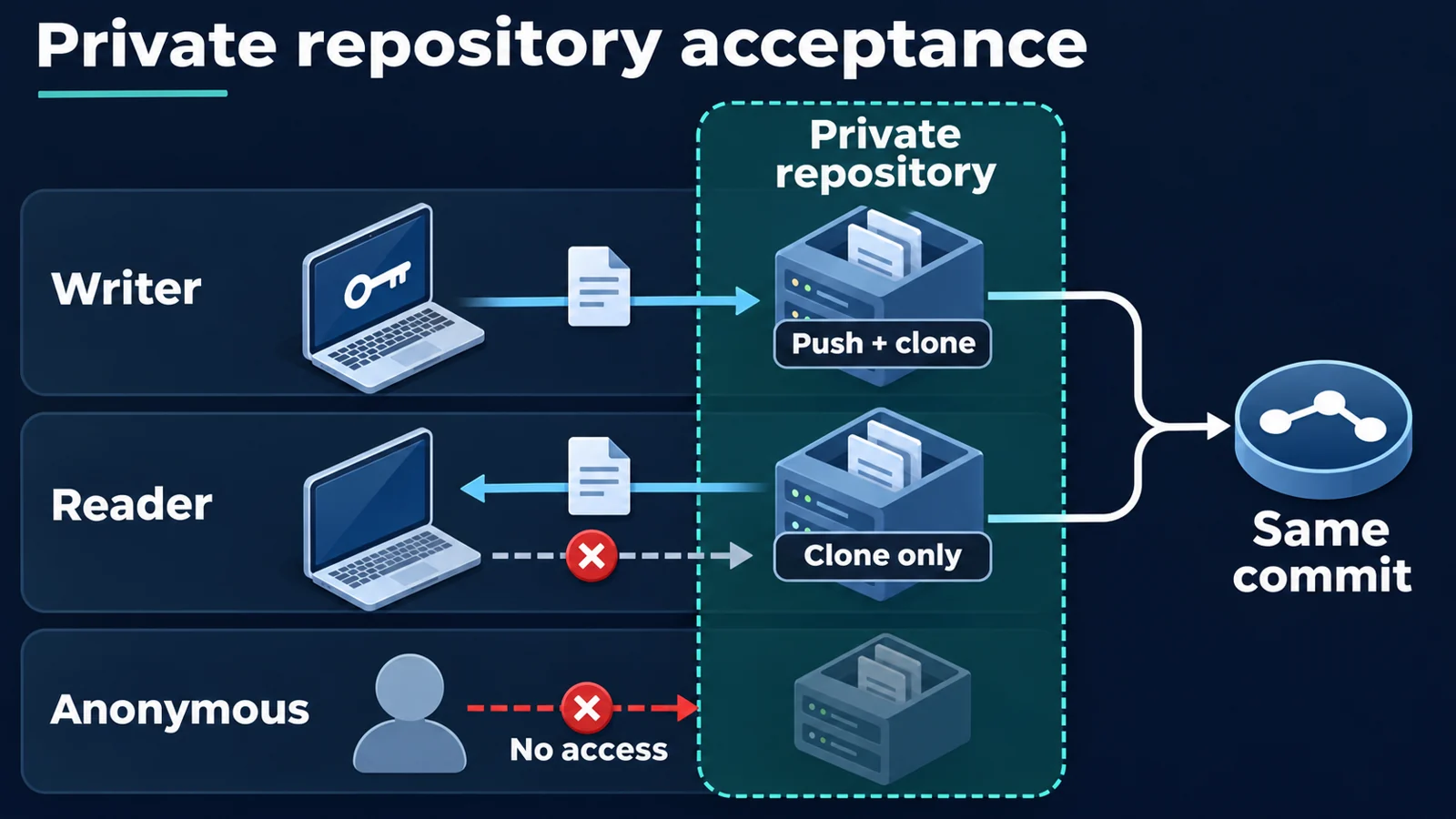
Each path requires an independent identity. The diagram lists checks to perform, not completed results.
| Test identity and action | Expected outcome | If it differs |
|---|---|---|
| Writer clones and pushes a new commit | Allowed; independent clone has the same SHA | Check key ownership, repository path and branch rules |
| Reader clones using their own key | Allowed; the file is readable | Check Read permission and the account holding the key |
| Reader pushes a test branch | Denied | Stop onboarding and remove excess permissions if it succeeds |
| An unrelated third account opens the repository | Denied | Check visibility and other inherited access paths |
| A signed-out browser session opens the repository URL | No private content is readable | Check private visibility and sign-in policy |
Run the reader test from a separate OS account or client with its own key. Reusing the writer's key or cached authentication invalidates the result. Gitea's permission reference distinguishes reading code from pushing it. A 404 can hide a private repository; it does not necessarily indicate a network failure.
7. Recreate the container and retain the data
Only after confirming that no other pilot user is working, recreate this one service on the server. The check briefly interrupts the pilot and must not be copied onto an existing business instance without a maintenance plan.
cd /srv/gitea-pilot
docker compose up -d --force-recreate gitea
Sign in again, confirm the users and repository still exist, and repeat the clone/SHA check. Persistence is not a backup: loss of the host disk can destroy all the data. Before production use, follow Gitea backup and restore guidance to protect the database, repositories, attachments and configuration consistently, then restore them in isolation.
To stop this pilot, stop only its service. Preserve its files for review; do not remove volumes or clean up unrelated projects.
cd /srv/gitea-pilot
docker compose stop gitea
Troubleshoot by the failed layer
If the web page is unavailable, check the tunnel, local port use and service logs before changing network exposure. If the web page works but Git SSH times out, inspect the 2222 mapping, private routing and upstream access controls. A publickey error points first to the chosen client key and its Gitea account, not the permissions of the Ubuntu admin account. If cloning works but pushing fails, inspect repository permissions and branch protection before granting more access.
Stop importing data if an unauthorized identity can read private content, a host fingerprint unexpectedly changes, or the data mount points at another service's directory.
FAQ
Does an internal service still need HTTPS?
A regularly used team service should have trusted HTTPS. This pilot protects the web network path with individual SSH tunnels, which requires authorized tunnel access for each web user.
Why does 2222 map to container port 22?
2222 is the host's published Git endpoint. The container's OpenSSH daemon remains on 22, separate from the host-administration SSH service.
Is a Git clone a complete Gitea backup?
No. It cannot replace database, account, issue, attachment and configuration backups, even when it contains the repository's required Git objects.
When should SQLite be replaced?
This guide covers one small pilot instance. Measure concurrency and storage requirements before planning a supported database migration; do not share one SQLite file between multiple application instances.
Related solutions
For integration with virtual infrastructure, controlled network access and recovery procedures, define the host, address, data owner and access boundary before discussing Yuqi's enterprise IT services.
Further reading
To turn the pilot into a supported team service, bring the expected user count, repository size, identity requirements and recovery targets to an implementation discussion with Yuqi.