

Seeing a shared folder does not prove that you can save into it. Confirm the account used by the connection, inspect the share ACL and the exact folder's NTFS ACL separately, then test creation, editing, renaming and deletion with a disposable file. Avoid granting Everyone Full Control as a diagnostic shortcut.
This guide covers Windows 11 clients accessing ordinary NTFS file shares on Windows Server 2019, 2022 or 2025. The symptom is successful listing or reading followed by failed creation or saving. Connection failures, vendor NAS ACLs, DFS referrals, clustered shares and SMB over QUIC need their own investigation. Commands below are documentation-based examples, not results from a customer deployment. Prepare the affected account, full UNC path, error timestamp and an authorized server administrator.
Separate the operations before changing permissions
Ask whether the user cannot create a new file, cannot edit an existing one, or fails only when saving from an application. Applications may save through a temporary file and rename operation. A successful file creation is not proof that an application can complete that sequence. A readable share root also says nothing conclusive about a protected child folder.
| Symptom | Check first | Avoid assuming |
|---|---|---|
| No child folder allows creation | Session account, share Read, NTFS write rights | A server restart fixes permissions |
| Only one child folder fails | Child ACL, inheritance and quota | The root ACL governs every child |
| New files work; old files cannot be replaced | Existing file ACL, locks, read-only attribute | A new-file test covers old files |
| Plain text works; application save fails | Temporary files, rename/delete rights and locks | The entire share needs broader access |
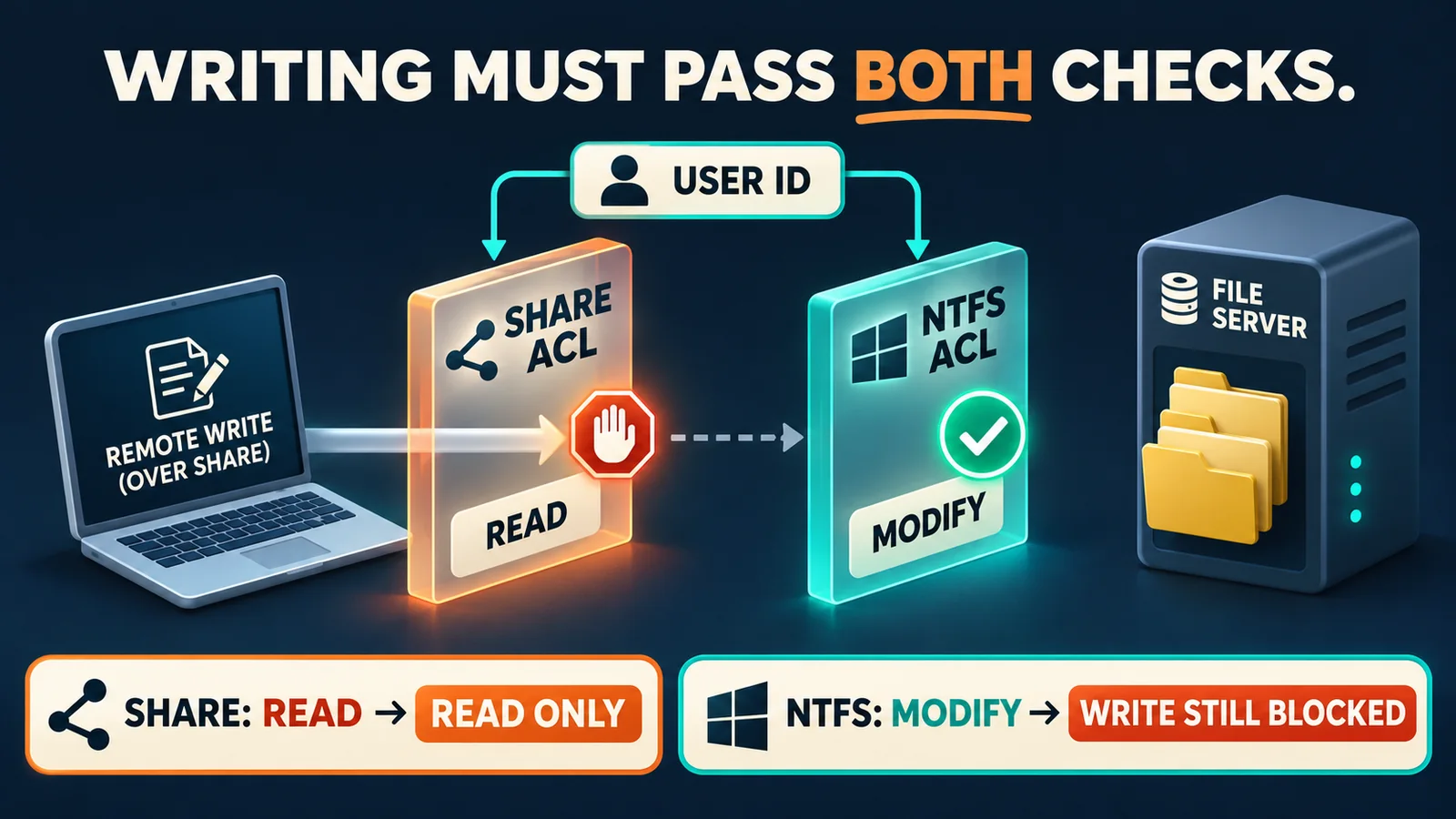
In this example, share Read still blocks remote writing when NTFS allows Modify. Real access depends on the user's token, group membership, allow and deny entries, inheritance and the requested operation. An ACL listing is not an effective-access calculation.
1. Establish the actual account and exact access path
Run these read-only queries on the affected user's desktop in their normal context. Testing with an administrator account does not validate that user's access. Substitute the real server, domain, share and directory for all examples.
whoami
whoami /groups
Get-SmbConnection | Select-Object ServerName,ShareName,UserName,Credential,Dialect,NumOpens
Get-SmbMapping | Select-Object LocalPath,RemotePath,Status
Record ServerName, ShareName, UserName and Credential. UserName and the connection Credential may differ; verify the authenticated identity against ClientUserName in the server session. Check for an old server, an alias or another account. If no connection is listed, open the intended share in File Explorer and query again. Switching from a DNS name to an IP address can change authentication behavior; it is not a general permanent fix. Inspect only the relevant Windows Credential Manager entry if stale credentials are suspected; do not export passwords.
After a group-membership change, the existing logon token may still be stale. Save work, follow the organization's sign-out/sign-in process and reestablish the intended connection. Do not delete every network connection: other shares and open work may be affected. On the file server, an authorized administrator can check the account recognized by its SMB sessions:
Get-SmbSession | Select-Object ClientComputerName,ClientUserName,NumOpens
This lists sessions; it is not approval to disconnect them.
2. Find the share's real local directory and share ACL
Run the following on the Windows Server hosting the share, using the necessary administrative rights. TeamDocs is an example share name. Read its actual Path before using a local directory in the next step.
Get-SmbShare -Name 'TeamDocs' | Select-Object Name,Path,Description
Get-SmbShareAccess -Name 'TeamDocs' | Format-Table AccountName,AccessControlType,AccessRight
The graphical path is folder Properties → Sharing → Advanced Sharing → Permissions. Read generally permits reading; remote writing needs an appropriate Change or Full allowance, with group membership and other relevant entries considered. A group showing Change does not establish that the affected user has that group's rights. Get-SmbShareAccess retrieves the share ACL, not the NTFS ACL or a final effective-access decision. The Microsoft cmdlet reference defines that scope.
Preserve the current output and approval record. If the approved write group has only Read at this layer, the responsible administrator should correct that group according to the access design. Avoid adding Everyone Full. For an approved correction, open Advanced Sharing → Permissions, select only the approved write group and change its allowed Read to Change, leaving Full unselected. Preserve the before/after principal and rights. Do not remove deny entries or change other groups to bypass the access design.
3. Inspect the failing child folder and existing file
On the server, query the exact directory where creation fails. In this example it is Reports under the local share path. If saving an existing file fails, inspect that file independently as well.
Get-Acl -LiteralPath 'D:\Shares\TeamDocs\Reports' | Format-List Owner,AreAccessRulesProtected,AccessToString
icacls 'D:\Shares\TeamDocs\Reports'
icacls 'D:\Shares\TeamDocs\Reports\budget.xlsx'
Use folder Properties → Security → Advanced → Effective Access, select the real domain user, and examine creation, writing, modification and deletion capabilities for the target. Check the share ACL separately. The effective-access view helps investigate file-system permissions; it does not replace a real SMB test from the original client. AreAccessRulesProtected being True means the object's DACL is protected from inheritance. Determine whether that is intentional before changing it.
In icacls output, I marks inherited entries, OI/CI describe file/container inheritance and M denotes Modify. Scope, inheritance flags and relevant deny entries still matter. ACL evaluation depends on entry order and the requested rights; avoid the blanket claim that every deny always overrides every allow in every situation. Before correction, preserve the current ACL and parent relationship, reproduce the proposed change in an isolated test directory, and alter only the approved object. For example, where approved data modification is required, open Security → Advanced, select the existing write group and change its allow entry to Modify. Verify whether Applies to covers this folder alone or children; apply only the approved scope. Do not toggle inheritance, replace all child permissions, or alter other groups or deny entries. Preserve before/after entries and retest using section 4. If the application requires narrower rights, have the administrator design those from its save behavior rather than applying Modify universally. See the Microsoft icacls reference for flag definitions.
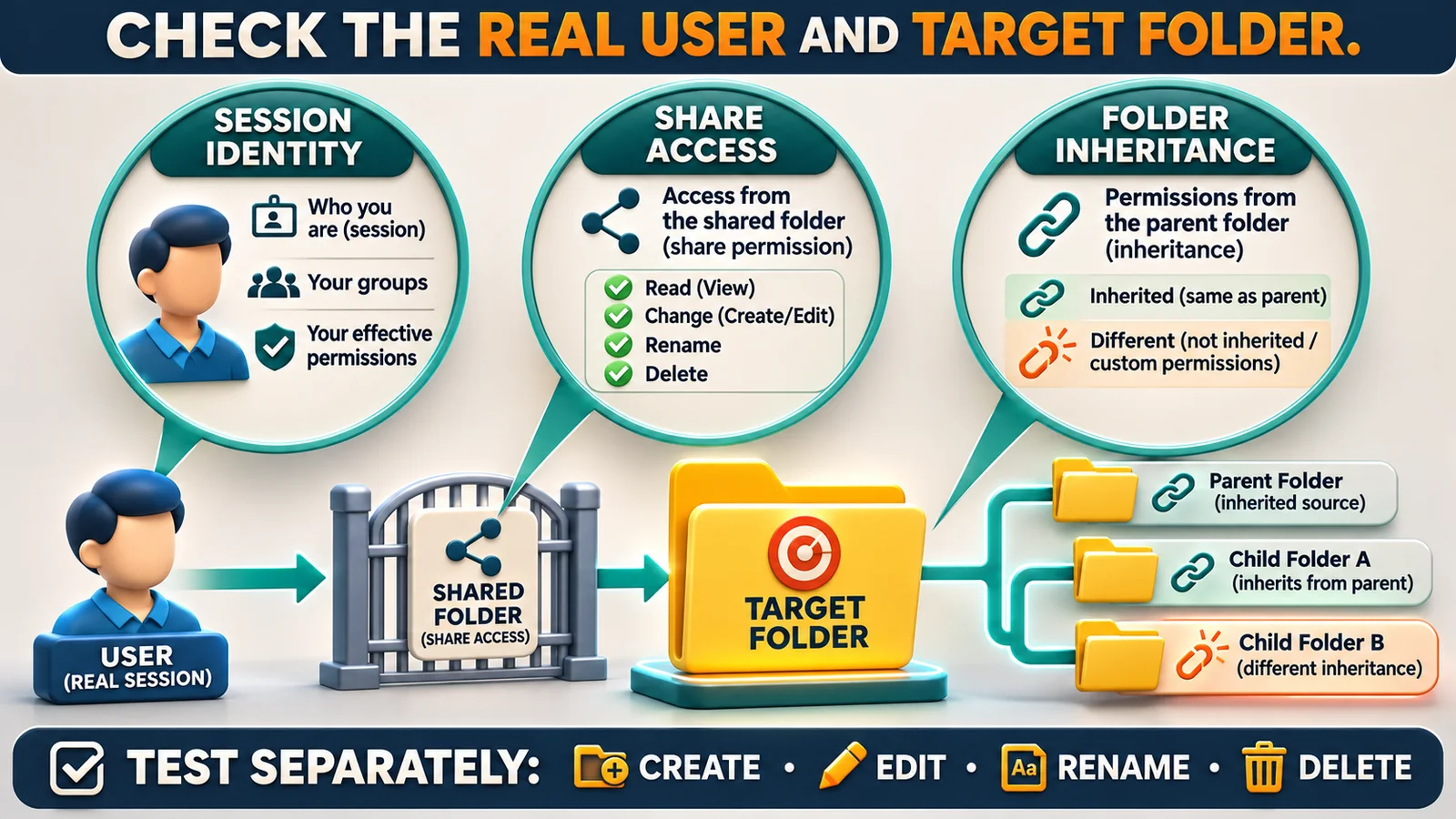
This is a diagnostic illustration. Protected inheritance alone does not establish a fault or rule out network and other causes. An inheriting child can also have explicit ACL entries; inspect the complete target ACL and actual operation rather than reading “same as parent” as an exact equivalence.
4. Validate minimal writing in the original user's session
Select an approved, empty test directory first. Run the following interactively, one command at a time. A unique name is generated for this run. Stop at the first error and record the failing operation, full message and timestamp. Only the file created by this test is renamed and removed; if a step fails, preserve its path for inspection rather than deleting other files.
$root = '\\fs01.example.internal\TeamDocs\Reports'
$token = [guid]::NewGuid().ToString('N')
$leaf = 'permission-check-' + $token + '.txt'
$file = Join-Path $root $leaf
New-Item -ItemType File -Path $file -ErrorAction Stop
Set-Content -LiteralPath $file -Value 'permission check' -ErrorAction Stop
Get-Content -LiteralPath $file -ErrorAction Stop
$newLeaf = 'permission-check-' + $token + '-renamed.txt'
Rename-Item -LiteralPath $file -NewName $newLeaf -ErrorAction Stop
Remove-Item -LiteralPath (Join-Path $root $newLeaf) -ErrorAction Stop
This demonstrates creation, writing, reading, renaming and deletion. ErrorAction Stop terminates the failing command; it does not guarantee that later independent statements pasted into an interactive console will not run. Unattended use requires an enclosing try/catch and explicit exit behavior. Do not treat this interactive sequence as a ready-to-run automation script.
After those operations succeed, save a test copy through the original application. Success with a new file does not prove that every existing business file can be deleted or replaced. Acceptance requires the expected session identity, the approved operations on the exact child directory, successful application saving on a test copy and no expansion beyond the intended permission boundary.
5. If ACLs match the design, inspect storage and the application
Check target-volume free space, user and folder quotas, file read-only attributes and locks. An FSRM hard quota can reject writing while the volume still has free space. A vendor NAS may add its own ACL, snapshot or read-only-volume rules; Windows NTFS instructions cannot simply be translated into that vendor's interface. A folder's read-only checkbox is not equivalent to a file's read-only attribute and is not, by itself, the diagnosis.
For a single existing file, ask its owner whether someone is editing it. The server's Computer Management → Shared Folders → Open Files view can help confirm an open handle. Forcibly closing it may lose unsaved work and is not a routine diagnostic step. Suspected endpoint-security blocking needs matching events; apparently correct ACLs do not justify disabling protection.
Photograph: Tony Webster, Synology NAS and Drive Bay, via the Wikimedia Commons file page, CC BY 2.0. Cropped horizontally and compressed to WebP for this article. It illustrates a physical storage appliance and is not the Windows Server example environment or evidence of NAS ACL compatibility.

Rollback and escalation limits
Restore only the objects changed in the approved window, using the preserved share ACL, target DACL and inheritance relationship, then repeat the relevant read/write checks. Avoid recursive resets, bulk ownership changes or deleting deny entries experimentally. Stop and escalate if several departments lose access, inheritance intent is unclear, encrypted files or retention requirements are involved, or DFS, clustering or restored ACLs are in scope.
FAQ
Why can an administrator write locally while the user cannot? Identity, token and entry path differ. A local file-system test does not traverse the SMB share ACL and does not validate the remote user.
Does the user need Full Control? Usually the approved data operations can be granted without permission management or ownership rights. Required rename/delete capabilities depend on the application's saving behavior and business approval.
Does opening the directory prove the network is healthy? It proves access was established for that path at that time, not that connectivity is always reliable. For this symptom, investigate the denied write operation first. If the share cannot open at all, use the file-share permission access guide.
Related solutions and reading
Keep the account, exact path, failing operation, ACL snapshot, approved change and retest together. Yuqi Intelligent can help review departmental share boundaries before an object-specific change.