

Build an enterprise AD domain in this order: plan its name and static addresses, create the first domain controller with DNS, verify resolution, add a second controller, join a pilot workstation, and check policy, backup and alerts. Finishing the first installation is an initial milestone. Healthy replication, an ordinary user's domain sign-in and applied policy are prerequisites for expanding deployment.
Active Directory Domain Services (AD DS) holds users, computers and groups; domain controllers (DCs) provide directory and identity services; DNS lets clients discover them. This guide creates a new on-premises forest. Existing-domain upgrades, migrations, Microsoft Entra ID and certificate services require separate plans. Commands below are examples based on Microsoft documentation; they were not executed in a Windows server environment during preparation of this article.
Before starting: complete the deployment sheet
Prepare two patched Microsoft Windows Server 2022 Standard or Datacenter machines with Desktop Experience, a Windows 11 Pro or Enterprise pilot PC, server console access, fixed IP addresses and independent writable backup storage. Windows Home does not support this domain-join route. Check server licensing and client access licensing against your organization's entitlement.
| Item | Example used here | Check before deployment |
|---|---|---|
| DNS domain | ad.example.com |
Reserved example name: replace it with an internal subdomain beneath a registered domain your organization controls |
| NetBIOS name | CORP |
Confirm uniqueness and record the agreed name |
| DC1 / DC2 | 10.20.10.10 / 10.20.10.11 |
Same 10.20.10.0/24 subnet in this example; exclude both addresses from DHCP pools |
| Gateway | 10.20.10.1 |
Replace with the actual gateway; verify routing and management access |
| Pilot workstation | PC-ADTEST |
Unique computer name and a usable local administrator account |
| Initial resources | 4 vCPU, 8 GiB RAM, 80 GiB system disk per DC | Planning assumptions, not capacity guarantees or Microsoft minimum requirements; size for directory, logs and backup |
| Resilience | Different physical hosts/failure domains | Two VMs on one host share a host failure; keep routine office applications off DCs |
| Maintenance window | Renaming, promotion and joining can restart devices | Prove console access before changing network settings remotely |
Use a complete DNS domain name, not the single label CORP. Windows Server 2022 uses Windows Server 2016 as its highest domain and forest functional level. There is no “2022 functional level” to select. See the Microsoft functional-level matrix.

Step 1: name the servers and configure static IP and initial DNS
At the DC1 console, open Server Manager → Local Server, rename the machine DC1 and restart it. Set the active adapter's IPv4 address to 10.20.10.10, subnet mask to 255.255.255.0, and gateway to the actual gateway. Set preferred DNS to DC1's own address, 10.20.10.10, with no alternate yet. Its DNS service does not exist before role installation; complete installation before expecting local DNS answers.
Rename DC2 and restart it as well. Assign 10.20.10.11 and point its DNS only to DC1, 10.20.10.10, before promotion. On both servers, use elevated PowerShell to inspect the actual adapter and address state:
Get-NetAdapter | Select-Object Name, Status, InterfaceDescription
Get-NetIPConfiguration
Get-DnsClientServerAddress -AddressFamily IPv4
Get-CimInstance Win32_ComputerSystem | Select-Object Name, Domain, PartOfDomain
Expected: planned names, the intended adapter Up, correct static address/gateway/DNS, and no second adapter registering an unintended address. Check management adapters, VPNs and virtual switches individually. DC adapters must use internal authoritative DNS; external resolution belongs in server-side forwarders. See Microsoft DNS client recommendations.
If VLANs are separated by a firewall, approve the required directions and ports using Microsoft's AD firewall guidance. Relevant traffic can include DNS 53/TCP and UDP, Kerberos 88/TCP and UDP, LDAP 389/TCP and UDP, SMB 445/TCP, RPC 135/TCP and the default dynamic RPC range 49152–65535/TCP; time synchronization additionally needs NTP 123/UDP. Design member-to-DC and DC-to-DC rules separately for the environment. A successful ping is insufficient; do not replace correct rules by disabling the firewall.
Step 2: install AD DS, then promote the server
On DC1, open Server Manager → Manage → Add Roles and Features. Choose role-based installation and the local server, select Active Directory Domain Services, accept its management tools, and install. An elevated PowerShell alternative is:
Install-WindowsFeature AD-Domain-Services -IncludeManagementTools
Get-WindowsFeature AD-Domain-Services
Check Success, Restart Needed and the installed role state. Complete a requested restart before continuing. Installed means the role binaries are present. Use “Promote this server to a domain controller” in Server Manager's notification flag to configure the directory. See Microsoft's AD DS installation instructions.
Step 3: create the forest on DC1 and check each page
This is a new independent forest. Do not choose the option for adding a domain to an existing forest.
| Wizard page | Setting in this example | Stop condition |
|---|---|---|
| Deployment Configuration | Add a new forest; root domain ad.example.com, replaced with your actual name |
Existing domain/name conflict or unapproved naming |
| Domain Controller Options | Windows Server 2016 levels; DNS and Global Catalog enabled; first DC is writable | Set a strong DSRM recovery password in the organization's password vault, never in article text or plaintext scripts |
| DNS Options | No public-parent delegation for this internal example | Assess delegation warnings against the real namespace, rather than accepting every warning |
| Additional Options | NetBIOS CORP |
Resolve conflicts or disagreement with the deployment sheet |
| Paths | Keep supported local NTDS, log and SYSVOL defaults for this starting example | Insufficient space or temporary/unsupported storage |
| Review Options | Check selections and export View Script for the deployment record | No plaintext passwords in saved configuration |
| Prerequisites Check | Run checks and address errors and warnings | Any blocking error; do not skip checks to force promotion |
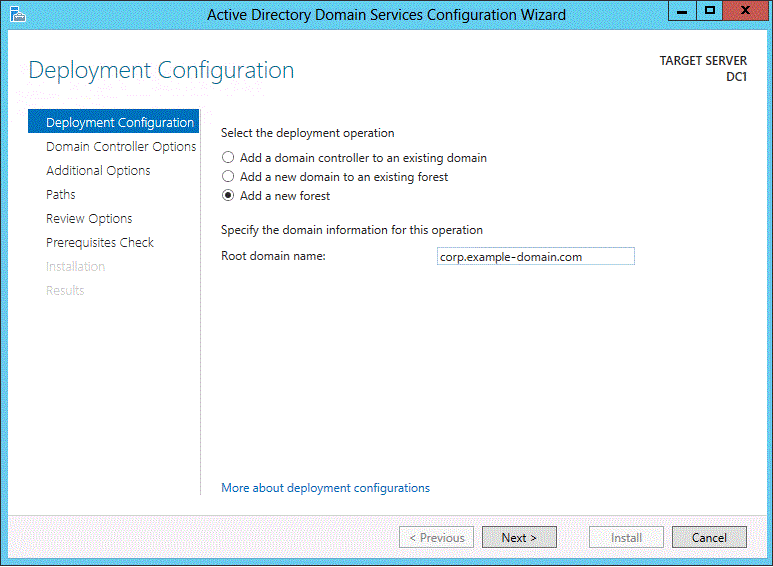
corp.example-domain.com; this article uses ad.example.com. Follow your own naming sheet. Microsoft does not identify a separate version for this individual image; its appearance is not proof of a Windows Server 2022 installation here.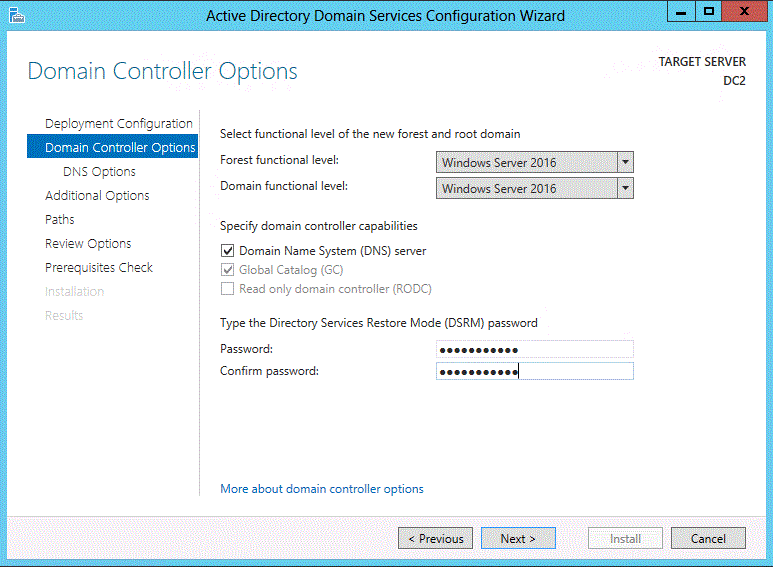
For a command-based installation, the following is an alternative to the wizard, not something to rerun after promotion. WinThreshold means Windows Server 2016 functional level. Run the prerequisite test, inspect its results, and manually run the installation in the same PowerShell session with $forest and $dsrm still available, only when no blocking issue remains:
Import-Module ADDSDeployment
$dsrm = Read-Host 'Enter a new DSRM password' -AsSecureString
$forest = @{
    DomainName = 'ad.example.com'
    DomainNetbiosName = 'CORP'
    InstallDns = $true
    CreateDnsDelegation = $false
    ForestMode = 'WinThreshold'
    DomainMode = 'WinThreshold'
    SafeModeAdministratorPassword = $dsrm
}
Test-ADDSForestInstallation @forest
Install-ADDSForest @forest
Installation prompts for confirmation and restarts the server when complete. Parameter references: Install-ADDSForest and Test-ADDSForestInstallation. Do not copy skip-check or suppress-restart switches from an unrelated script.
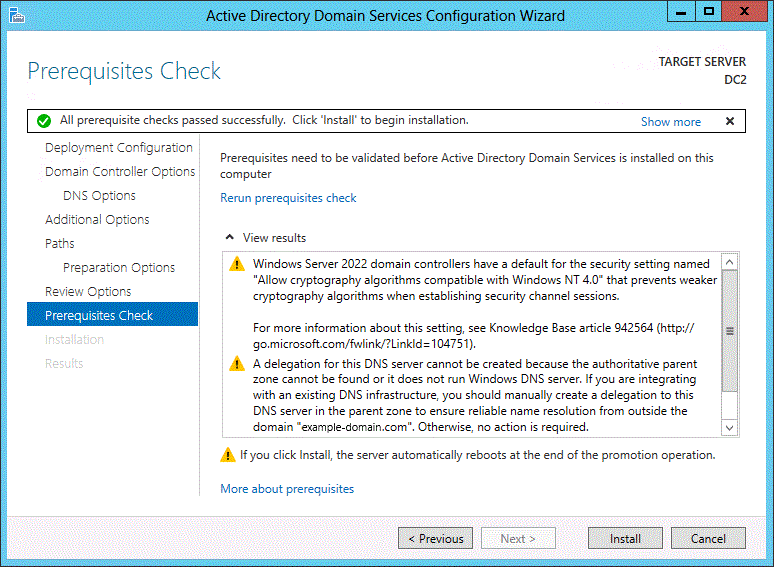
For this private subdomain, clients query internal DNS directly; they do not need the public parent to delegate resolution to a private DC. A matching delegation warning can therefore be documented and accepted. If an existing parent zone, cross-zone resolution or hybrid namespace depends on delegation, settle the delegation/conditional-forwarding design first. Password, permission, address or storage failures are unrelated to this exception.
After restart, sign in as CORP\Administrator and inspect the actual directory and services:
Get-ADDomain | Select-Object DNSRoot, NetBIOSName, DomainMode, PDCEmulator
Get-ADForest | Select-Object RootDomain, ForestMode
Get-Service NTDS, DNS, Netlogon, DFSR
Get-SmbShare -Name SYSVOL, NETLOGON
Expected: correct DNS/NetBIOS names, 2016 functional levels, Running services and both SYSVOL and NETLOGON shares. Missing shares or failed services require checking Directory Service, DNS Server, DFS Replication and System event logs. Preserve %windir%\debug\dcpromo.log and dcpromoui.log. Pause client joining and bulk account creation.
Step 4: validate AD-integrated DNS and external resolution
Open Server Manager → Tools → DNS. Under Forward Lookup Zones, check the domain and forest _msdcs locator records. Confirm AD integration and secure-only dynamic updates. The forest _msdcs namespace may appear as a separate zone; its tree position alone does not establish whether records are missing.
On DC1, inspect zones, the LDAP locator SRV record and DC1's address:
Get-DnsServerZone | Select-Object ZoneName, ZoneType, IsDsIntegrated, DynamicUpdate
Resolve-DnsName '_ldap._tcp.dc._msdcs.ad.example.com' -Type SRV -Server 10.20.10.10
Resolve-DnsName 'dc1.ad.example.com' -Type A -Server 10.20.10.10
Expected: an AD-integrated internal zone with secure updates, an SRV answer naming DC1 and the LDAP service port, and an A record resolving to 10.20.10.10. Stop for missing locator records, stale addresses or public-DNS answers. Continue diagnosis with the DNS checks before joining AD.
For external names, right-click DC1 in DNS Manager → Properties → Forwarders → Edit. Enter approved recursive resolvers reachable from the DC. Check DC2's forwarders separately after installation; do not assume server-level forwarders replicate with directory-integrated zones. See Microsoft DNS server configuration.
Get-DnsServerForwarder
Resolve-DnsName 'www.microsoft.com' -Server 10.20.10.10
Expect a response allowed by the organization's network policy. Restricted networks can use an approved external test name instead. Investigate forwarders, DNS egress and recursion policy if it fails; do not add public DNS as a client alternate. Add reverse zones where operational policy requires them; they assist diagnosis but do not replace SRV/A and domain-join checks.
Step 5: add DC2, validate replication, then enable two internal resolvers
After DC1 is healthy, install the role on DC2 as in Step 2. In promotion, choose “Add a domain controller to an existing domain”, enter ad.example.com, use authorized domain administrator credentials, keep DNS and Global Catalog enabled, and store DC2's DSRM password securely. This single-site example uses the default site; multi-site deployments need approved site/subnet definitions first.
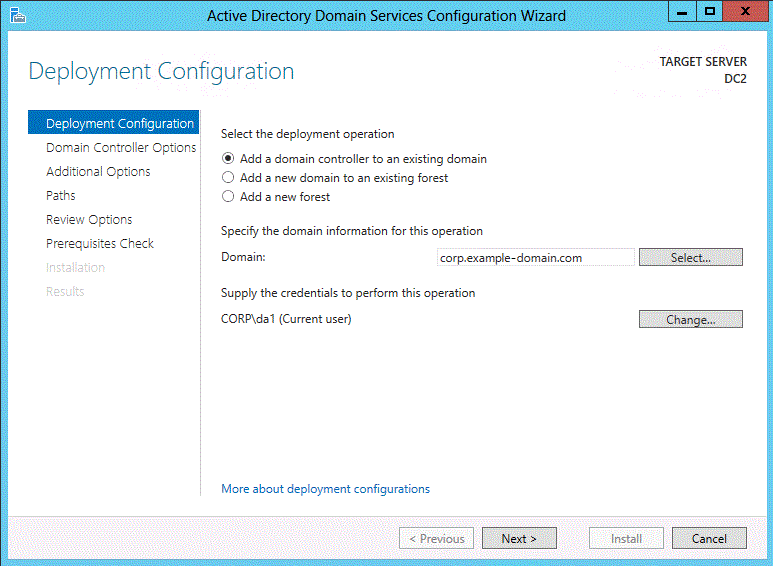
Elevated PowerShell alternative on DC2, not to repeat after wizard completion:
$cred = Get-Credential 'CORP\Administrator'
$dsrm = Read-Host 'Enter DC2 DSRM password' -AsSecureString
Install-ADDSDomainController -DomainName 'ad.example.com' -InstallDns -Credential $cred -SafeModeAdministratorPassword $dsrm
Follow the checks, confirmation and restart in Install-ADDSDomainController. Keep DC2 using DC1 DNS before promotion and until inbound and outbound replication has been verified.
From an authorized administrative terminal, inspect replication and query locator records on both resolvers: Interpret the results using Microsoft replication troubleshooting and the Repadmin summary reference.
repadmin /replsummary
repadmin /showrepl DC1
repadmin /showrepl DC2
Resolve-DnsName '_ldap._tcp.dc._msdcs.ad.example.com' -Type SRV -Server 10.20.10.10
Resolve-DnsName '_ldap._tcp.dc._msdcs.ad.example.com' -Type SRV -Server 10.20.10.11
Resolve-DnsName 'dc1.ad.example.com' -Type A -Server 10.20.10.10
Resolve-DnsName 'dc2.ad.example.com' -Type A -Server 10.20.10.10
Resolve-DnsName 'dc1.ad.example.com' -Type A -Server 10.20.10.11
Resolve-DnsName 'dc2.ad.example.com' -Type A -Server 10.20.10.11
Also inspect services and shares in elevated PowerShell locally on DC2:
Get-Service NTDS, DNS, Netlogon, DFSR
Get-SmbShare -Name SYSVOL, NETLOGON
Expected: both writable DCs participate, replication failures are zero, and each naming context has recent successful replication within the planned interval. Both resolvers locate the controllers and return .10 and .11 for their respective A records. DC2 services must be Running and both SYSVOL/NETLOGON shares must exist. Initial replication takes time, but any waiting must be explained by evidence; indefinite failures are not acceptance.
After that verification, this example sets DC1's preferred DNS to DC2 .11 and alternate to itself .10; DC2 prefers DC1 .10 and uses itself .11 as alternate. Pilot PCs and DHCP receive only those internal resolvers. Recheck adapter DNS, A/SRV records and replication. This cross-preferred arrangement is the single-site example, not a universal topology rule.
Step 6: create pilot OUs, an ordinary user and a test policy
An organizational unit (OU) groups objects and supports Group Policy links. Start with a pilot rather than linking experiments to the entire domain. On DC1, open Tools → Active Directory Users and Computers; right-click the domain → New → Organizational Unit. Create Pilot-Users and Pilot-Computers, retaining accidental-deletion protection.
In Pilot-Users, create the enabled ordinary account pilot.user, use an initial password meeting the organization's rules, and require a change at next sign-in. Confirm the logon name pilot.user@ad.example.com. Do not add this account to Domain Admins.
Open Tools → Group Policy Management. Create and link Pilot-Logon-Banner to Pilot-Computers. Edit Computer Configuration → Policies → Windows Settings → Security Settings → Local Policies → Security Options, and set the interactive-logon message title/text policies. This validates the policy path; it is not a full security baseline. Ensure pilot computers retain Read and Apply Group Policy rights. Do not link this experiment to the Domain Controllers OU.
Step 7: join one pilot PC and verify a real domain sign-in
Use Windows 11 Pro/Enterprise, a unique name, initial workgroup membership and a usable local administrator. Configure only .10 and .11 as DNS, replacing example values with the deployment sheet. First run on the workstation:
Resolve-DnsName '_ldap._tcp.dc._msdcs.ad.example.com' -Type SRV
nltest /dsgetdc:ad.example.com
The results should locate a controller in the intended domain. If SRV resolution works but nltest fails, investigate services, ports and time; DNS checks do not cover every failure.
Open Settings → Accounts → Access work or school → Connect → Join this device to a local Active Directory domain. Supply the domain and an account authorized to join computers. Restart after confirmed success. Alternatively, use the Microsoft domain-join commands in elevated PowerShell:
Add-Computer -DomainName 'ad.example.com' -Credential (Get-Credential)
Restart-Computer
Run the restart only after Add-Computer succeeds. An authorized administrator can perform this initial pilot join; use OU-delegated join accounts for fleet deployment instead of distributing domain administrator credentials.
In Active Directory Users and Computers, find PC-ADTEST and move it to Pilot-Computers. Refresh/restart as needed, then sign in for the first time as CORP\pilot.user and change the initial password. An initial online sign-in that reaches a controller provides stronger evidence for this deployment than an existing cached offline logon.
whoami
Get-CimInstance Win32_ComputerSystem | Select-Object Name, Domain, PartOfDomain
In the ordinary user session, expect corp\pilot.user, the intended domain and PartOfDomain True. Then open a separate elevated PowerShell session using an authorized local or domain management account; do not give the pilot user administrator rights:
Test-ComputerSecureChannel -Verbose
Expect True. This test checks member clients, not DC health. Record the administrative session separately from the ordinary user sign-in evidence. For join errors, inspect %windir%\debug\NetSetup.log. If an old computer account shares the name, check ownership and domain-join hardening rules rather than disabling protections.
Step 8: verify Group Policy and time synchronization
In elevated PowerShell on the pilot PC, confirm C:\Temp is writable and run:
New-Item -ItemType Directory -Path 'C:\Temp' -Force

gpupdate /force

gpresult /scope computer /h C:\Temp\gpresult-computer.html /f
The report must list the pilot GPO as applied. Follow any restart requirement, sign out and back in, and confirm the actual logon message appears. If not, check the computer OU, link and security filtering. Domain password policy is not established merely by linking a policy to a user OU, and a visible banner does not validate password rules.
The forest-root PDC Emulator role holder needs a trustworthy time source; other machines follow the domain hierarchy. Following Microsoft PDC time guidance, identify the holder rather than assuming it is always DC1:
Get-ADDomain | Select-Object PDCEmulator
w32tm /query /source
w32tm /query /status
Only on that role holder, replace 10.20.10.2 with an approved reachable NTP source, verify UDP 123, and run:
w32tm /config /manualpeerlist:"10.20.10.2,0x8" /syncfromflags:manual /reliable:yes /update
w32tm /resync /rediscover
w32tm /query /source
w32tm /query /status
Expect the intended source and a recent successful synchronization. If it fails, inspect policy overrides, connectivity and service state; Local CMOS Clock is not proof of approved NTP synchronization. Check hypervisor time providers separately to avoid competing sources. This example's operational target is less than one minute of clock skew, a proposed acceptance target rather than a change to default Kerberos policy.
In an elevated command prompt on the pilot PC, sample its offset against each controller using Microsoft w32tm guidance. Record each signed offset and its absolute value:
w32tm /stripchart /computer:dc1.ad.example.com /samples:5 /dataonly
w32tm /stripchart /computer:dc2.ad.example.com /samples:5 /dataonly
Each sample should meet this example’s less-than-60-second target. For timeouts, check NTP service and UDP 123; missing offsets are not zero offsets.
Step 9: add backup and actionable alerts
Replication supplies an online copy, but deletion and some errors also replicate. Establish AD-aware system-state backup and an isolated recovery procedure. After installing Windows Server Backup on each DC, this example writes to independent volume E:. Check space, access and fault isolation before using it; it must not be the only copy on the same host storage:
Install-WindowsFeature Windows-Server-Backup
wbadmin start systemstatebackup -backupTarget:E:
wbadmin get versions -backupTarget:E:
Run the wbadmin examples above in an authorized elevated command prompt. See Microsoft's system-state backup command. Verify completed jobs, enumerable versions with correct machine/time, an independent/isolated copy and controlled access to DSRM credentials. Set frequency and retention from RPO/RTO. Initial handover should include an isolated restore exercise, not only a green backup job. Use enterprise recovery testing to structure the evidence.
Do not substitute VM snapshot rollback for a domain recovery procedure; see Microsoft's virtualized-DC backup guidance. Once users and applications depend on the forest, remediation must account for replication, FSMO roles and recovery. Deleting a VM to start again is inappropriate.
Connect the following checks to the existing monitoring system. These are objects and proposed thresholds; this guide does not claim a Zabbix or other monitoring platform installation:
| Object | Suggested check/trigger for this example | Initial response |
|---|---|---|
| DNS / DC discovery | Query SRV on each resolver every 5 minutes; alert after two consecutive failures | DNS service, zones, locator records and network |
| Replication | Collect failures/recent success every 15 minutes; alert when failures exceed the approved replication interval | Both DC logs, DNS, RPC and time |
| Services and disks | Alert for stopped NTDS, DNS, Netlogon or DFSR; warn below 20% free on system/log volumes | Services, error logs and growth source |
| Time | Check source, last sync and offset; warn over 60 seconds in this example | PDC role, NTP reachability and GPO |
| Backup | No successful, verifiable backup within the organization's RPO | Job logs, destination, capacity and recovery record |
Agree thresholds, a responsible person, a real notification channel and a response record. A responding ping does not establish healthy DNS, replication, policy or backup.
Final acceptance: gather evidence before handover
From an authorized administrator terminal, retain full output and timestamps for these tests. Microsoft's DCDiag reference notes that DNS tests must be explicitly requested:
dcdiag /s:DC1 /v
dcdiag /s:DC2 /v
dcdiag /test:DNS /s:DC1 /v
dcdiag /test:DNS /s:DC2 /v
repadmin /replsummary
| Acceptance item | Required evidence | Failure action |
|---|---|---|
| Naming and objects | Approved names/levels; both writable DCs visible | Pause fleet joining and correct configuration |
| AD / DNS / SYSVOL | Shares on both DCs; no unexplained diagnostic failure; both resolvers return actual controllers | Retain output and trace logs, records or network |
| Bidirectional replication | Zero failures and recent success for each naming context within its planned interval | One healthy DC does not validate two |
| Joining and policy | New ordinary pilot user's online sign-in, member secure channel True, matching report and actual GPO behavior | Check client/GPO and preserve local admin access |
| Time, backup and alerting | Compliant time, isolated restore record and an actual test alert reaching its owner | Record gaps; do not sign full handover |
| One-DC unavailability | With only one DC stopped in a window, survivor handles new discovery, controlled online authentication and DNS; healthy replication after return | If no maintenance window, mark unverified |
Perform one-controller tests separately, retaining the survivor, console and recovery path; never stop both together. On a pilot PC, point DNS only at the survivor, clear resolution cache, trigger new discovery and controlled authentication, and record the controller contacted. Existing sessions or cached sign-ins do not demonstrate failover. Operations tied to FSMO role holders are not guaranteed while those holders are unavailable. Unperformed checks remain unverified; the green indicator in an official screenshot cannot replace local evidence.
A failed promotion in an entirely isolated test forest without users or application dependencies can be investigated and redeployed after preserving logs and confirming cleanup scope. Once in business use, pause bulk changes and follow supported demotion/recovery procedures. Do not casually delete DCs or roll back snapshots.
FAQ
Does installing AD DS automatically configure DNS?
Role installation and promotion are separate. This guide enables DNS during promotion with the checkbox or -InstallDns. Verify zones, records, forwarders and client settings afterward.
Can I start with one controller?
Yes for an initial lab. This enterprise handover target uses two controllers in different failure domains plus backup and recovery. Two controllers do not remove shared switch, storage or power failures.
Can the alternate resolver be public DNS?
Domain members need resolvers that serve the internal AD namespace. Internal DNS forwards external queries; public DNS lacks the private locator records and can disrupt discovery.
Does DC2 create another forest?
No. Add it as a controller to the existing domain and verify replication. Creating a new forest would create an independent directory.
Can the Microsoft screenshots count as my installation results?
No. They identify controls and retain Microsoft's example names and original frames. Keep your own configuration, logs, outputs and acceptance record for the actual deployment.
Related solutions
Enterprise data-center infrastructure: check the server, virtualization, network and storage environment carrying domain services.
Business continuity management: define availability, recovery targets and handover responsibility.
Related reading
DNS checks before joining a Windows domain
Enterprise backup and recovery testing
To assess a domain deployment, prepare the current namespace, subnets, server inventory and recovery targets, then discuss the implementation scope with YUQI.