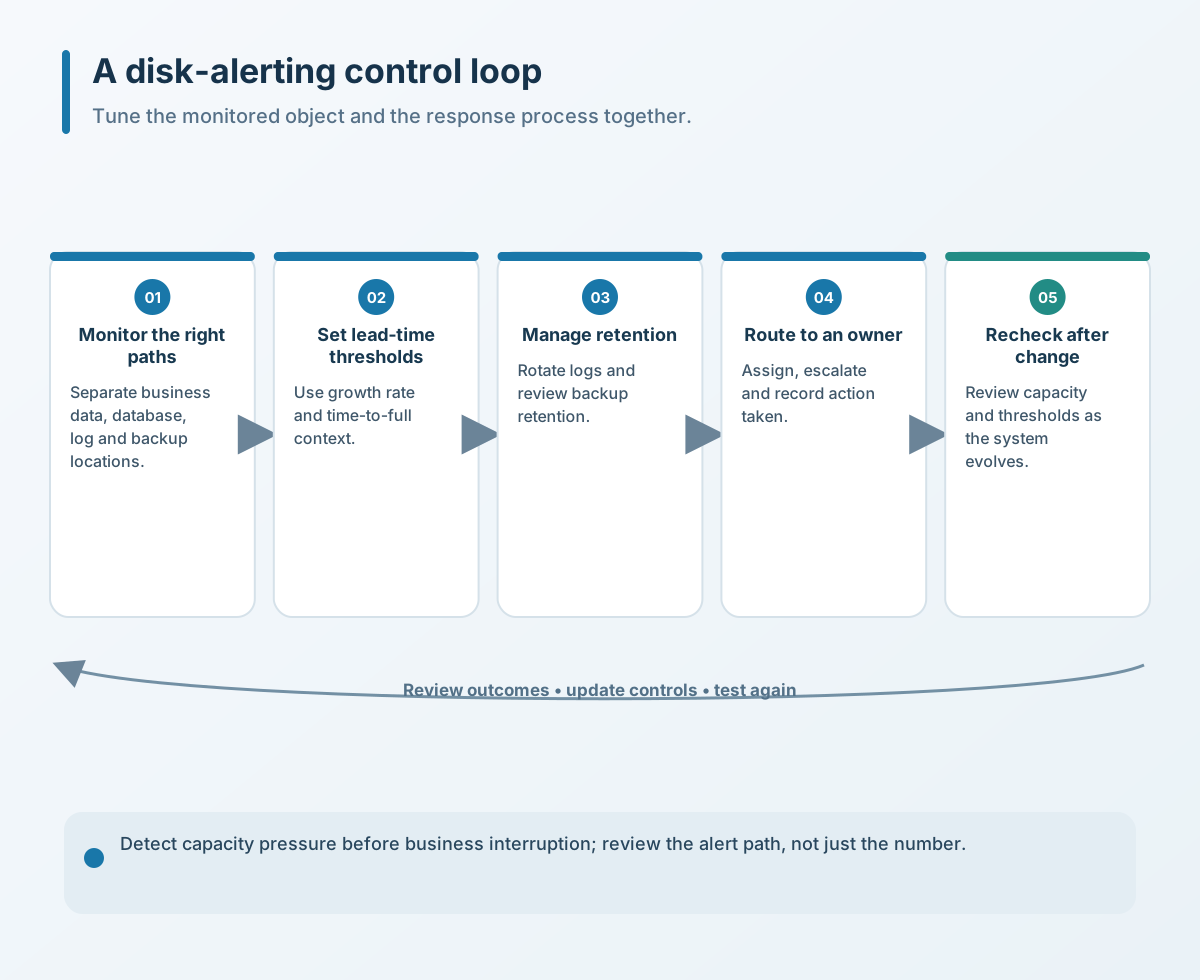
The server disk is almost full—why did monitoring not warn us earlier?
Many businesses have monitoring. Their servers report disk use, CPU and memory, and alert rules are configured. Yet when storage fills, a database can no longer write and operations stop. Often the problem is not that monitoring failed technically; the alert never worked as an operational control. Its threshold was too late, it watched the wrong object or nobody saw the notice. A running monitor does not guarantee an effective alert. Before a disk fills, monitoring needs to identify the right owner in time and leave enough time to respond.
A threshold set too close to full can make the alert too late
A common mistake is setting a disk alert at 95% or even 98%. The configuration may be valid, but at that point there may be only a few hours—or less—left. Logs can grow and a backup job can run overnight; the disk may fill before morning, turning the alert into an after-the-fact notice.
A disk alert is meant to provide time to act, not merely report that storage is full. Set the lead time against data growth and response time. For example, if a business volume grows by 2% a week, waiting until 95% may be too late; alert while the remaining space still covers a week or two and there is time to clean up or expand. Consider percentage used, absolute free space, growth rate and estimated time-to-full together. Microsoft's Windows Server guidance describes using a performance counter for a low-disk-space alert. The key is to set the value with business headroom, not use one number for every machine.
A more useful setup has two levels. A warning gives the administrator days to perhaps two weeks to plan expansion or cleanup; an emergency level leaves only hours and needs immediate action. The gap between them gives the alert practical value.
Watching only the root partition can miss the business data disk
Many servers monitor only the system volume, such as C: or the root partition. Business data may be elsewhere: a database on a separate volume, application logs in another directory and backups on independent storage. The system drive can have 40% free while the business data disk is already full and no alert fires.
This is common in virtualized environments. One physical server may host several virtual machines, each with its own system and data volumes. Monitoring only the host or default partition can miss the disk under pressure. The same applies to cloud servers with separate system and data disks.
Monitoring systems such as Zabbix support low-level discovery to detect file systems and create items and alerts for each one; when a file system disappears, related items can be removed. Monitoring disks separately is possible, but many businesses have not enabled it or still use only the default root-volume rule. Include database, log, backup and temporary-file directories as distinct monitoring targets.
Logs and temporary files can quietly consume the disk
Disks are often filled gradually rather than all at once. Application logs keep growing, database transaction logs are not cleaned up, uploaded temporary files remain, or backup copies accumulate. Each item may seem small; together they can consume the volume.
Usage monitoring can reveal the problem, but a stronger approach is to monitor log and temporary directories separately and define cleanup rules. Rotate logs by size or age and archive or remove them after retention; limit backups by version and count instead of accumulating them forever; and check temporary directories for leftovers. Do not let cleanup automation delete files without checking ownership, retention, backup, application locks, legal requirements and a recovery path. Separate monitoring also helps identify which directory is growing when an alert fires.
An alert nobody sees is no alert at all
Another common case is that the alert fired but went to a mailbox nobody checks, or was silenced as routine noise. The person on call may not know, the owner may not receive it, or an overnight alert may not be handed over. The business then finds out only after an outage.
An effective alert needs at least three things: it reaches a named owner rather than a shared mailbox; warning and emergency levels have different response times; and receipt, action and outcome are recorded. Close an alert only after recording the response and root cause, confirming free space and application health, and checking that monitoring works after remediation. Sending an email without confirming that someone responds does not close the alert loop.
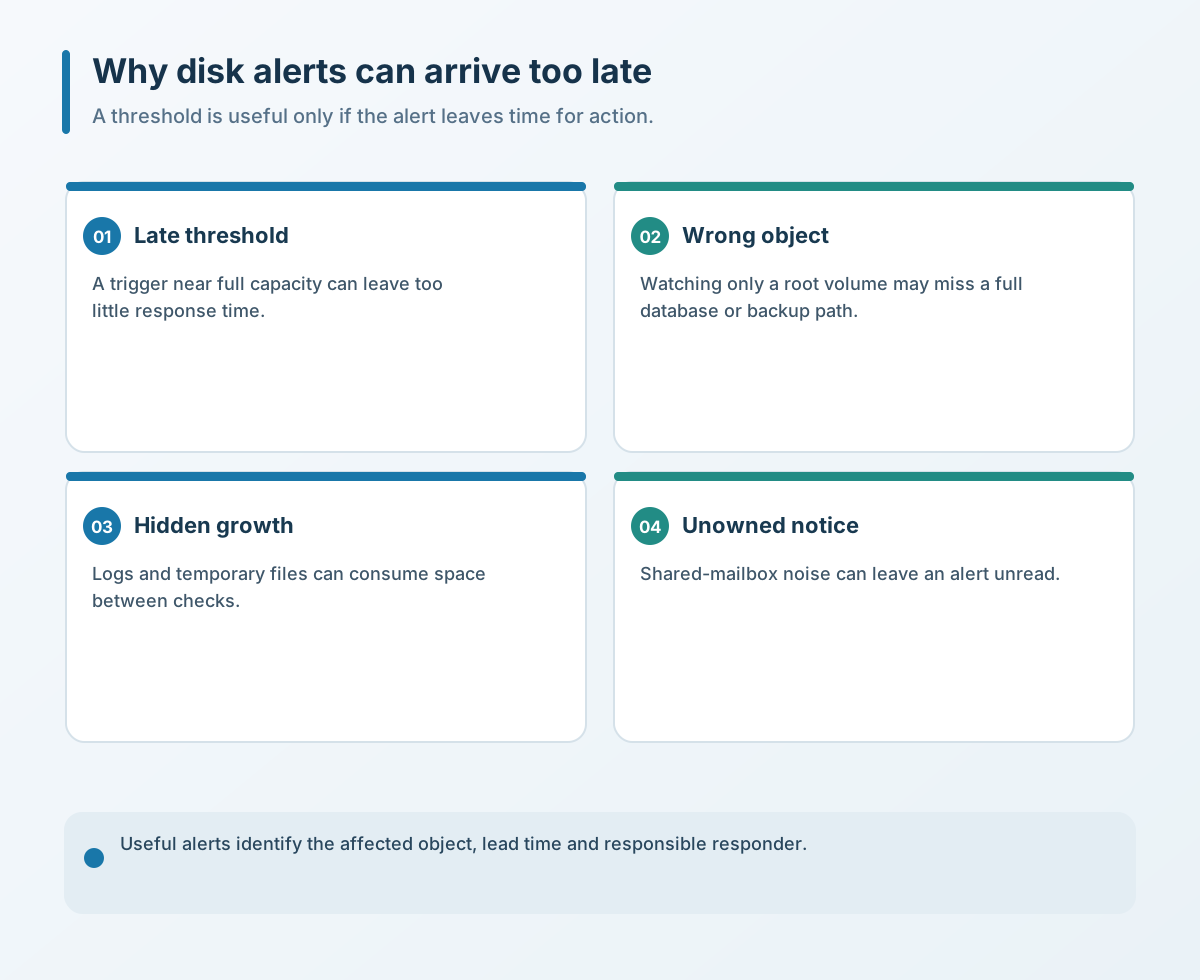
Four checks a business can make first
- Monitor separate business volumes and paths. Include the system, database, log and backup locations instead of watching only the root partition.
- Set thresholds from growth rates. Allow for weekly growth and the time needed to expand capacity; distinguish warning and emergency alerts.
- Define log and backup cleanup. Rotate logs, retain a set number of backup versions and periodically clear temporary files to reduce the chance of a full disk.
- Notify an owner and close the loop. Confirm the right person receives alerts, assign levels and keep action records. Do not treat “email sent” as “alert handled.”
Disk monitoring is valuable not because it adds another rule, but because it helps the business know and act before a volume fills. Complete the monitored objects, thresholds and response loop before chasing more complex metrics. A disk alert is a way to preserve response time, not a decoration for IT staff.
If you need to review servers, storage, monitoring or backups, contact Yuqi Intelligent to prioritize disk capacity, alert thresholds and backup checks.