
Windows Server file shares often produce three conflicting symptoms: a user can see a share but cannot open it, can open it but cannot edit it, or succeeds locally while failing over the network. The result comes from the combination of share permissions, NTFS permissions, inheritance and the user’s actual identity.
Start with the real access path
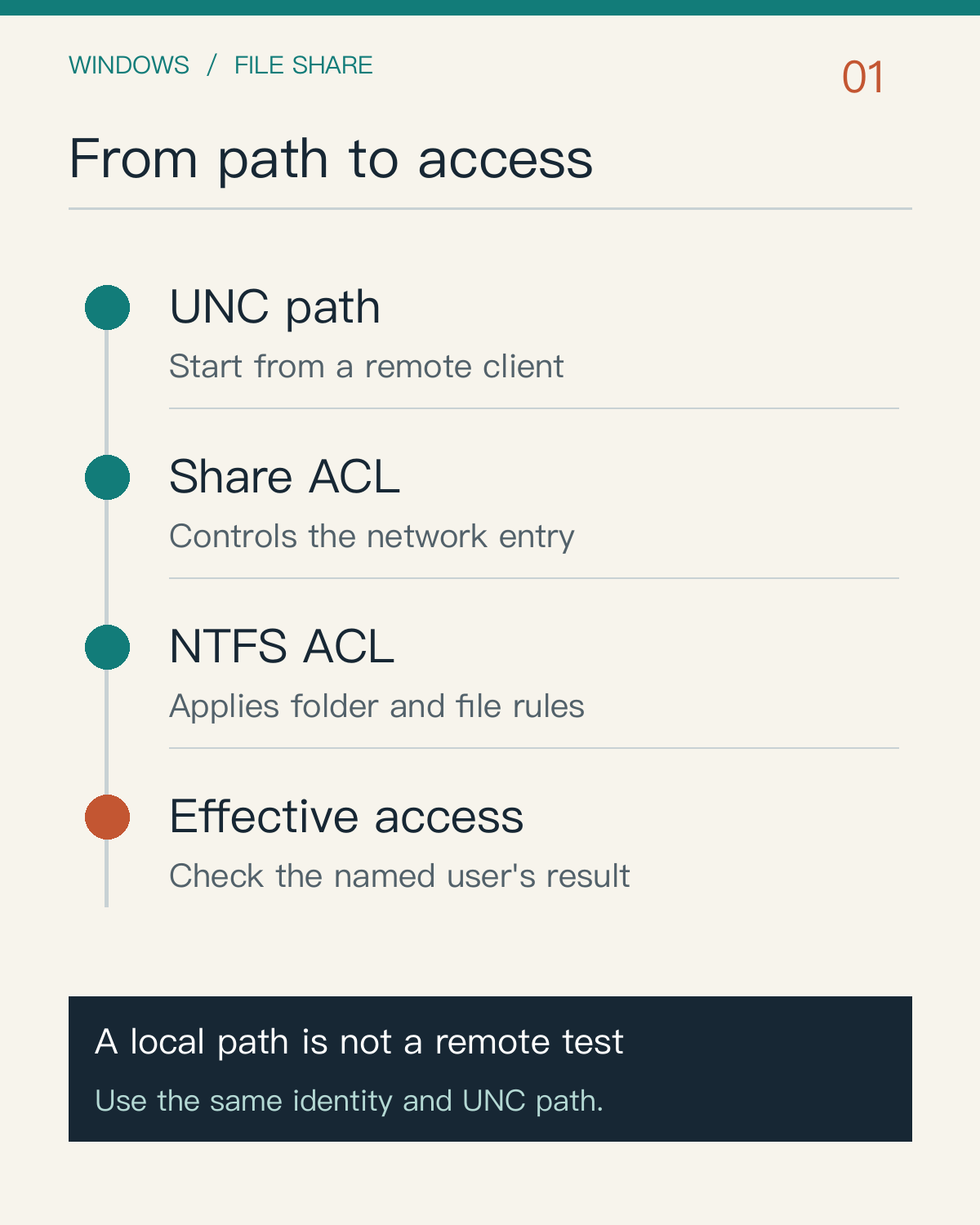
This article uses a UNC path such as \\FILE-SERVER\Finance. Opening D:\Finance locally checks NTFS behavior only and does not replace a remote share test. Microsoft’s effective-permissions guidance also requires a UNC share path when evaluating a remote resource.
Record the test account, domain groups, UNC path and target file before changing anything. If permissions are edited while testing, the final result cannot identify which change caused it.
Check share and NTFS permissions as two layers
Share permissions control the network entry point. NTFS ACLs control file and folder access on the volume. For remote access, the effective result is the more restrictive combination. For example, a share may allow Change while NTFS allows Read only; the remote user still cannot edit. The reverse combination is also restrictive.
Keep the share layer simple and place most read/write boundaries in NTFS groups, with exceptions documented. Do not grant Everyone Full Control simply to make troubleshooting faster; it hides group, inheritance and deny-entry problems.
Test three representative identities
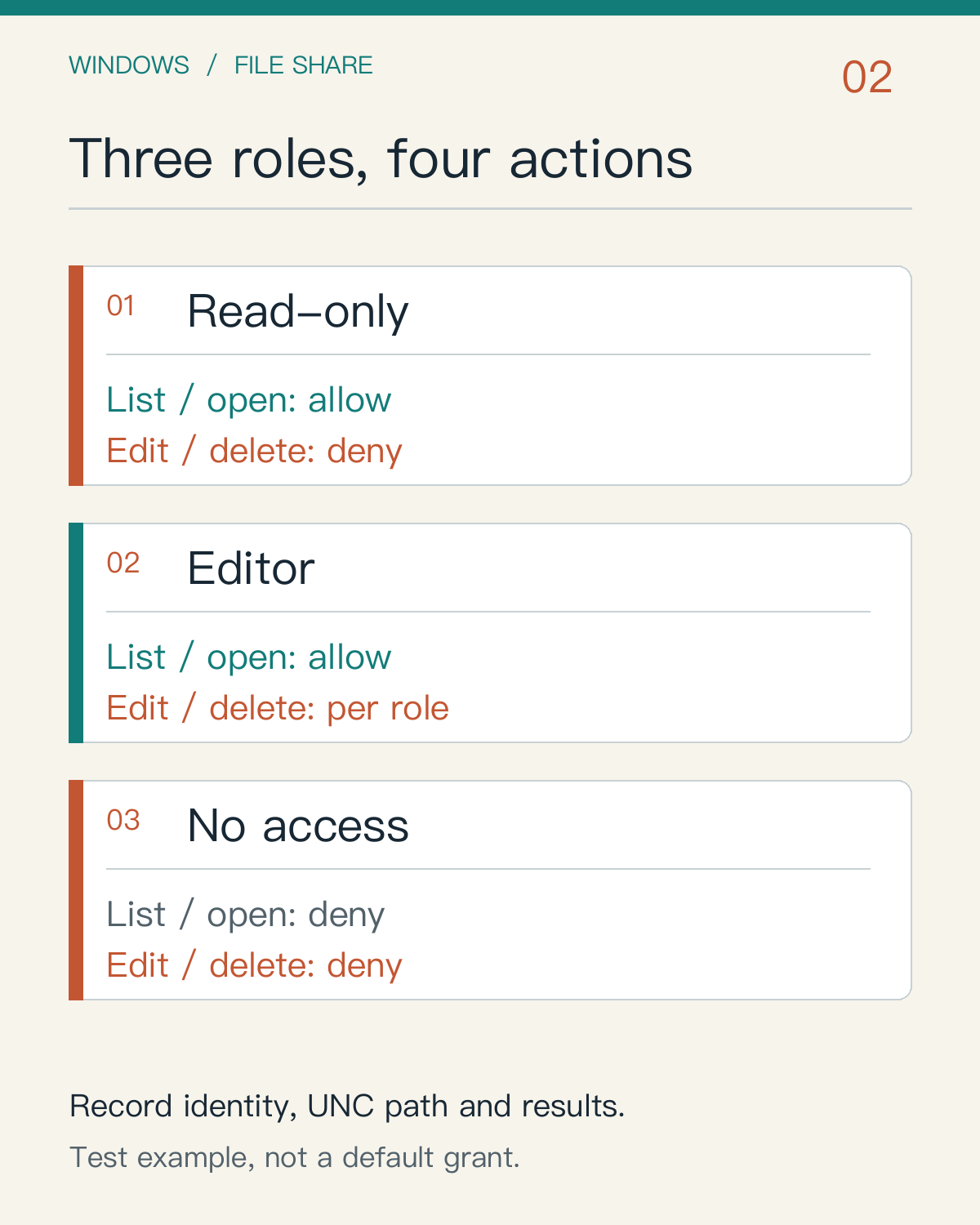
Prepare at least a read-only account, a business account that must edit, and an account that must be denied. For each, test listing the folder, opening a file, creating a temporary file, editing and deleting that temporary file, and entering a restricted subfolder.
Write the result as allowed, denied or reason, together with the account’s groups. An administrator-only test bypasses many real-user constraints and is not representative.
Recheck inheritance and effective access remotely
When a child folder has its own ACL, inheritance is disabled or an explicit deny exists, the permission displayed on the parent is not necessarily the final result. Check Advanced Security Settings for inheritance source, directly assigned entries and group membership, then use Effective Access for the specific account.
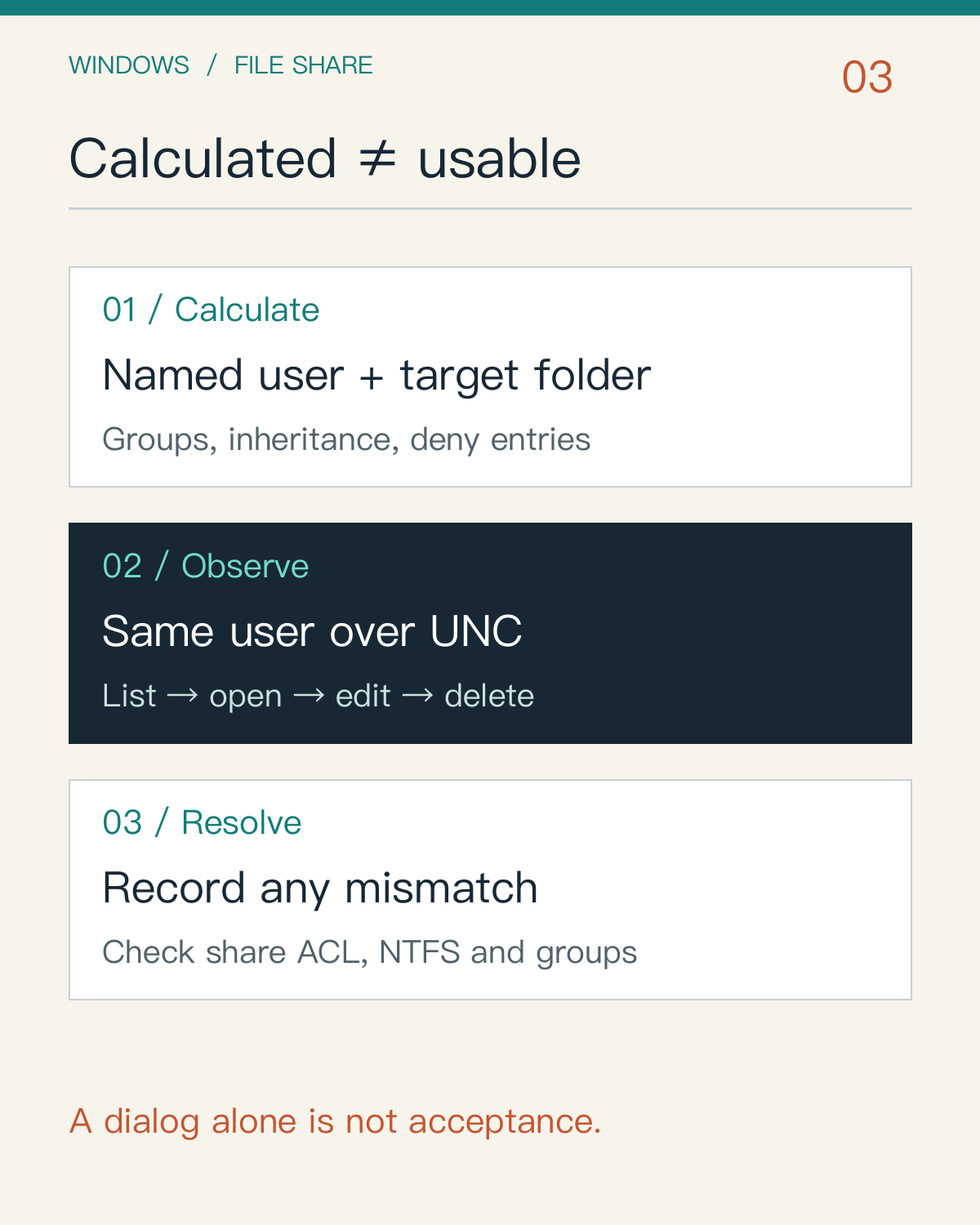
The third technical diagram separates calculated access from an observed remote test. Confirm the account and its groups, the exact target and inherited entries, then inspect Effective Access for that account. Finally use the same identity over the UNC path to test listing, opening, creating, editing and deleting a temporary file. Record any mismatch before checking the share ACL, group membership and deny entries; a properties dialog alone is not acceptance evidence.
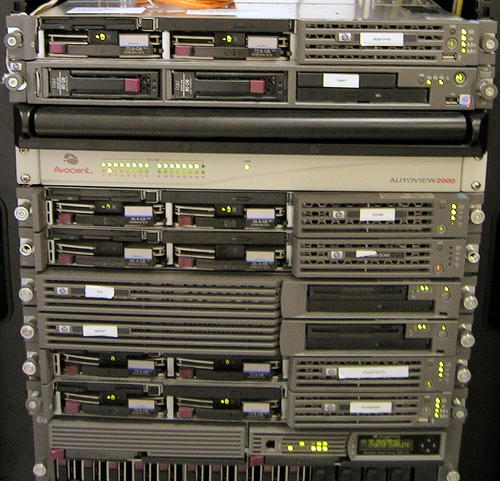
The photo shows a server rack, not a Yuqi customer site or a test performed for this article. It is sourced from Wikimedia Commons under CC BY-SA 2.5; the author and license link are in the source record. It does not prove that any permission configuration is correct. The evidence is the small test matrix performed through the UNC path.

Keep a record that can be reused
Record the date, server, share, target path, test accounts and groups, share permissions, NTFS permissions, inheritance state, Effective Access result, observed actions and the retest after repair. If a change affects a production share, export or capture the current ACL and schedule a rollback window first.
Yuqi can review an existing Windows Server, Active Directory and shared-folder environment, then document groups, share and NTFS permissions, inheritance boundaries and acceptance evidence. The scope depends on the environment and agreed business boundary. See the File Sharing and Active Directory solution for the service entry.
This article is based on public Microsoft Learn documentation. It is not a Yuqi customer-site measurement or a substitute for production change approval. The server photo is from Wikimedia Commons; source and license details are recorded with this content package.