
Keep the multifunction printer's job error code and failure time before changing settings. Then separate three possible failures: it cannot locate the destination, it cannot authenticate, or it authenticates but cannot create a file. In this workflow the printer is the SMB client and the Windows share host is the server. A PC opening the share does not prove that the printer can scan to it. Do not make guest access, SMB1 or disabled signing the first workaround.
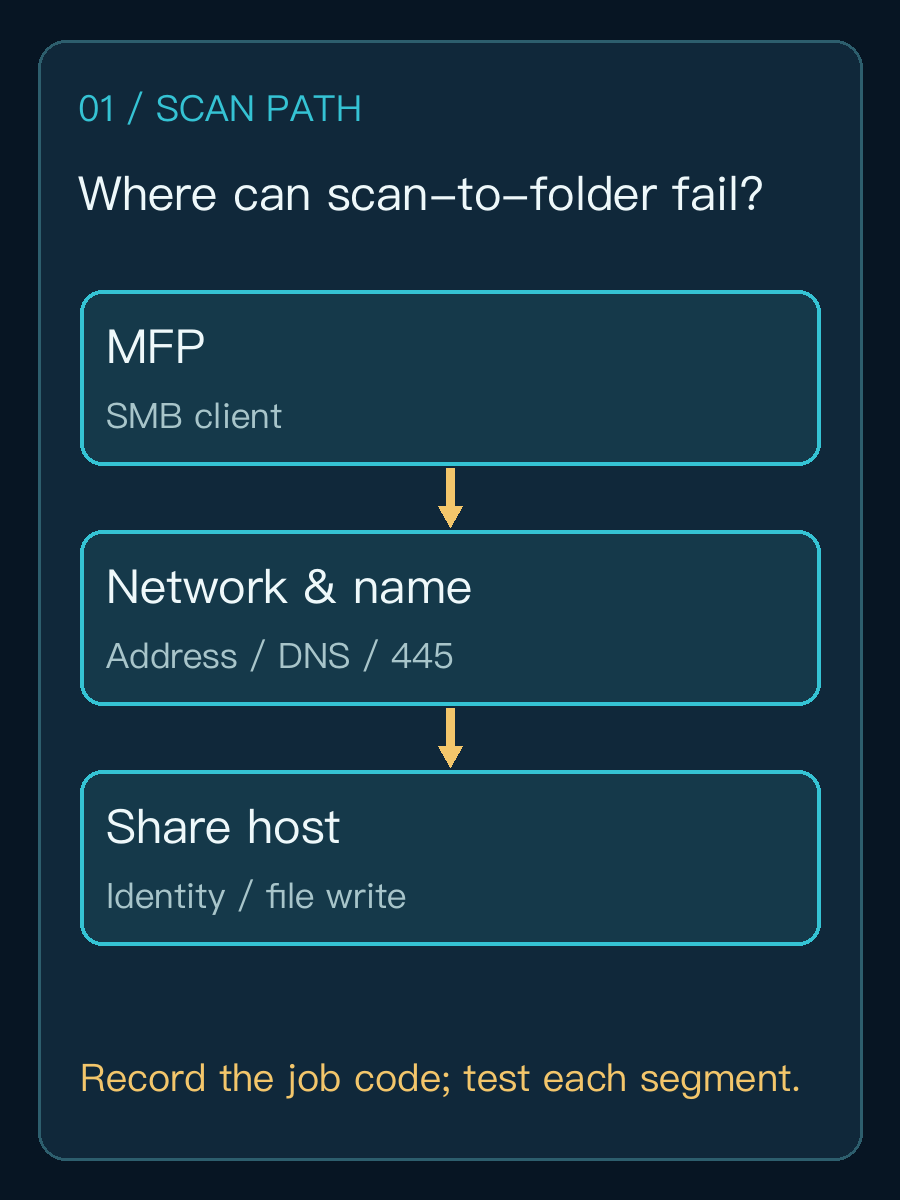
Check the path first, or reset the account?
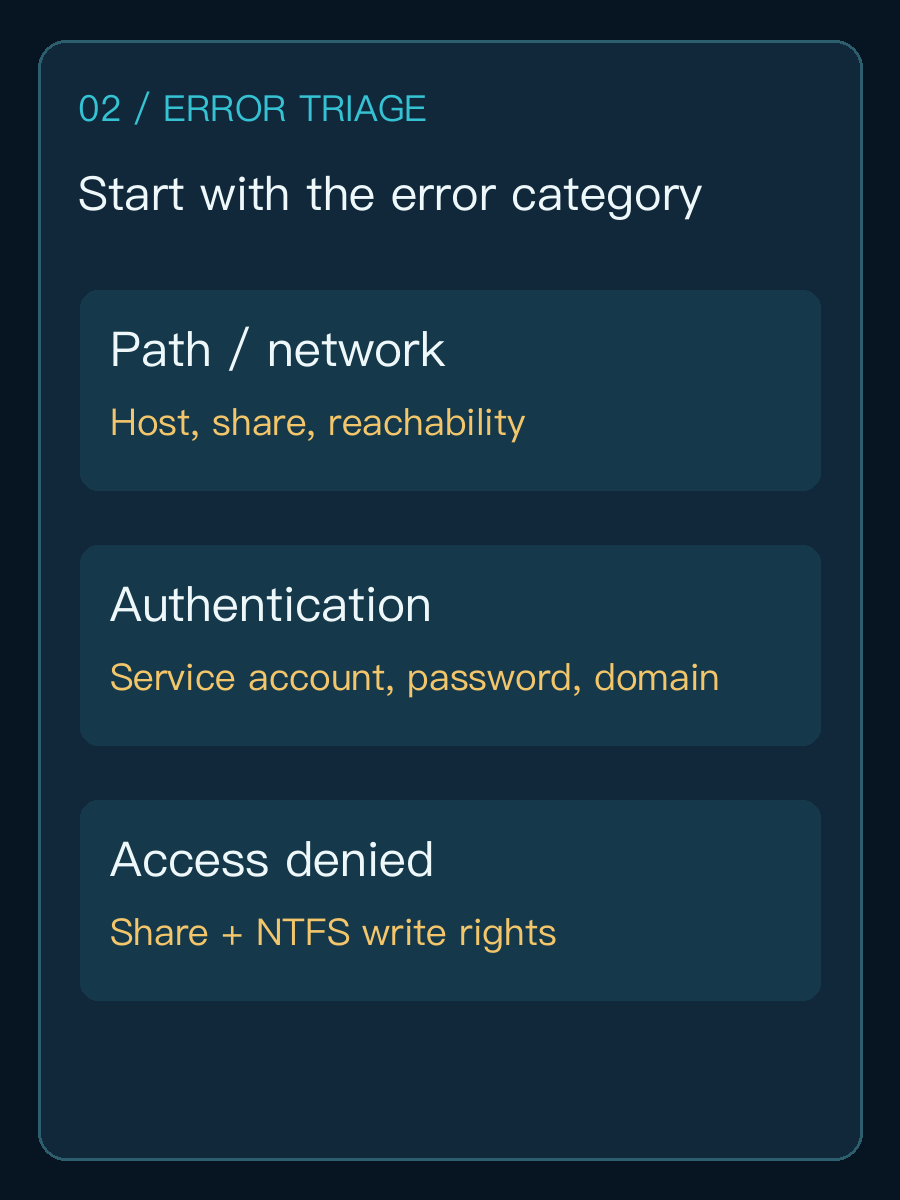
Follow the device job record. Epson's scan-to-network-folder guidance distinguishes path/communication, DNS and authentication errors. The labels help choose a starting point, although messages and codes differ by vendor.
- Server not found or communication error: Check device networking, host, share name and TCP 445 reachability. A working PC connection does not prove the printer path.
- DNS or name error: Check the device's DNS, host resolution and address-book destination. An IP address is a diagnostic test, not automatically a suitable domain configuration.
- Authentication failure: Check the dedicated scan account, account format, password rotation and lockout; do not widen share permissions first.
- Access denied or no file after a completed job: Check share and file-system write rights, subfolder, free space and the device log. Read access is not file creation.
Record the device model and firmware, destination host and share, and the precise job code. Test the host name and service reachability from a controlled endpoint on the same network segment; that is supporting evidence only. The final test must originate on the printer. Verify that the device address book uses the actual network share name rather than a server's local disk path.
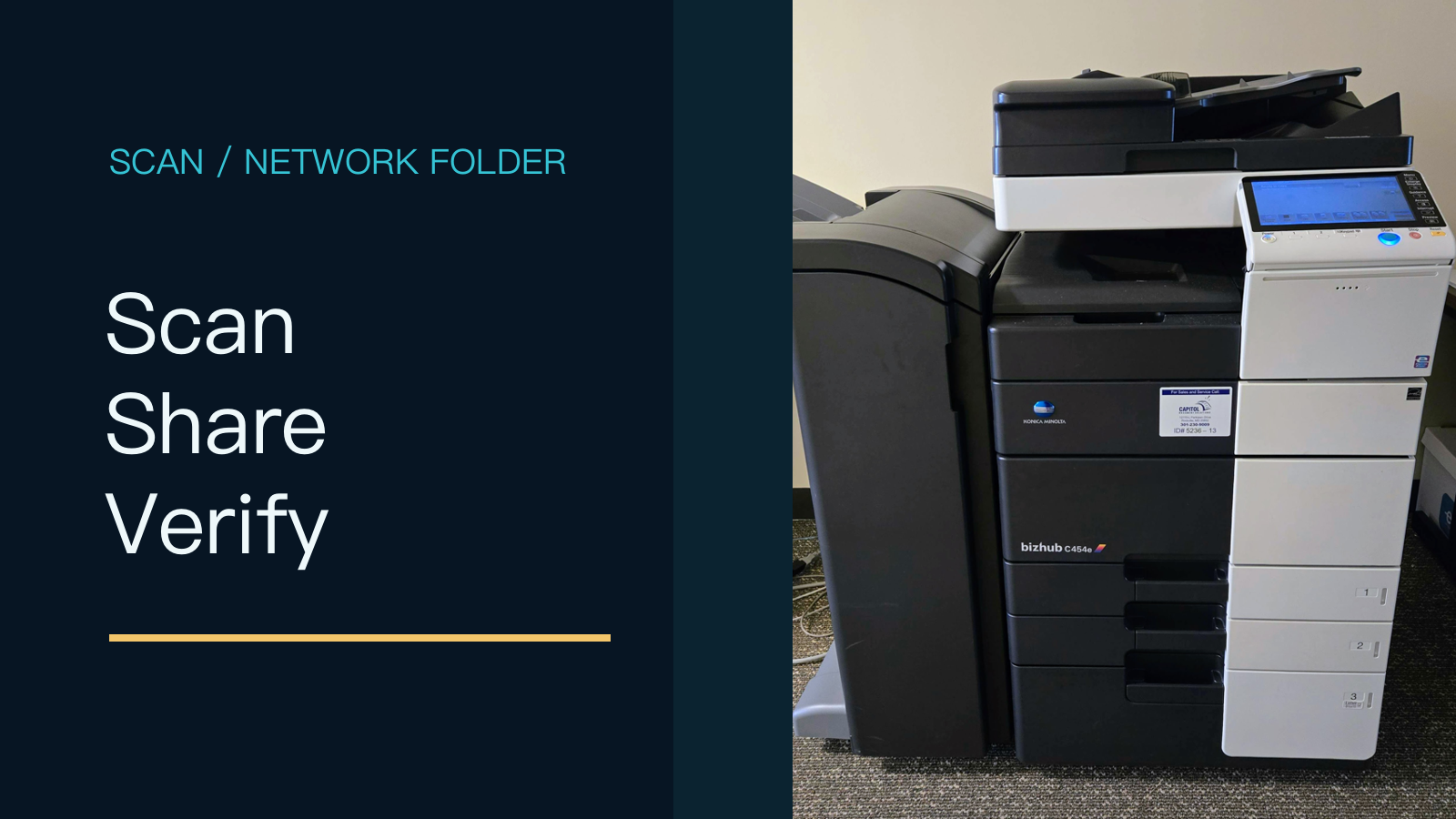
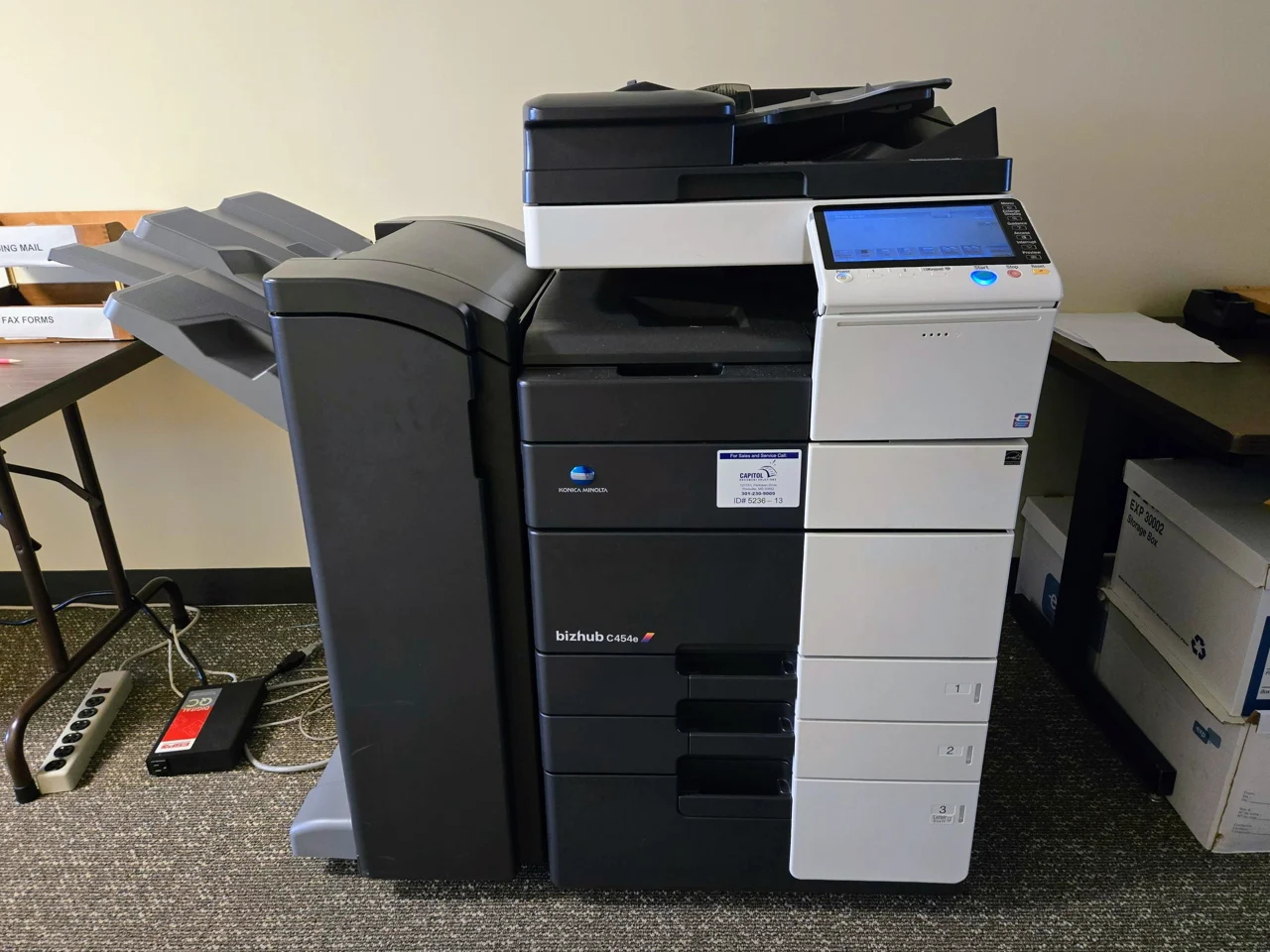
The real office multifunction printer photo illustrates the device from which a scan job starts. It does not show this fault and is not a Yuqi customer site. Photo: Baron Maddock, CC BY 4.0; this display copy was resized and stripped of photo metadata.

The account logs in. Why is there still no scan file?
Use an auditable, dedicated scan account with access limited to the destination. Confirm its account format and password rotation, then check both the share permission and the file-system permission. The same account needs the ability to create a file in the target directory. A writable share with a read-only NTFS ACL can still reject the scan. Confirm the resulting file name, size and time in the target folder rather than trusting a device message alone.
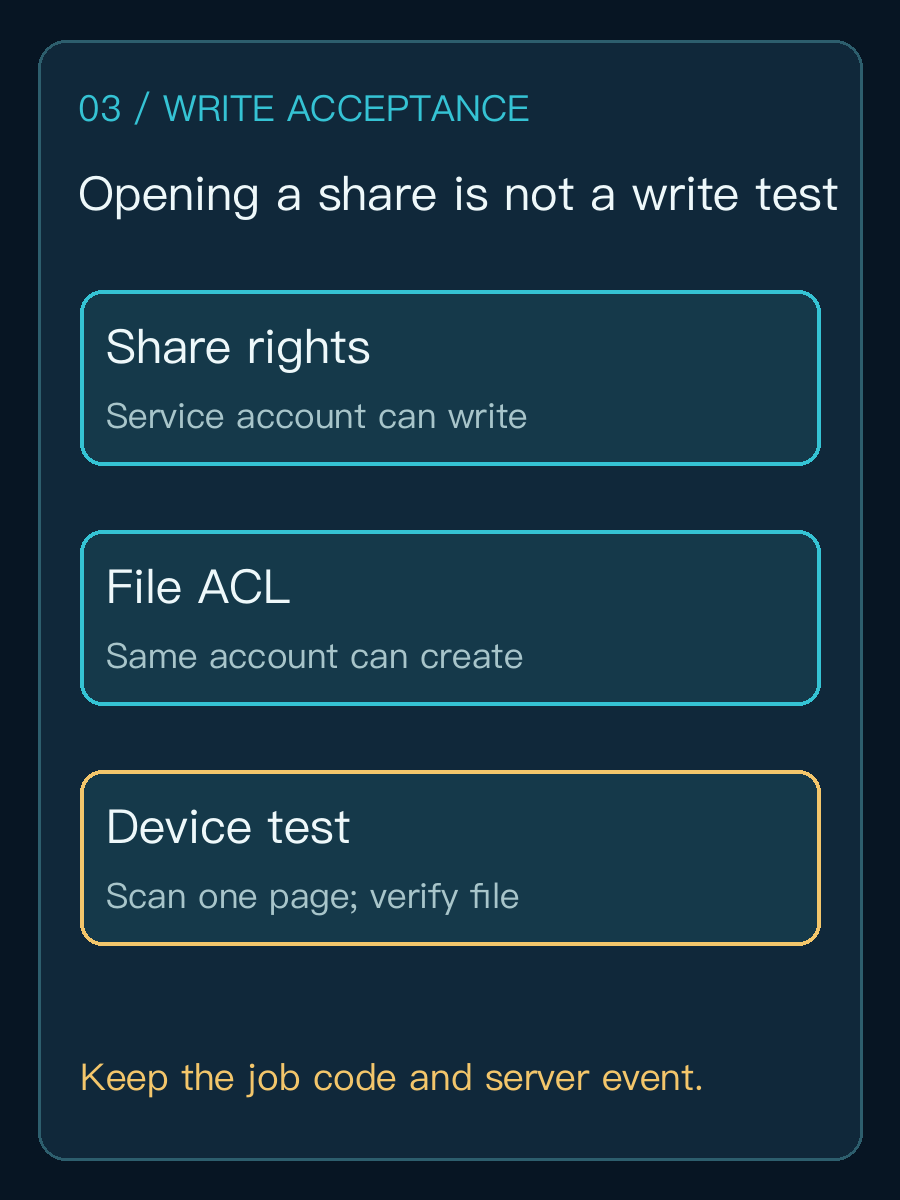
For example, suppose the printer address book targets \\filesrv01\ScanInbox under a dedicated scan_svc account. Confirm that this account can create a file in ScanInbox; then scan a one-page test sheet containing no customer information and compare the file with the device job time. These values are an illustrative example, not a Yuqi customer configuration or a local field test. If the scan appears in the wrong subfolder, fix the device address book instead of broadening root-folder access.
Could a Windows update make SMB signing the cause?
It can expose a device compatibility issue, but use logs to establish the cause. Microsoft's SMB signing documentation states that Windows 11 24H2 Pro, Enterprise and Education require inbound and outbound signing by default, while Home differs. An older MFP that cannot negotiate the required settings may fail. Confirm that with the server event, printer job code and the manufacturer's firmware documentation; not every “login error” is caused by an update.
First check the printer's supported SMB dialect and signing features, available firmware, and whether a managed file server is a better target. Microsoft advises against routinely disabling signing to accommodate a third-party device. Epson suggests an IP address to isolate a specific DNS error, but that is not a universal permanent fix in a domain relying on Kerberos and host names.
What constitutes a useful acceptance record?
Keep the device model and firmware, target host and share, scan account name without its password, error code, time, each single configuration change, server event, test-file name and outcome. Save the original settings and a rollback plan before changing authentication or permissions. A successful test proves this path worked at that time; it does not certify every user, destination or future firmware version.
Our Windows file-share permission acceptance guide covers permissions for human and system users. This article focuses on the MFP as an SMB client, its job errors and the device-side scan test. When several devices fail or domain identity and firmware are involved, collect “device job code — server event — folder write result” before assessing whether Yuqi's managed IT and infrastructure service fits the diagnostic scope.
FAQ
Why can a PC open the share when the printer cannot?
They are different SMB clients and may have different network settings, credentials and protocol capabilities. A PC test narrows the server-side possibilities; the printer's job code and a scan from the printer remain necessary.
Should I grant Everyone full control to fix the scan?
That expands access and may still fail because of the file-system ACL. Give a dedicated account the minimum required share and folder rights and verify with a test file.
Should I enable SMB1 or turn off SMB signing?
Do not treat weaker security settings as the default repair. Check device firmware, supported SMB capabilities and server events first, then evaluate a firmware, device or managed-target upgrade.